Operation40
English
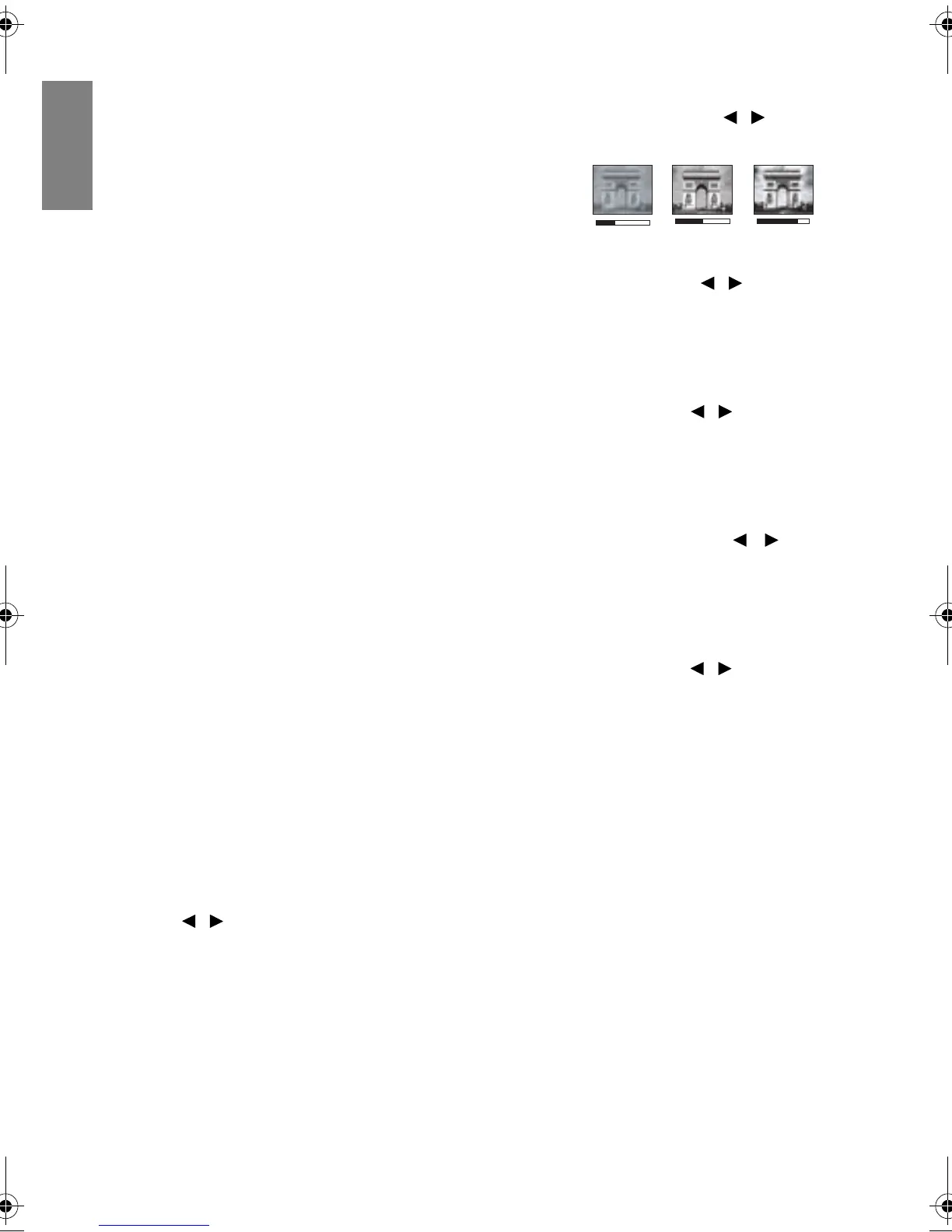
Adjusting Contrast
Highlight Contrast in the PICTURE menu and adjust the values by pressing / on the
projector or remote control.
The higher the value, the greater the contrast. Use this
to set t
he peak white level after you have previously
adjusted the Brightness setting to suit your selected
input and viewing environment.
Adjusting Color
Highlight Color in the PICTURE menu and adjust the values by pressing / on the
projector or remote control.
Lower setting produces less saturated colors. If the setting is too high, colors on the image
will
be overpowering, which makes the image unrealistic.
Adjusting Tint
Highlight Tint in the PICTURE menu and adjust the values by pressing / on the
projector or remote control.
The higher the value, the more reddish the picture becomes. The lower the value, the more
greeni
sh the picture becomes.
Adjusting Sharpness
Highlight Sharpness in the PICTURE menu and adjust the values by pressing / on
the projector or remote control.
The higher the value, the sharper the picture becomes. The lower the value, the softer the
pict
ure becomes.
Adjusting Brilliant Color
Highlight Brilliant Color in the PICTURE menu and select by pressing / on the
projector or remote control.
This feature utilizes a new color-processing algorithm and system level enhancements to
enable
higher brightness while providing truer, more vibrant colors in picture. It enables a
greater than 50% brightness increase in mid-tone images, which are common in video and
natural scenes, so the projector reproduces images in realistic and true colors. If you prefer
images with that quality, select On. If you don’t need it, select Off.
On is th
e default and recommended selection for this projector. When Off is
selected, the
Color Temperature function is not available.
Selecting a Color Temperature
Highlight Color Temperature in the PICTURE menu and adjust the values by pressing
/ on the projector or remote control.
The options available for color temperature* settings vary according to the signal type
sele
cted.
1. Cooler: Wi
th the highest color temperature, Cooler makes the image appear the most
bluish white than other settings.
2. Cool: Ma
kes images appear bluish white.
3. Normal: Ma
intains normal colorings for white.
4. War m: Ma
kes images appear reddish white.
5. War me r: W
ith the lowest color temperature, War mer makes the image appear the
most reddish white than other settings.
0
+30
-
BenQ W703D.book Page 40 Friday, November 25, 2011 9:49 AM



 To Next Page