52
Firmware update will not change the user's configuration.
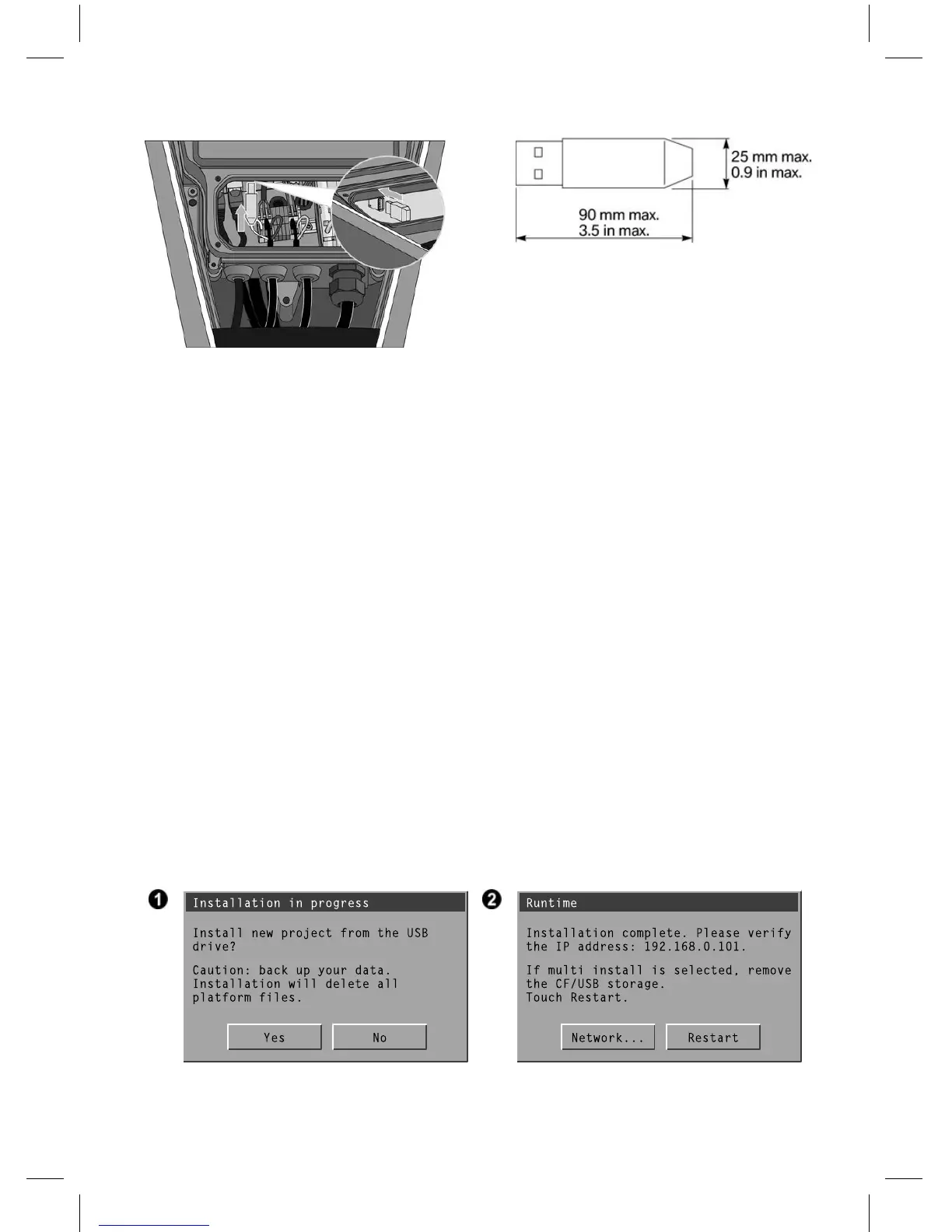
Wallbox Pro electrical compartment view
1. Go to http://www.bmwgroup.com/360electric/pro.html
2. Download the firmware files and copy all files to the root directory of your USB flash drive
3. Navigate to the update screen and note the user interface and Wallbox Pro controller software
versions
4. Switch off the Wallbox Pro power supply (Q2)
5. Open the Wallbox Pro as described in this manual
6. Plug in the USB flash drive
7. Reattach the cover to close the Wallbox Pro electrical compartment
8. Switch on the Wallbox Pro power supply (Q2)
9. Press „YES“ (1) to update the user interface
10. Wait for the automatic reboot, press “RESTART” (2) and then press “NO” (1)
11. Navigate to the update screen
12. Update the Wallbox Pro controller software
13. Navigate to the update screen and check to ensure that the user interface and Wallbox Pro
controller software versions are the desired ones
14. Switch off the Wallbox Pro power supply (Q2)
15. Open the electrical compartment
16. Unplug USB flash drive
17. Close the Wallbox Pro as described in this manual
18. Switch on the Wallbox Pro power supply (Q2)
19. If necessary, reset the date and time


 To Next Page