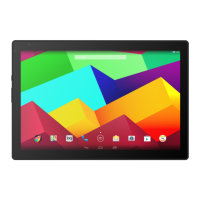
Customising the Home Screen
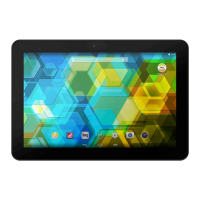
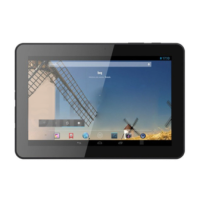
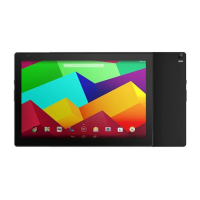
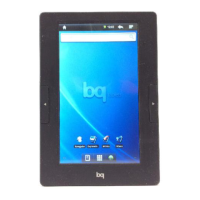
You can customise your tablet’s Home screen and Extended screens by using your
own images as wallpaper, adding icons, widgets and shortcuts to your favourite apps,
etc.
To change the wallpaper or add a widget, press briey on the background image of the
Home screen or any of the Extended screens. A pop-up window will appear enabling
you to choose between Wallpapers, Widgets or Settings.
If you click on the Wallpapers option, you can select your desired image and then
press Set wallpaper to conrm your choice. If you have selected a large image, you
will need to crop it accordingly.
Moving and Deleting Icons on the Home Screen
To move an element on the Home screen, press down to detach it from the
background, then drag it to the desired position and release. You can also move
icons from one extended screen to another by dragging them to the edge.
To delete an icon, drag it to the top of the screen until an X and the word “Remove”
appear. When the icon turns red, release it to delete.
Creating App Folders
To create a folder, drag one icon on top of another that you want to store in the same
folder. A folder will automatically be created and the icons placed inside it. You can
add more icons to the folder by simply dragging them into it. To name a folder (or
rename an existing one), press briey on it and then on the “Unnamed folder” option.
You can remove icons from the folder by opening it and dragging them out.
Home Screen


 To Next Page