Taking Screenshots
You can take a screenshot at any time by simply pressing and holding the lower
volume button and the On/Off button down simultaneously. The screenshot will
be automatically saved in the Gallery, in the Screenshot folder. If you are accessing
the tablet via your computer, go to Pictures > Screenshots.
Making Screen Recordings
Making a screen recording is very similar to taking a screenshot. Press the upper
volume button and the On/Off button at the same time in order to start recording,
and press them again to stop. The video will be saved in the same folder as the
screenshots.
Learning to Use the Multi-Touch Screen
Your tablet has a capacitive multi-touch screen with ve simultaneous detection
points. Different movements can be made over these points which are linked to
different functions:
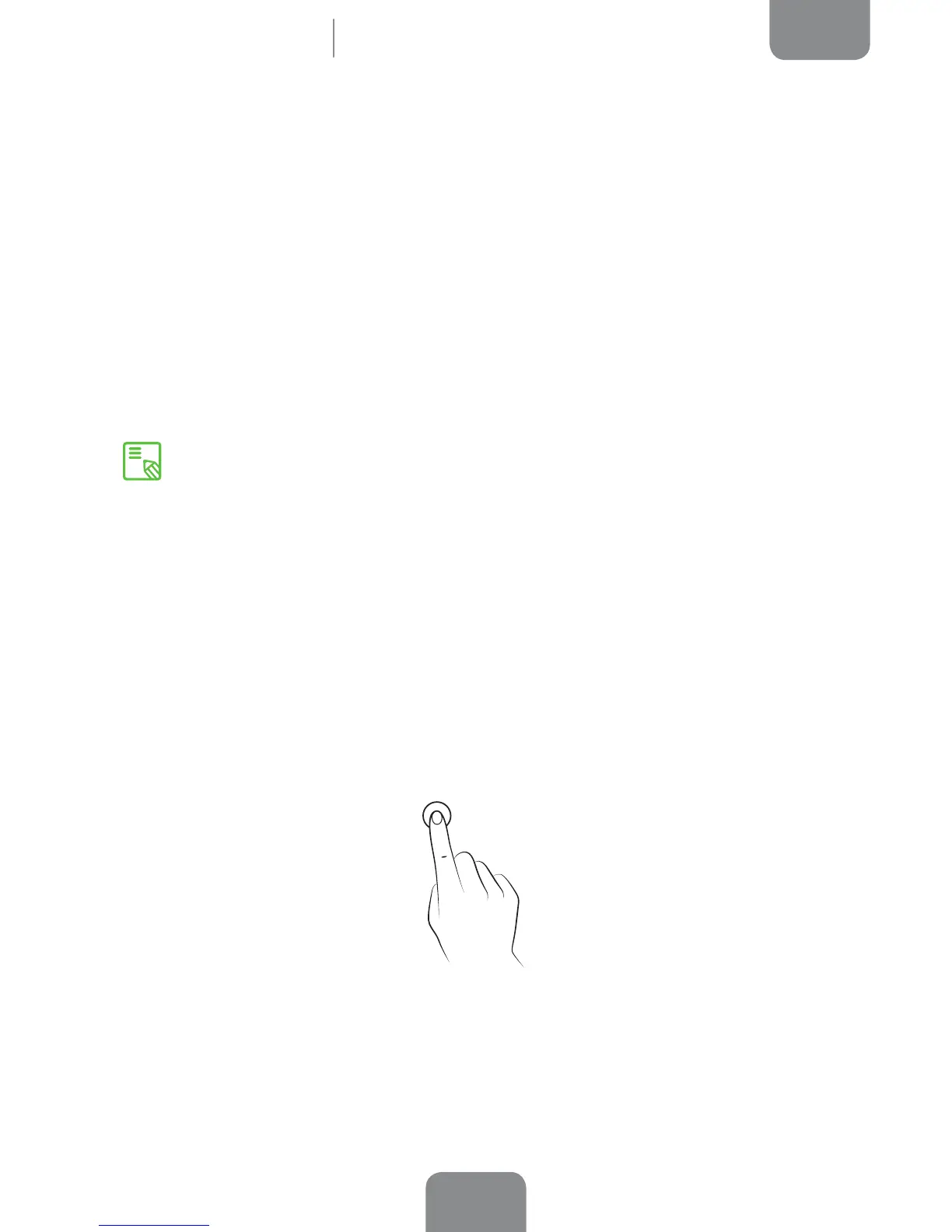
Touch. Touch the screen briey to select an icon, open an app, activate a text-entry
box, etc.
You can also take screenshots and make screen recordings by pulling down the
Notications bar with two ngers and selecting the corresponding option from
the pull-down menu.
Home Screen


 To Next Page