MULTIMEDIA
Camera
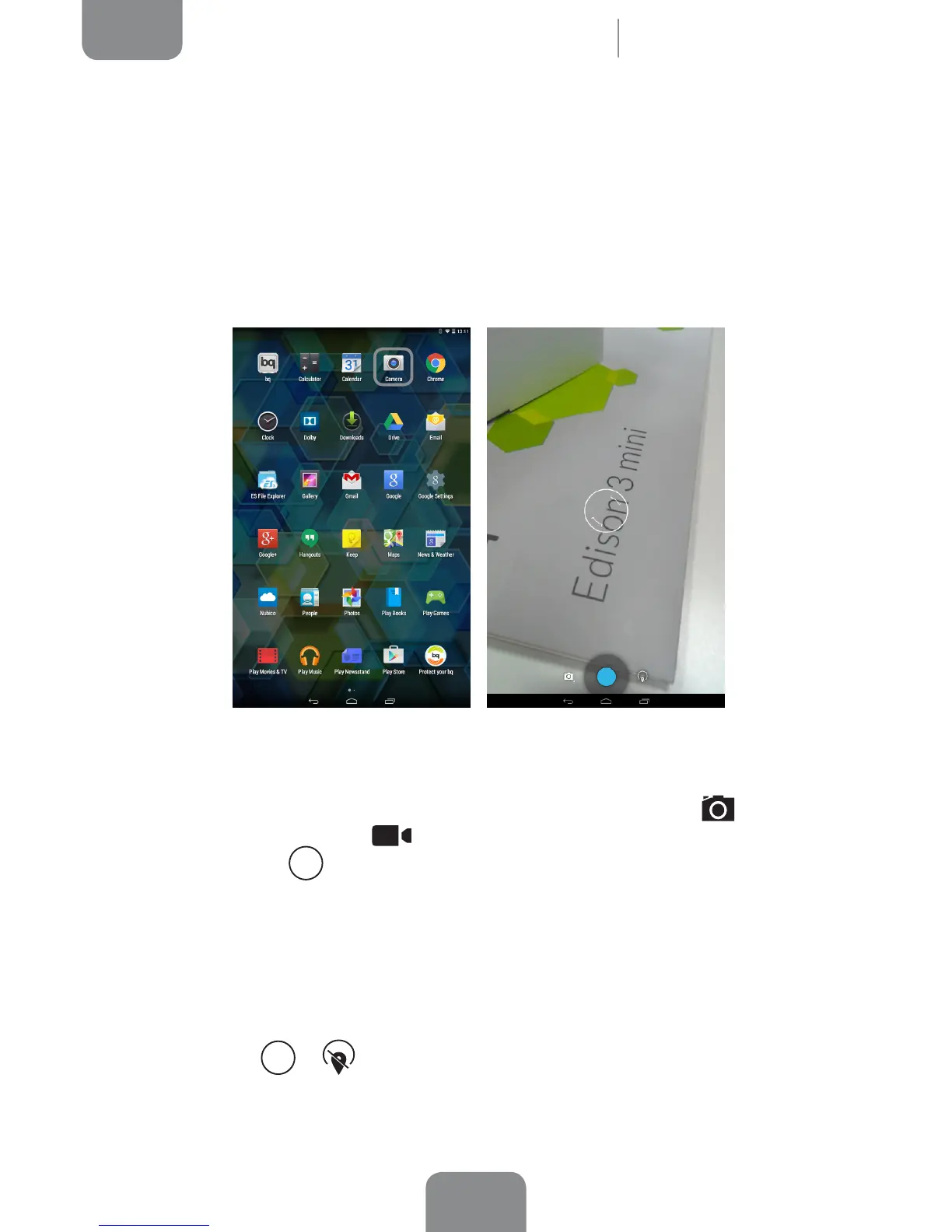
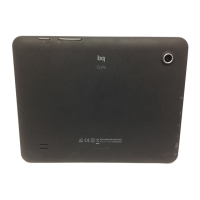
Your tablet has a front and a rear camera. To activate them, go to Menu > Camera
or directly access the camera from the home screen. Both cameras capture images
and videos with different resolutions, with those of the rear camera being higher.
The rear camera also has autofocus and ash.
On opening the application, a window will appear offering the option to tag the
location of the photos and videos.
To select between image or video capture, press the camera icon
and select
the camera or the video icon . The change the settings of the camera enabled,
press the rst icon . The shutter is the blue circle, which turns red for the video
camera.
Photo and Video Settings
To use the zoom function while taking photos or recording video, use the “pinch”
gesture on the screen before pressing the shutter button or commencing recording.
By pressing the
or icon, you will access the general settings and an icon to
enable the front or rear camera:
Multimedia


 To Next Page