19
For Windows 11: Connect the display via USB to the PC. Windows should identify the device
and automatically install a driver. This process can take up to one minute. If there are any
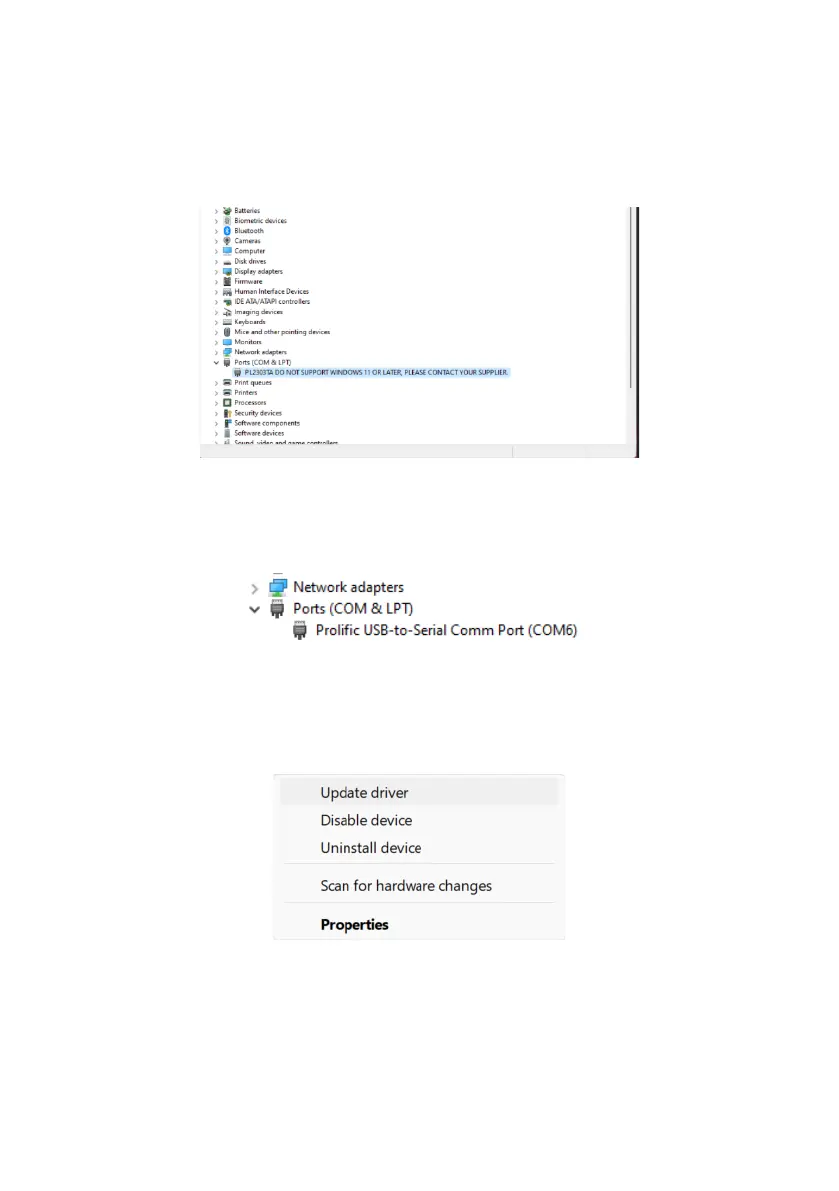
problems with the driver installation, go to Device Manager to check the exact problem.
Device Manager may report the following:
If so, right-click the device, select Uninstall, and check the box to remove the software driver
from the computer.
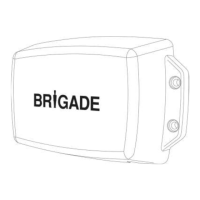
The computer may then automatically use the (correct) Win 7 driver. If so, it should report:
Note: The COM port number displayed may be different to the example shown above.
If you see the above, then it is ready to use.
If it does not work, then disconnect the USB lead and re-connect.
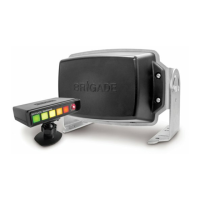
If you still get the original error, right click the device, and select Update Driver:
Select “Browse my computer for drivers”, then manually locate the “RadarDriverWin7_11”
folder inside the BS-8100 Configuration Tool folder added by the installation process in section
4.2.1.
For example:
C:\Program Files (x86)\Brigade\BS-8100 Configuration Tool\RadarDriverWin7_11\


 To Next Page