20
Click “Next” and follow the installation instructions. This should install the correct driver for
Windows 11.
4.3 Using the Configuration Tool Software
Connect the display to the PC using the provided USB cable to the USB connector located on
the display.
Note: Before connection is made ensure the Brigade Backsense
®
system is powered and
activated – the Status Light on the display should be consistently lit green.
4.3.1 Identifying COM Port Number
To check the COM port number you are using for the connected Brigade Backsense
®
on the
PC you will need to open Windows “Device Manager”.
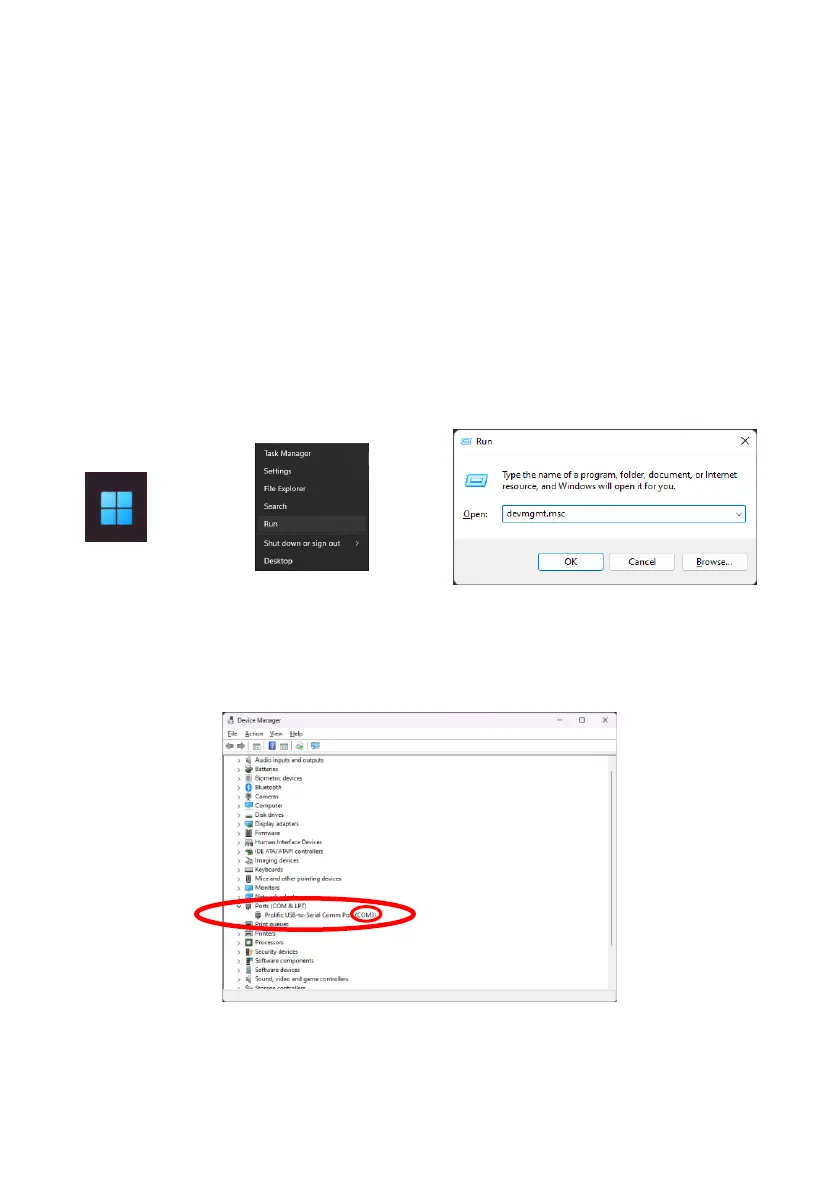
Right-click the Windows Start button (typically on the bottom left on the screen) and select
“Run…” or use the keyboard shortcut ‘Windows Key + R’. In the “Run” dialogue box, type
‘devmgmt.msc’ and click “OK”; this will open the Device Manager.
In the Device Manager window click “Ports (COM & LPT)” and check “Prolific USB-to-Serial
Com Port (COM##)”. The “##” represents the number of the port through which the display is
currently connected to the PC. Note down this number as it is needed later in Section 4.3.4
“Connecting to the Brigade Backsense
®
System“. In the image below the number is shown as
“3” but this can vary.


 To Next Page