21
4.3.2 User Interface Overview
The Configuration Tool provides multiple sub-windows. The sub-windows are used either to
view or to set up the configuration. A typical application is outlined below.
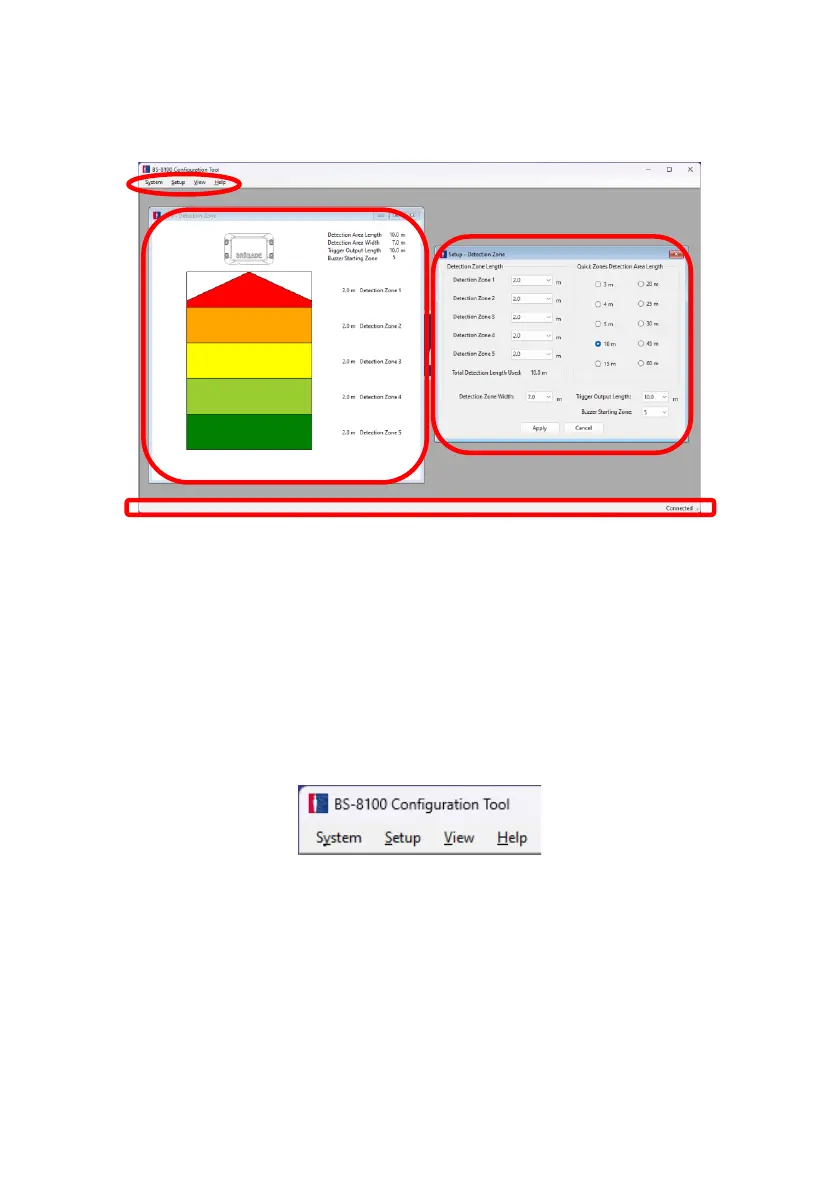
The menu area marked “A” opens different windows to either view, change or activate the
corresponding function.
For the detection area definition there is one view sub-window (see above marked with “B”),
showing the graphical representation of the detection area and one setup sub-window (see
above marked with “C”) to enter the values. For the blind zone function, there is also one for
view and one for setup (not shown above). Most of the key configurations are repeated in the
view windows. More details are provided in the following sections.
The status bar marked with “D” shows the system status information including the connection
state.
4.3.3 Main Menu
The Main menu includes four options for “System”, “Setup”, “View”, and “Help”.
System provides options to control the connection between the Configuration Tool and
Brigade Backsense
®
System for reading and writing the configuration to and from the system,
loading and saving the configuration data from/to a file, or exiting the program.
Setup opens the setup windows for the Detection Zones and Blind Zones.
View opens the Detection Zone, Blind Zone, and Combined Zone view windows.
Help provides version information for the Configuration Tool under the “About” option.
4.3.4 Connecting to the Brigade Backsense
®
System
Connect the display to the PC with the USB cable provided in the Brigade Backsense
®
System
BS-8100.


 To Next Page