32
4.3.11.2 Blind Area View and Setup
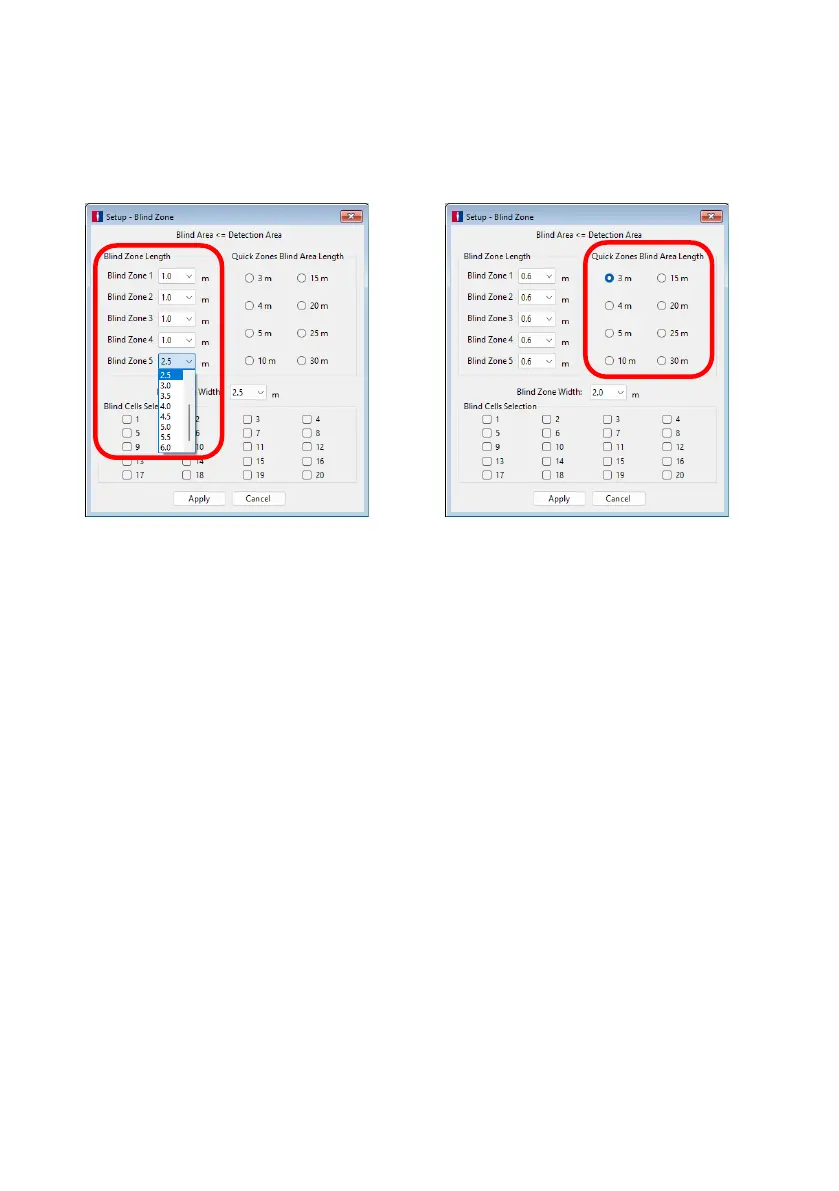
The Blind Zones can vary in length if manual configuration is required (see below on the left).
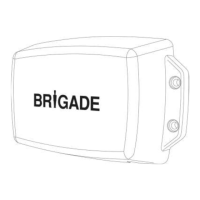
If the “Quick Zones Blind Length” option is used, then all zones will be equally split over the full
Blind Zone Length (see below on the right).
The Blind Zone Width can be set via the pull-down menu.
4.3.11.3 Selecting Blind Zone Cells
Once the Blind Zone Area has been decided, up to 10 cells can be selected individually to
remove the area from the detection zone. Any object in the selected blind cells will now be
ignored if detected.
Each cell is selected in the setup window using the tick boxes shown. The tick boxes directly
correspond to the cells shown in the Blind Zone view window. Once selected, click “Apply” and
the cell text will turn red in colour, indicating the area has been selected, see images on the
next page. To remove a selected cell, simply un-tick the corresponding cell and click “Apply”.
Warning
• An object in a blind cell can mask an object further away from sensor. Such
masking is typically in line of sight from the sensor location but may affect
surrounding areas.
• Ensure each blind zone has been checked thoroughly for correct operation with
the vehicle both stationary and in motion.


 To Next Page