ControlCenter4
104
Changing the Scan key settings for Scan to PC menu 4
You can change your machine’s SCAN key or Scan on the touchscreen for Scan to PC settings using
ControlCenter4.
a Open ControlCenter4 by clicking Start/All Programs/Brother/MFC-XXXX (where MFC-XXXX is your
model name)/ControlCenter4. The ControlCenter4 application will open.
b Make sure the machine you want to use is selected from the Model pull-down list.
c Click the Device Settings tab.
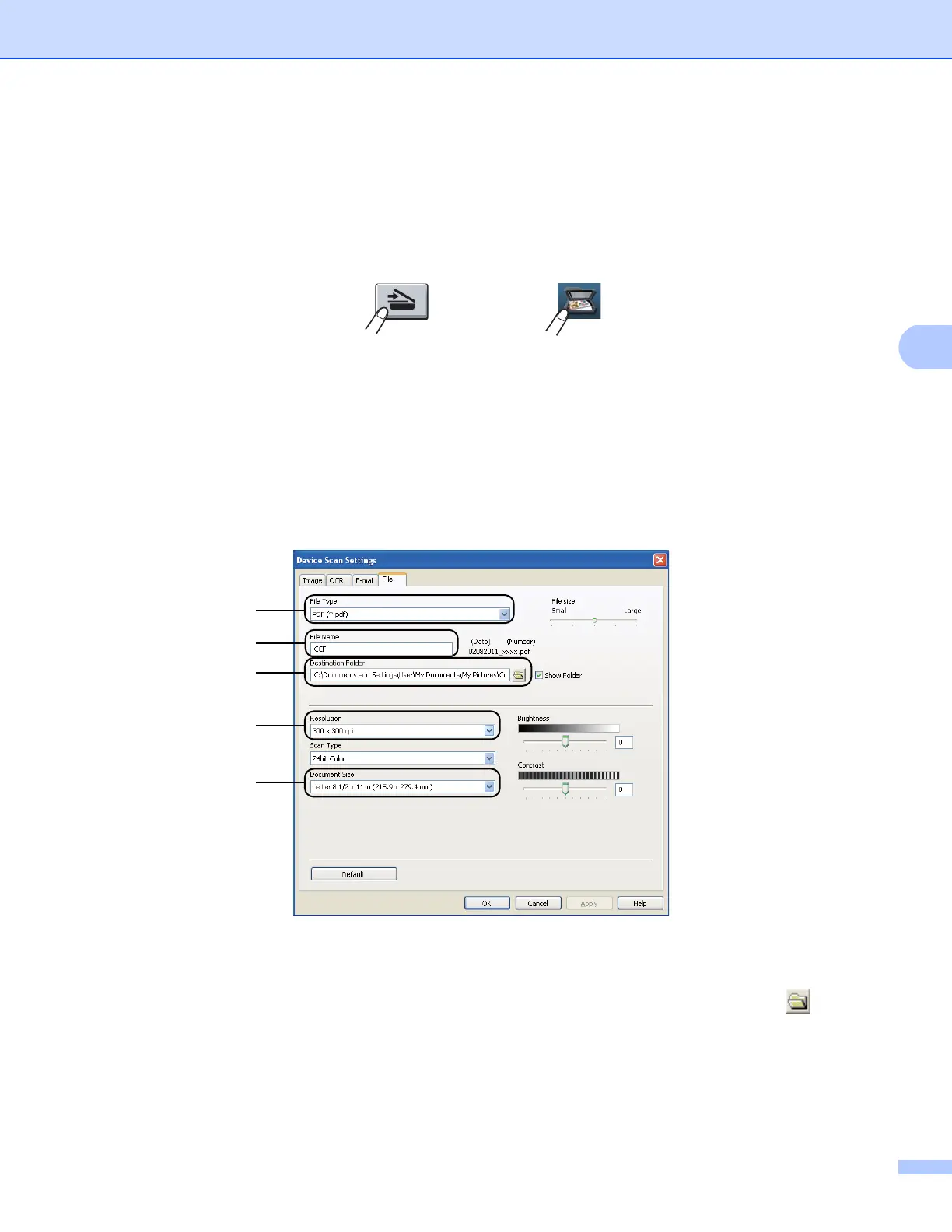
d Click Device Scan Settings.
e Choose the File tab. You can change the default settings.
1 You can choose the file type from the pull-down list.
2 You can enter the file name you want to use for the document.
3 You can save the file to the default folder, or choose your preferred folder by clicking the (Browse)
button.
4 You can choose a scanning resolution from the Resolution pull-down list.
5 You can choose the document size from the Document Size pull-down list.
f Click OK.
5-line LCD models
Touchscreen models


 To Next Page
 Loading...