Wi-Fi
®
Connection
50
6
Enabling Wireless Access Mode (for computer)
Enable Wireless Access Mode to view and download scanned documents from the scanner’s SD Card in your
web browser.
a Ensure that your scanner has a fully charged battery.
b Power ON the scanner.
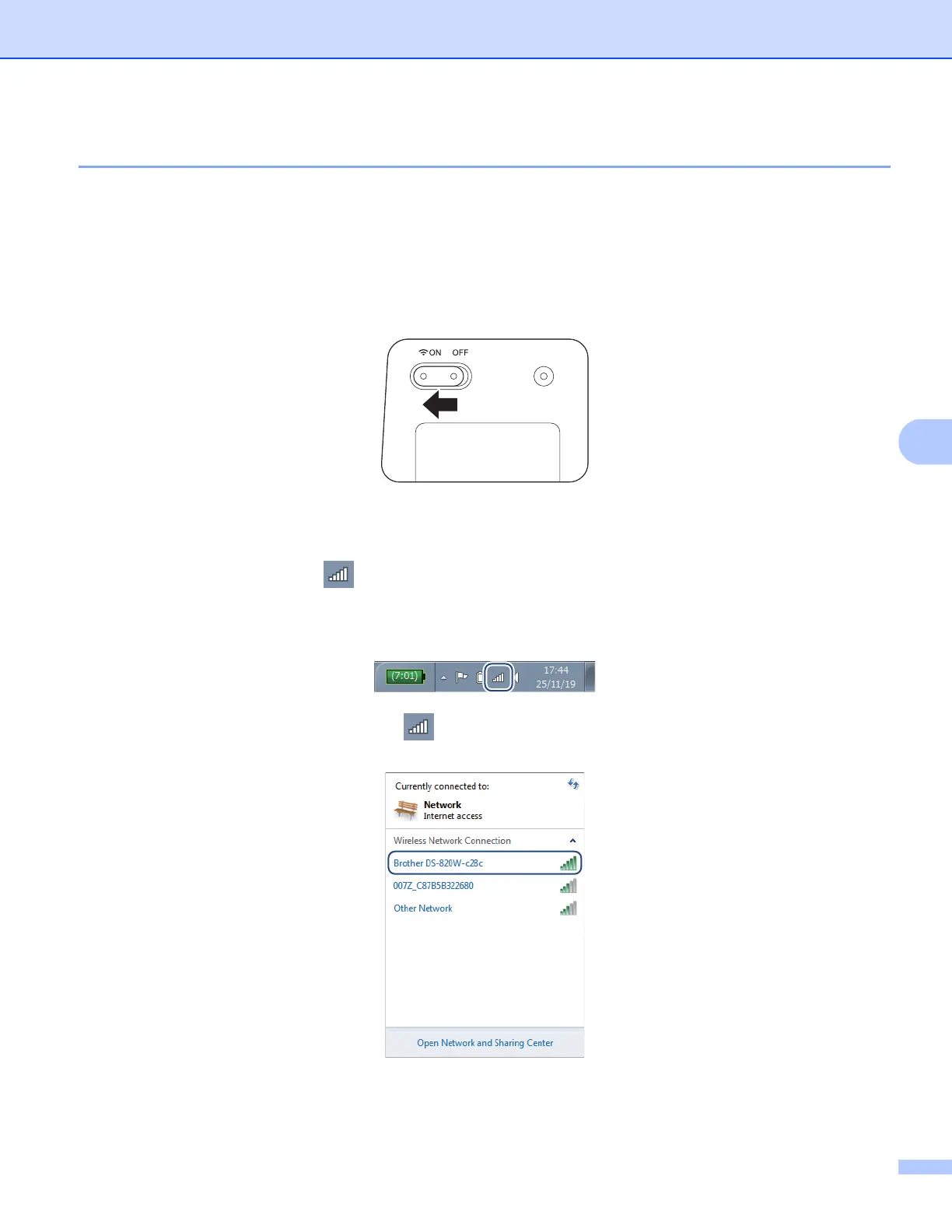
c Once the scanner is on, set the Wi-Fi
®
switch to ON.
d When the scanner’s Wi-Fi
®
indicator changes from red to blue (it may take up to 40 seconds), your
scanner is Wi-Fi
®
access-enabled.
e On your computer, click the (Internet access) icon in the task tray. Your scanner’s SSID will appear
in the list of available wireless devices. The default SSID is
Brother DS-820W-xxxx (Brother DS-920DW-
xxxx)
(xxxx shows the last four digits of your scanner’s MAC address (twelve-digits). The address is
printed on your product label.). Click on it to select your scanner.
For example, in Windows
®
7, click the icon in your task tray, and then select the scanner’s SSID. If
you cannot locate your machine’s SSID, contact your network administrator.







 To Next Page