57
8
8
You can store scanned images with Brother Online storage services (BOL) in BR-Docs. Configure access
using your scanner’s control panel.
NOTE
• To use this function, you must first configure your BOL (Brother Online) Account in a web browser. (See
Configure network settings on page 63.) Configure Wi-Fi
®
Settings for Internet access in your web
browser, and then connect your scanner to the Internet via an access point (see Configure network
settings on page 63).
• When you use this function, a file that is 50 MB or more cannot be scanned.
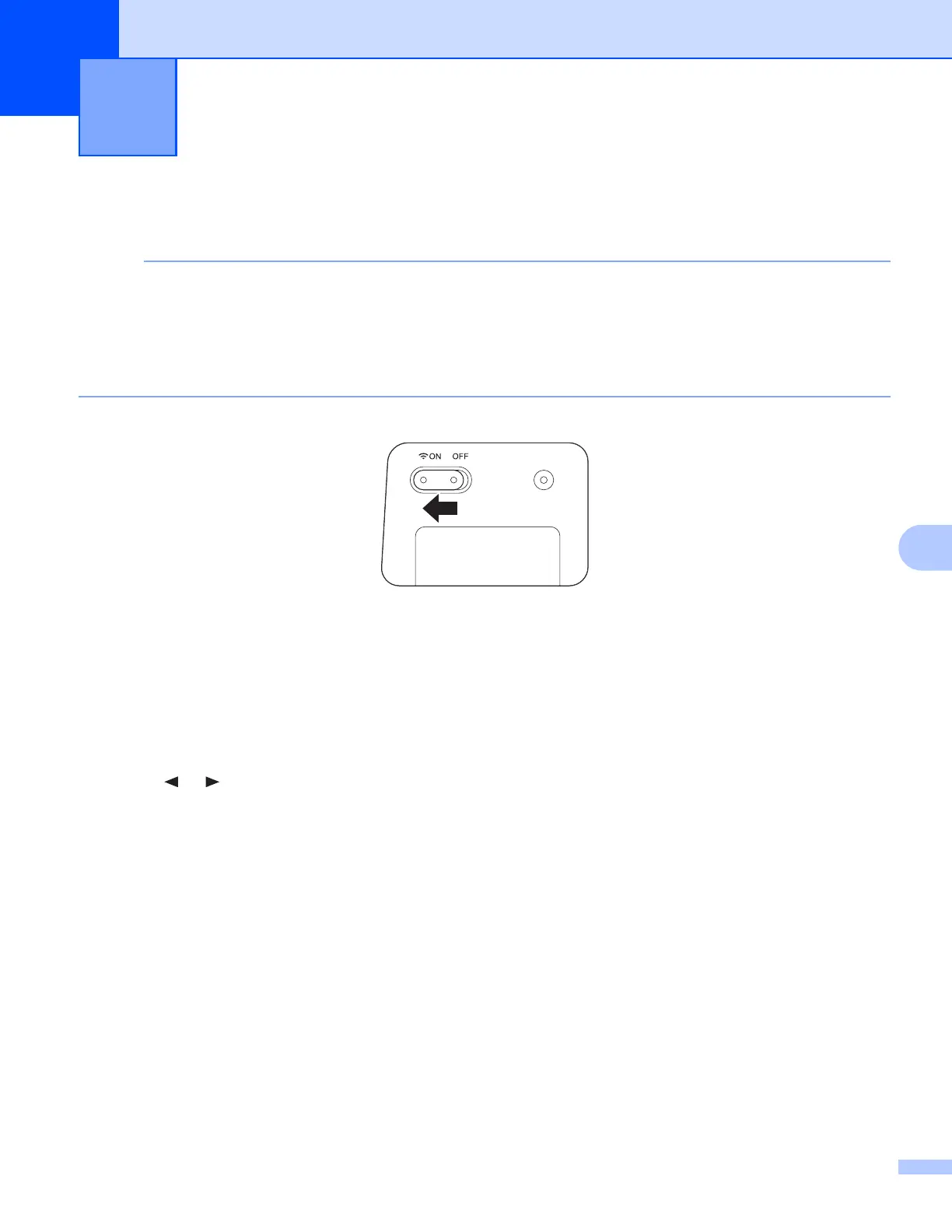
a Set the Wi-Fi
®
switch to ON.
Wait about 40 seconds until the Wi-Fi
®
indicator turns from red to blue.
When your scanner makes a connection to your access point the Wi-Fi
®
indicator starts blinking blue.
b Insert the SD card into your scanner.
c Make sure that SD appears on the LCD
d On the scanner’s control panel, press Menu.
e Press or until BRD is displayed on the LCD.
f Insert your document.
g Your scanner starts scanning automatically.
The Power LED blinks green and the SD card indicator blinks on the LCD.
h When scanning is completed, your scanner starts transferring the scanned image to BR-Docs.
The Wi-Fi
®
indicator blinks orange while transferring.
i When transferring is completed, the Wi-Fi
®
indicator turns blue.
Check the scan result just in case.
Scan to the Cloud Server Using a Wireless
Access Point (BOL Mode)
8







 To Next Page