Editing Patterns (Embroidery Settings Screen)
72
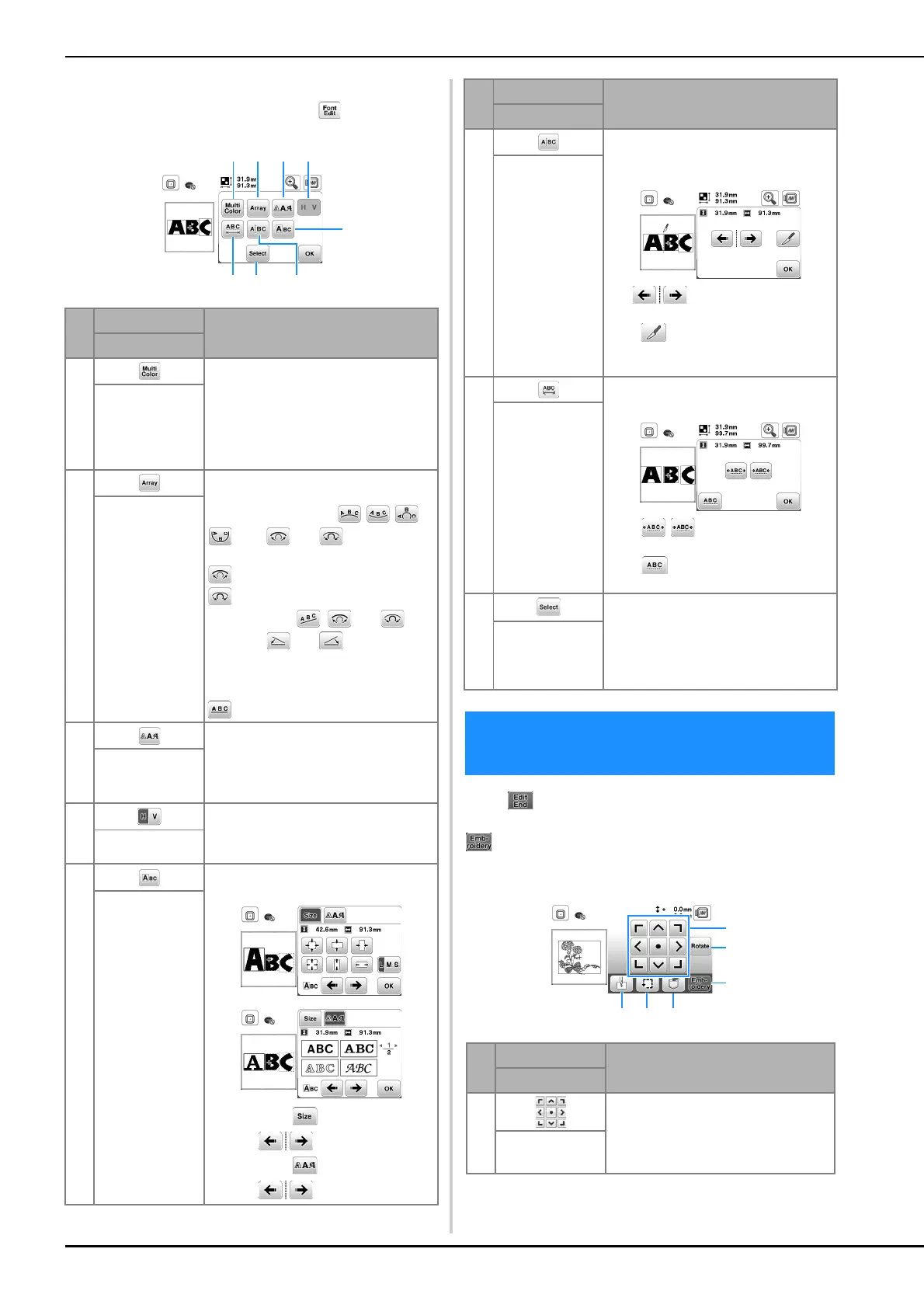
■ Font editing screen
Font editing screen appears by pressing on the pattern
editing screen.
When is pressed in the editing screen, the embroidery
settings screen appears. After editing the pattern, press
to continue to the embroidering screen.
■ Embroidery settings screen
No.
Display
Explanation
Key Name
1 Press this key when you want to change
the thread color, character by character
in character embroidery. Since the
machine stops at the end of each
character, the upper thread is changed
as you embroider. Press this key again to
cancel setting.
Multi color key
2 Press this key to change the
configuration of a character pattern.
When selecting an arc (
), use and to change the
degree of the arc.
: Make the arc flatter.
: Make the arc rounder.
When selecting , and
change to and . You can
increase or decrease the incline.
To arrange the spacing between the
character patterns on the line, press
.
Array key
3 Press this key to change the font of the
selected characters.
Depending on the font that was selected,
it may not be possible to change the
font.
Font key
4 Press this key to switch between text
written vertically and horizontally.
(Japanese font only)
Vertical/horizontal
text key
5 Press this key to edit each character
separately.
When pressing , select the character
by using to change the size.
When pressing , select the character
by using to change the font.
Edit character key
6 Press this key to split text between
characters so that they can be edited
separately.
Use to select where the
pattern is to be separated, and then
press to separate it.
Any pattern that is split cannot be
recombined.
Split text key
7 Press this key to change the spacing of
character patterns.
Press / to increase or decrease
the character spacing.
Press to return the pattern to its
original appearance.
Character spacing
key
8 When a combined pattern is selected,
use this key to select a part of the pattern
to edit. The selected pattern is outlined
by the red box. If the line feed key was
used while entering text, single lines can
be selected.
Select key
Editing Patterns (Embroidery Settings
Screen)
No.
Display
Explanation
Key Name
1 Press these keys to move the pattern in
the direction shown by the arrow. (Press
the center key to return the pattern to
the center of the embroidery area.)
(page 73)
Move key
No.
Display
Explanation
Key Name


 To Next Page