Using the Memory Function
75
EMBROIDERY
4
Saving embroidery patterns
You can save embroidery patterns that you have customized
in the machine's memory or USB flash drive.
a
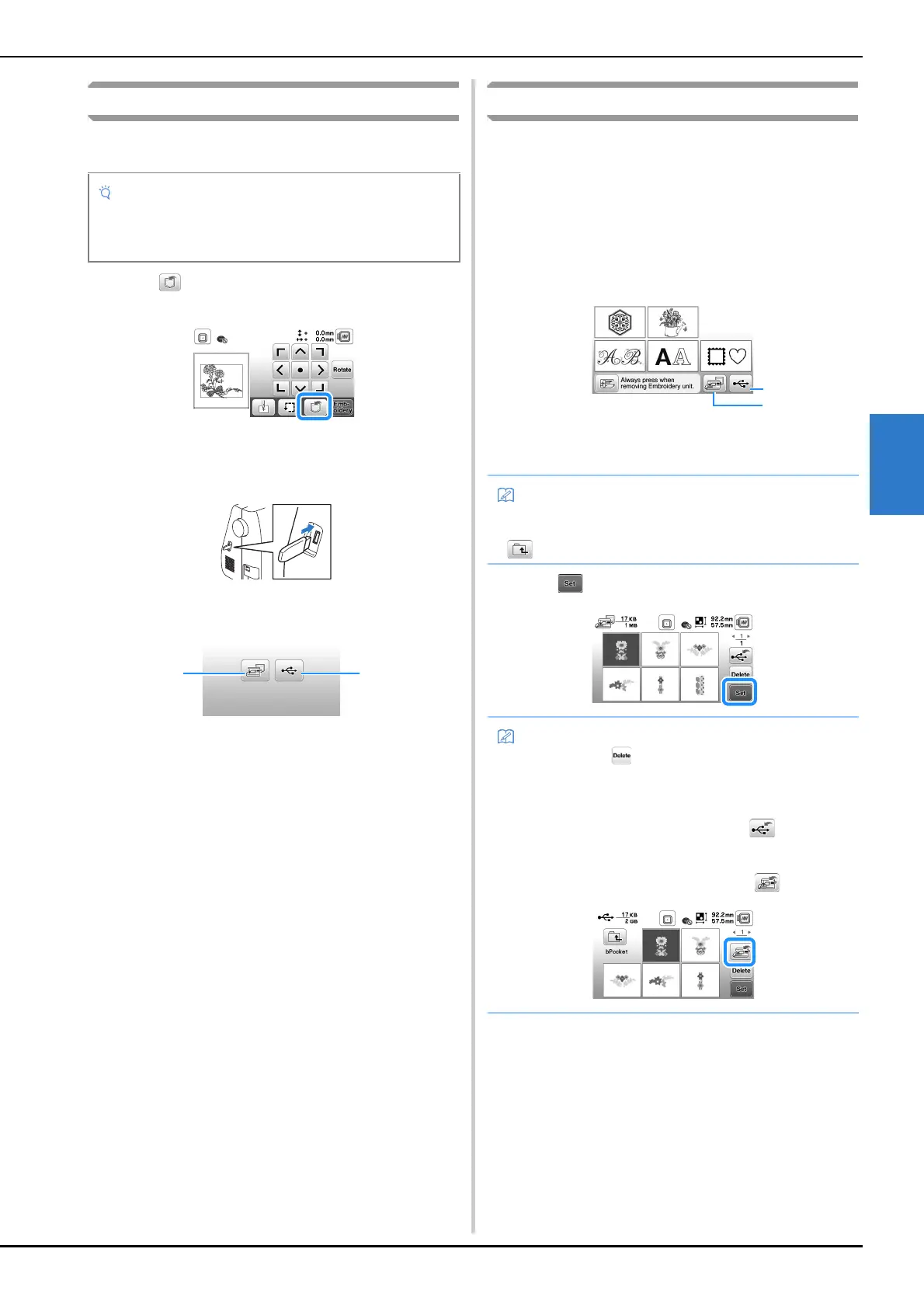
Press when the pattern you want to save is in the
pattern editing screen or embroidery settings screen.
b
When saving the embroidery pattern in a USB flash
drive, insert the USB flash drive into the USB port on
the machine.
c
Press the desired destination to start saving.
1 Save to the machine’s memory.
2 Save to the USB flash drive.
The pattern is saved in a folder labeled “bPocket”.
Retrieving embroidery patterns
Retrieve embroidery patterns saved in the machine's memory
or USB flash drive.
a
When retrieving the embroidery patterns from a USB
flash drive, insert the USB flash drive into the USB port
on the machine.
b
Press the desired destination, and then select the
desired embroidery pattern.
1 Retrieve from the machine’s memory.
2 Retrieve from a USB flash drive.
c
Press .
• Do not turn the main power to OFF while the [Saving...]
screen is displayed. You will lose the pattern you are
saving.
• If the embroidery pattern to be retrieved is in a folder of
the USB flash drive, press the key for that folder. Press
to return to the previous screen.
• When you press , the selected embroidery pattern
will be deleted permanently.
• When retrieving the embroidery patterns from the
machine's memory, the selected pattern can be saved
to USB flash drive directly by pressing .
• When retrieving the embroidery patterns from the USB
flash drive, the selected pattern can be saved to the
machine's memory directly by pressing .


 To Next Page