EasyManua.ls Logo

Brother MFC-6800 - User Manual

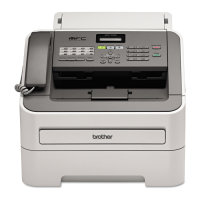
Brother MFC-6800
222 pages
Print Icon
To Next Page IconTo Next Page
Loading...
®
OWNER’S MANUAL
MFC-6800
version B

Table of Contents

Other manuals for Brother MFC-6800

Questions and Answers

  • K
    kinggregorySep 9, 2025
    How to improve transmitting quality on my Brother All in One Printer?
    • J
      Joshua LawrenceSep 9, 2025
      To improve transmitting quality on your Brother All in One Printer, try changing your resolution to FINE or SUPERFINE. Make a copy to verify the MFC’s scanner operation.
  • K
    Kirsten NobleAug 25, 2025
    What does 'TONER LOW' mean on my Brother MFC-6800 All in One Printer?
    • B
      Bradley ThomasAug 25, 2025
      If the LCD shows 'TONER LOW' on your Brother All in One Printer, you can still print, but the toner is running low. It's recommended to order a new toner cartridge now.
  • M
    Madison MillerAug 25, 2025
    What does 'CHANGE DRUM SOON' mean on my Brother MFC-6800?
    • A
      Anna MarshAug 26, 2025
      If your Brother All in One Printer shows 'CHANGE DRUM SOON', it means the drum unit is near the end of its life. Continue using the drum unit until you experience a print quality issue, then replace it with a new one.
  • R
    Richard ThomasSep 23, 2025
    Why does my Brother MFC-6800 All in One Printer print a completely white page?
    • D
      David LynnSep 23, 2025
      To resolve nothing being printed on the page from your Brother All in One Printer, make sure that the toner cartridge is not empty. Wipe the electric terminals. Make sure that a torn piece of paper does not remain on the scanner window.
  • W
    wyattwendySep 10, 2025
    Why does my Brother MFC-6800's Transmission Verification Report print 'Results:NG'?
    • A
      Ann GarciaSep 10, 2025
      If the Transmission Verification Report prints “Results:NG” on your Brother All in One Printer, there is probably temporary noise or static on the phone line. Try sending the fax again. If the problem continues, call the telephone company to check your phone line.
  • V
    Valerie VaughanSep 14, 2025
    Why do I sometimes get 'OUT OF MEMORY' when printing from Windows® on my Brother All in One Printer?
    • N
      Nicholas HarrisonSep 15, 2025
      If you sometimes get the error message 'OUT OF MEMORY' when printing certain documents from Windows® on your Brother All in One Printer, turn the error recover operation on in the Setup dialog box and try again. Reduce the print resolution or reduce the complexity of your document and try again.
  • C
    Christopher TaylorSep 4, 2025
    What does 'NOT REGISTERED' mean on my Brother All in One Printer?
    • S
      Sarah YatesSep 4, 2025
      If your Brother All in One Printer shows 'NOT REGISTERED', it means you tried to access a Speed Dial number that is not programmed. Set up the Speed Dial number.
  • A
    apatelSep 4, 2025
    What does 'MACHINE ERROR XX' mean on my Brother MFC-6800?
    • S
      Sharon MartinSep 5, 2025
      If your Brother All in One Printer shows 'MACHINE ERROR XX', it means the MFC has a mechanical problem. Turn off the power and contact Brother Customer Service.
  • L
    lellisonSep 23, 2025
    Why do ghost images appear on printed pages from my Brother MFC-6800 All in One Printer?
    • J
      Jill MartinezSep 23, 2025
      Adjust the print conditions by changing the Print Density setting on your Brother All in One Printer, or ensure that you select the Paper Type that suits the paper in your multi-purpose sheet feeder.
  • R
    Ryan RobertsAug 29, 2025
    What to do if my Brother All in One Printer says 'COVER OPEN PLS CLOSE COVER'?
    • G
      gregoryhillAug 30, 2025
      If your Brother All in One Printer shows 'COVER OPEN PLS CLOSE COVER', it indicates that the top cover was not completely closed. Open, then close the cover.

Summary

Introduction

Control Panel Overview

Explains the MFC's control panel buttons and functions.

Product Registration

Steps for test sheet procedure and product registration.

Assembly and Connections

Important Safety Instructions

Safety precautions for using the MFC.

Setting Up the MFC

Instructions for connecting power and telephone lines.

Loading Paper

How to properly load paper into the MFC.

On-Screen Programming

User-Friendly Programming

Overview of programming using navigation keys and LCD prompts.

Navigation Keys

Explanation of control panel keys for menu navigation.

Initial Setup

Setting Station IDs

Storing name, fax, and phone numbers for fax pages.

Toner Save

Enabling toner conservation to extend cartridge life.

Setup Receive

Choosing the Receive Mode

Explains FAX ONLY, EXT.TEL/TAD, and MANUAL modes.

Easy Receive

Feature to automatically receive faxes without pressing Fax Start.

Polling

Retrieving faxes from other machines or allowing retrieval.

Setup Send

Faxing from the ADF (Automatic Document Feeder)

Instructions for sending faxes using the ADF.

Composing Electronic Cover Page

Creating custom cover pages for faxes.

Delayed FAX

Storing documents for sending at a later time.

Auto Dial Numbers and Dialing Options

Storing Speed Dial Numbers

Saving phone numbers for quick dialing.

Broadcasting

Sending the same fax to multiple locations.

Telephone Services

Distinctive Ring

Explanation of the Distinctive Ring service.

Registering the Distinctive Ring Pattern

Steps to assign a ring pattern to the MFC.

Caller ID

How Caller ID information is displayed and stored.

Remote Fax Options

Programming a Fax Forwarding Number

Setting up a number to forward received faxes.

Retrieving Fax Messages

Steps to access and retrieve fax messages remotely.

Making Copies

Using the MFC as a Copier

Overview of using the MFC for copying.

Using Enlarge;Reduce Key

Adjusting copy size with enlargement or reduction.

Sorting Multiple Copies (Using the ADF)

Stacking or sorting multiple copies from the ADF.

Using Brother Machine as a Printer

Windows Printing

Information on installing and using Windows printer drivers.

Two-Sided Printing (Manual Duplex)

Instructions for manual duplex printing.

Printer Driver Settings (Windows)

Using the Brother MFC-6800 Printer Driver

How to use the printer driver software.

Print Quality

Adjusting print resolution and toner save.

Duplex Printing

Configuring two-sided printing.

Brother MFL-Pro Control Center (Windows)

Brother MFL Pro Control Center

Overview of the Control Center software.

Scan to File

Scanning documents directly to a file.

Scan to E-mail

Scanning documents as email attachments.

Scanner and ScanSoft PaperPort;TextBridge OCR

Using ScanSoft PaperPort and TextBridge

Introduction to document management and OCR software.

Settings in the Scanner Window

Adjusting resolution, color type, brightness, and contrast.

PreScanning an Image

Previewing and cropping images before scanning.

PC FAX Setup and Usage (Windows)

MFC Remote Setup

Application for configuring MFC settings via PC.

PC FAX Sending (For Windows Only)

Sending files as faxes from a PC.

Setting Up Speed Dial

Registering numbers on Speed Dial buttons.

Important Information

Important Safety Instructions

General safety guidelines for product usage.

Troubleshooting and Routine Maintenance

Error Messages

Common error messages and their causes/actions.

Document Jams and Paper Jams

Procedures for clearing paper jams.

Routine Maintenance

Procedures for keeping the MFC in good condition.

Replacing the Toner Cartridge

Guide for replacing the toner cartridge.

Specifications

Fax

Technical specifications for fax functions.

Printer

Technical specifications for printer functions.

Computer Requirements

System requirements for PC connectivity.

Brother MFC-6800 Specifications

General IconGeneral
FunctionsPrint, Copy, Scan, Fax
Print TechnologyInkjet
Print Speed (Black)12 ppm
Print Speed (Color)10 ppm
Copy SpeedUp to 12 cpm (Black), Up to 10 cpm (Color)
Fax Modem Speed33.6 Kbps
Paper Capacity100 sheets
ConnectivityUSB, Parallel
Scanner TypeFlatbed
Scan Resolution600 x 2400 dpi
Media TypesEnvelopes

Related product manuals