EasyManua.ls Logo

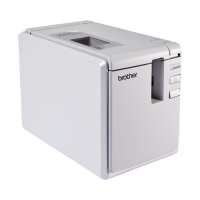
Brother P-touch 9700PC - User Manual

Brother P-touch 9700PC
48 pages
Print Icon
To Next Page IconTo Next Page
Loading...
Users Guide
If you encounter any problems with your product, visit our Web site:
http://solutions.brother.com/
STATUS
STATUS
9
7
OOPC
/
9
8OOP C
N

Questions and Answers

  • T
    Tyler BrockAug 15, 2025
    What to do if my Brother P-touch 9700PC does not print and I receive a printing error?
    • D
      Danny NorrisAug 16, 2025
      If your Brother Printer isn't printing and you're getting an error, ensure the interface cable is correctly connected, the tape cassette is properly installed, and the tape compartment cover is securely closed.
  • R
    Ronald BrayAug 18, 2025
    How to reset a Brother P-touch 9700PC Printer and delete data transferred from the computer?
    • M
      Mark MaxwellAug 18, 2025
      To reset your Brother printer, turn it off by holding the power button. Then, hold down the power button for two seconds. Continue holding the power button and press the Feed/Cut button six times. This will reset the printer, delete all transferred data, and restore all settings to factory defaults.
  • N
    Nicole ReedAug 21, 2025
    What to do if the power button on my Brother Printer does not light up or flash?
    • K
      Kathy BondAug 21, 2025
      If the power button isn't lighting up, check that the main power switch on the back of the printer is on and that the power supply and adapter cord are correctly connected. If the power button still doesn't light up, contact the retail outlet where the printer was purchased or your local authorized service center.
  • C
    Cheryl HernandezAug 25, 2025
    What to do if labels are not ejected correctly from my Brother P-touch 9700PC after being cut?
    • H
      henryandrewAug 25, 2025
      If labels aren't ejecting correctly after being cut, the cutter blade may be dirty. Clean the cutter.
  • D
    Desiree LeeAug 27, 2025
    Why does my Brother P-touch 9700PC Printer print labels with a blank horizontal line?
    • C
      Christopher LewisAug 27, 2025
      A blank horizontal line on your printed labels may indicate dust on the print head. Clean the print head and head roller.
  • J
    Jessica SmithAug 30, 2025
    What to do if a data transmission error appears on my computer when using a Brother P-touch 9700PC Printer?
    • K
      Keith EvansAug 30, 2025
      If a data transmission error appears on your computer, it may be due to the wrong port being selected. For Windows®, select the correct port from the “Print to the following port” list in the printer Properties dialog box. For a USB connection, select “USB00n”. If someone is printing via network, restart the print job after the other jobs are completed.
  • S
    Stacey WallaceSep 2, 2025
    What to do if the baud rate cannot be set using the Change Baud Rate Wizard or the Brother P-touch 9700PC utilities for my Brother P-touch 9700PC?
    • M
      Mary MitchellSep 3, 2025
      If you're unable to set the baud rate, it could be due to Error 99, 1, or 5. For Error 99, ensure the printer is on, the interface cable is correctly connected, and the correct COM port is selected in the Change Baud Rate Wizard. For Error 1 or 5, change the COM port for the serial connection device or connect the printer to a COM port that is not being used.
  • N
    Nancy MillerSep 5, 2025
    How to cancel a print job on a Brother P-touch 9700PC?
    • T
      taylorstanleySep 5, 2025
      To cancel the current print job, ensure the printer is on, and then briefly press the power button on the front of the printer.
  • L
    Lisa RogersSep 8, 2025
    Why can't I send data from a device plugged into the USB Direct Interface on my Brother PT-9800PCN Printer?
    • A
      Allison MooreSep 8, 2025
      If the LED display on the USB Direct Interface is flashing red, the connected device may be incompatible or consuming too much power. In either case, it cannot be used with the PT-9800PCN. If the LED flashes red while connected devices are being used, the buffer of the PT-9800PCN may be full. Stop the data transmission, wait until the data buffered in the PT-9800PCN has been processed, and then unplug the device and plug it in again.
  • M
    Mr. Ryan SilvaSep 12, 2025
    Why does striped tape appear while printing with my Brother P-touch 9700PC Printer?
    • W
      Whitney WilliamsSep 12, 2025
      Striped tape appearing during printing indicates that the tape cassette is empty. Install a new tape cassette.

Summary

Safety Precautions

General Safety Symbols and AC Adapter Warnings

Explains warning symbols and AC adapter safety guidelines.

Printer and Tape Cutter Safety Guidelines

Covers specific warnings and cautions for printer and tape cutter.

Unpacking the Printer

Getting Ready to Use Your Printer

Printer Connection Steps

Details the steps to connect the printer to power and a computer.

Computer Connection Methods

Details connection methods (USB, LAN, Serial) and OS compatibility.

Using Interface Cables

Installing the Tape Cassette

Compatible Tape Types

Lists the types of Brother TZ and HG tapes compatible with the printer.

Tape Cassette Installation Steps

Step-by-step guide for installing a tape cassette into the printer.

Installing the Software for PT-9700 PC

PT-9700 PC Software Installation (Windows)

Guide to install P-touch Editor, drivers, and user's guide on Windows.

Installing the Software for PT-9800 PCN

PT-9800 PCN Software Installation (Windows)

Guide to install P-touch Editor, drivers, and network guides on Windows.

Advanced Functions

High Speed and High Resolution Printing

How to adjust print speed and resolution using HG tapes.

Distributed Printing Setup

How to distribute printing tasks across multiple printers simultaneously.

Serial Interface Settings (Windows Only)

Maintenance

Troubleshooting

Troubleshooting Q&A

Lists common problems and their solutions for the printer.

List of Bar Codes for Specifying Settings

Brother P-touch 9700PC Specifications

General IconGeneral
Vertical printingYes
Maximum resolution360 x 720 DPI
Standard interfacesUSB 2.0
Tape typeTZ
Tape cuttingAutomatic
Internal memory2 MB
Built-in barcodesCodabar (NW-7), EAN13, EAN8, Maxicode, Postnet, QR Code, UPC-A, UPC-E
Dimensions (WxDxH)116 x 192.7 x 140 mm
Minimum system requirements for Macintosh- RAM 128 MB - HDD 50 MB - USB (1.1/2.0)
Minimum RAM512 MB
Compatible operating systemsWindows 2000 Pro/XP/7/Vista, Mac OS 10.3.9 - 10.6
Maximum label width27.1 mm
Maximum label length8 m
Product colorGray
Weight and Dimensions IconWeight and Dimensions
Depth192.7 mm
Width116 mm
Height140 mm
Weight1570 g

Related product manuals