10
SmartPhone Navigator
SmartPhone Navigator will allow to open LinkStation's Settings, change the IP address, and configure WebAccess
settings. Follow the instructions below to install the application.
1 Open the App Store (iOS devices) or Google Play (Android devices).
2 Install "SmartPhone Navigator".
WebAccess
WebAccess will allow you access files in the LinkStation. Follow the instructions below to install WebAccess
application.
1 Open the App Store (iOS devices) or Google Play (Android devices).
2 Install "WebAccess".
Accessing Shared Folders
Accessing from a Computer
1 Double-click the icon to start NAS Navigator2.
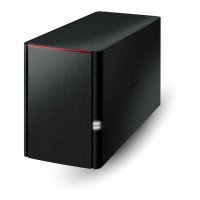
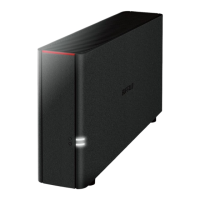
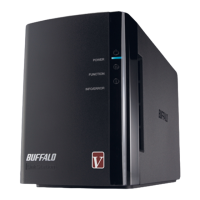
2 In NAS Navigator2, double-click your LinkStation's icon. The Explorer will open with shared folders' lists. For
macOS, the LinkStation is mounted as a drive icon on the desktop or it is displayed in the sidebar of the Finder.
Note: When you access a shared folder from a Windows PC, you may be asked to enter a username and
password. In such a case, enter "guest" for the username and the password is blank.
Accessing from a Mobile Device
To access shared folders from a mobile device with the following steps, you must configure WebAccess settings first.
To configure WebAccess, see the "WebAccess" section in chapter 5.
1 Open SmartPhone Navigator.
2 Tap your LinkStation from the NAS list.
3 Tap Browse.
Note: Alternatively, you can access shared folders from the WebAccess app. Open the application and tap your
LinkStation's hostname in the NAS list.





 To Next Page