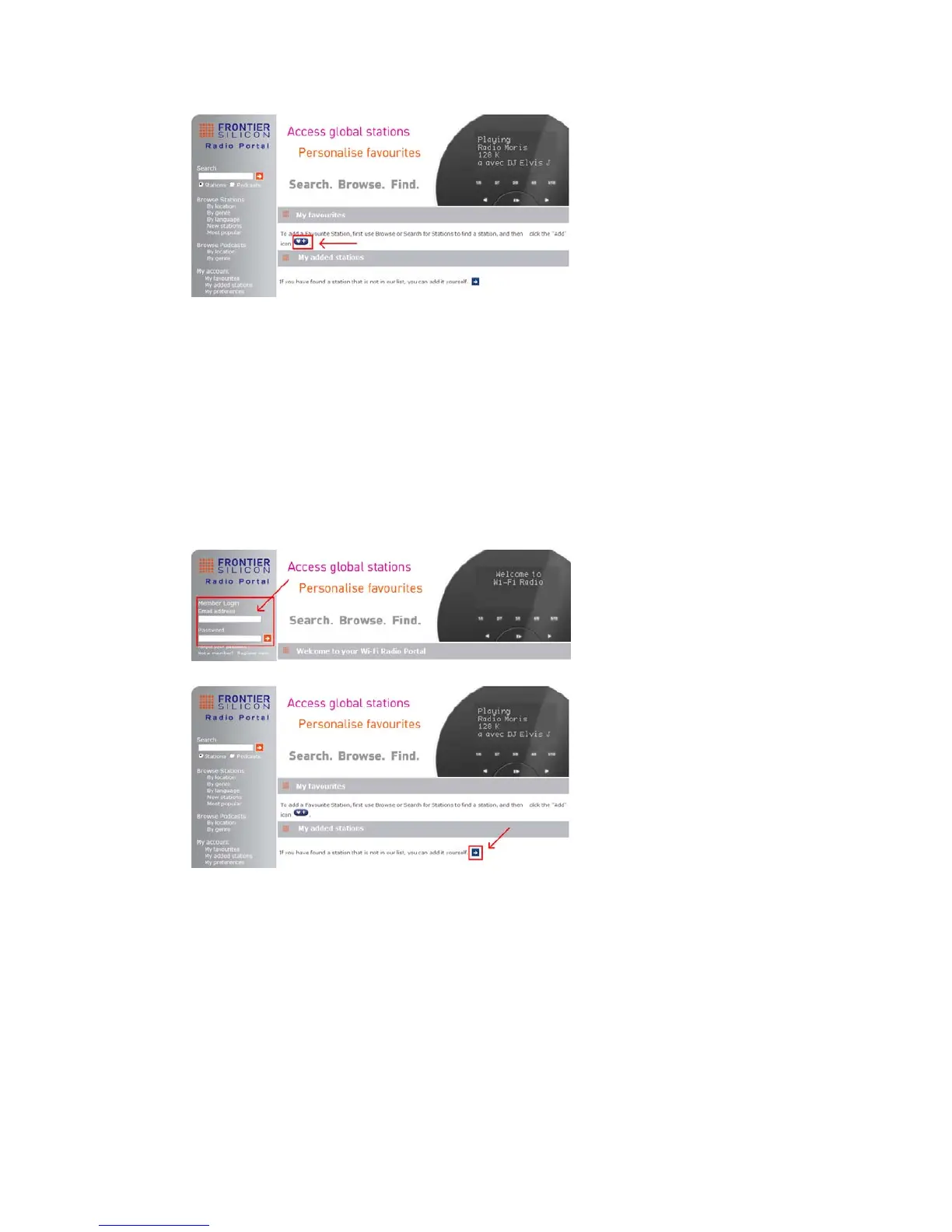
3. To add a Favourite Station, first find a station and then click the “Add” icon.
4. After you added the stations, in order to have your radio access your new settings, get your
radio power off for several minutes is necessary.
5. The added stations are accessible by pressing MENU button - Station list - My favourites.
# Note: doing a “factory reset” cannot erase “my favourites stations”.
Adding station to “My Added Stations”
Even though the Internet radio portal contains thousands of stations, you may want to listen to
stations not listed. You can add your own stations via the portal (www. wifiradio-frontier.com).
1. Visit portal www. wifiradio-frontier.com and login as a member as you registered when adding
station to “My favourites”.
2. To add your own station, click the icon.
3. After you added the stations, in order to have your radio access your new settings, get your
radio power off for several minutes is necessary.
4. The added stations are accessible by pressing MENU button - Station list - My added
stations.
# Note: doing a “factory reset” cannot erase “my added stations”.
Viewing Station Information
Internet programs broadcast additional information. Press INFO button on the main unit
repeatedly, the display will show the information through Station Description, Genre, Country,
Reliability, Bit rate, Codec, Sampling Rate, Playback Buffer and Date.


 To Next Page