16
Saving And Deleting An Exercise
After verifying the exercise runs the way you want it to, please save
that exercise to store it in memory and add it to the Exercise List
( ). From either the Ball screen or the Play Exercise screen, tap
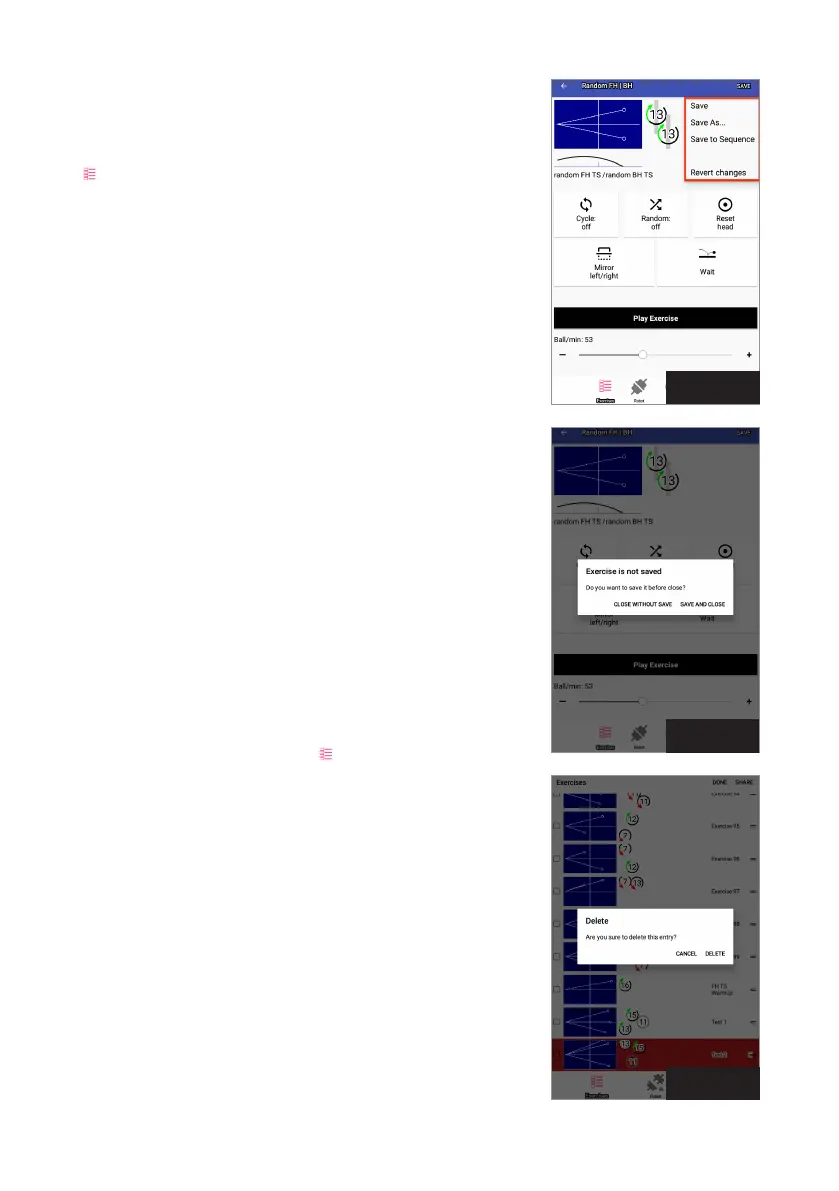
Save at the top right. A popup menu appears with 4 options: Save,
Save As, Save To Sequence, and Revert Changes (see Photo 25).
If Save is chosen for a new exercise, the Set Exercise Properties
popup window appears. Enter a name for the exercise and a de-
scription. Then tap Save at the bottom right of that window. If Save
is chosen for an exercise that was previously saved, the older saved
version is immediately overwritten with any changes you have
made since the last time it was saved.
Save As is the safer method to save a file because it does not over-
write the existing exercise (the original exercise is kept unchanged,
and a new exercise is created with the new modifications). However,
please be sure to provide a unique name for the modified exercise
so the name will not conflict with the name of another exercise.
Save To Sequence saves an exercise to either a new or existing
sequence. Sequences are described in the next section.
Revert Changes throws out any new modifications and keeps the
exercise as it was last saved.
If you do not use one of the above save options from the Save pop-
up menu, and then exit the Play Exercise screen or Ball screen, you
are presented with an Exercise is not saved dialog box (see Photo
26). Choose to either Save and Close (the same as Save, above) or
Close Without Save (same as Revert Changes, above).
To Delete an exercise, tap Exercises ( ). Tap Edit at top right. Find
the exercise to delete by scrolling the list. Then touch the listing
and slide your finger to the left. A red stripe will appear with a trash
can icon along with a Delete dialog box (see Photo 27). Tap Delete at
bottom right of that dialog box to permanently delete the exercise.
Or tap Cancel if you decide not to delete the exercise.
Sequences
With Amicus Prime, you can string together 2 to 10 exercises into
a sequence. For each sequence, one repetition of each exercise is
played in a loop. For example, if Exercises 1, 2, and 3 are saved into
a sequence, one repetition of Exercise 1 is played, followed by one
repetition of Exercise 2, and followed by one repetition of Exercise
3. The sequence continues looping through Exercises 1, 2, & 3 in
that order until play is stopped.
Photo 26
Photo 27
Photo 25


 To Next Page