20
8. Check that only a single Amicus app is installed by going to Settings>Apps. You should see only a
single Amicus app. If there is more than one, delete or disable the oldest version.
9. If you have the Amicus app installed on two or more devices, be sure only one app is trying to con-
nect to the robot. The other app should be closed or show the robot being disconnected.
10. Go to the Robot screen and verify that Amicus BTLE shows up in your Connection Manager. And
once you connect to Amicus BTLE, that Hardware version, Firmware version, Serial number, and
Bootloader version are given on that screen. If you do not see this information (especially if you see
Waiting for informations displayed instead), there is likely a problem with the Power Circuit Board. It
will need to be replaced. Contact a Butterfly Service Center for replacement instructions.
Once the Robot icon indicates a connection ( ), there are several other functions available from that
screen. They are discussed in detail below.
Calibration
All robots differ to some degree as motors can vary from the manufacturer, but even more so as they
age. In addition, the wheels wear differently depending upon use. Calibration harmonizes the mechanics
(the Head and Base) with the electronics (the Power Circuit Board). This is especially important if the
Power Circuit Board or Head are replaced.
Before starting a Calibration, verify that your robot is vertical (plumb) or very slightly leaning back (see
Step 2 under Setup).To check Calibration, tap the Robot icon at bottom, then the Calibrate button
(provided there is a connection with the robot — see above). And then follow the onscreen directions.
An easy way to create a Calibration target is to place a small piece of masking tape 40cm (16 in.) from
the endline and along the centerline on the player’s end of the table. This target makes it easier to judge
whether or not balls are landing at the proper location on the table.
IMPORTANT: Do not perform other operations with the tablet during calibration. It can cause the app
to crash and the robot to shut down.
Remote Switch
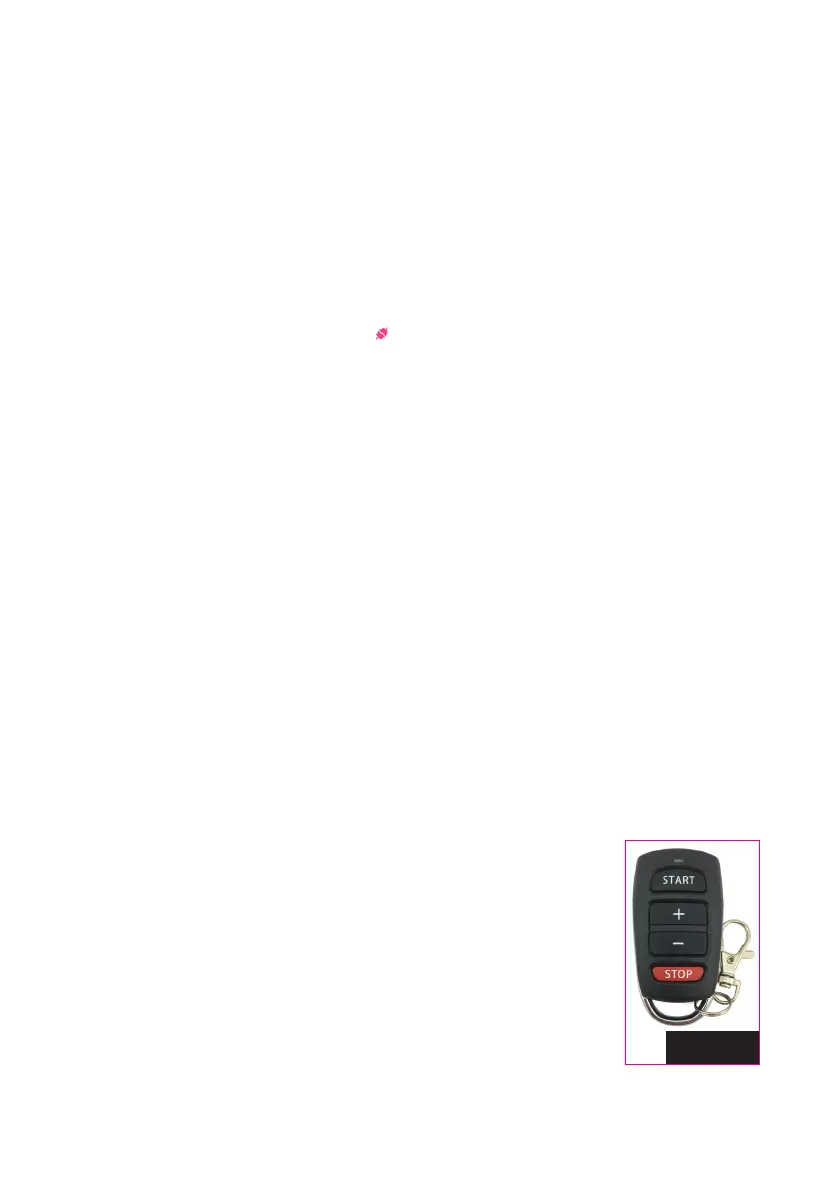
The wireless remote (see Photo 30) has a range of 4–5 m (13–16 feet) and the following functions:
1. If Ball/min on the Tablet is set to “0”, pushing START on the remote throws
1 ball of the Current Ball (similar to sampling a ball). For multi-ball exercis-
es, this means you can sample each ball by repeatedly pressing the Start
button to cycle through each ball of an exercise.
2. If Ball/min on the Tablet is not set to “0”, pushing START on the remote
will cause the exercise shown on the tablet to start playing at whatever
frequency the Ball/min is set (same as pressing Play Exercise on the tablet).
3. The 2 middle buttons increase (+) or decrease (–) Ball/min by 1 increment
for each press. Or hold one down for rapid acceleration of Ball/min.
4. Press the bottom red STOP button to halt ball delivery (same as Stop Exercise on the tablet).
Photo 30


 To Next Page