8
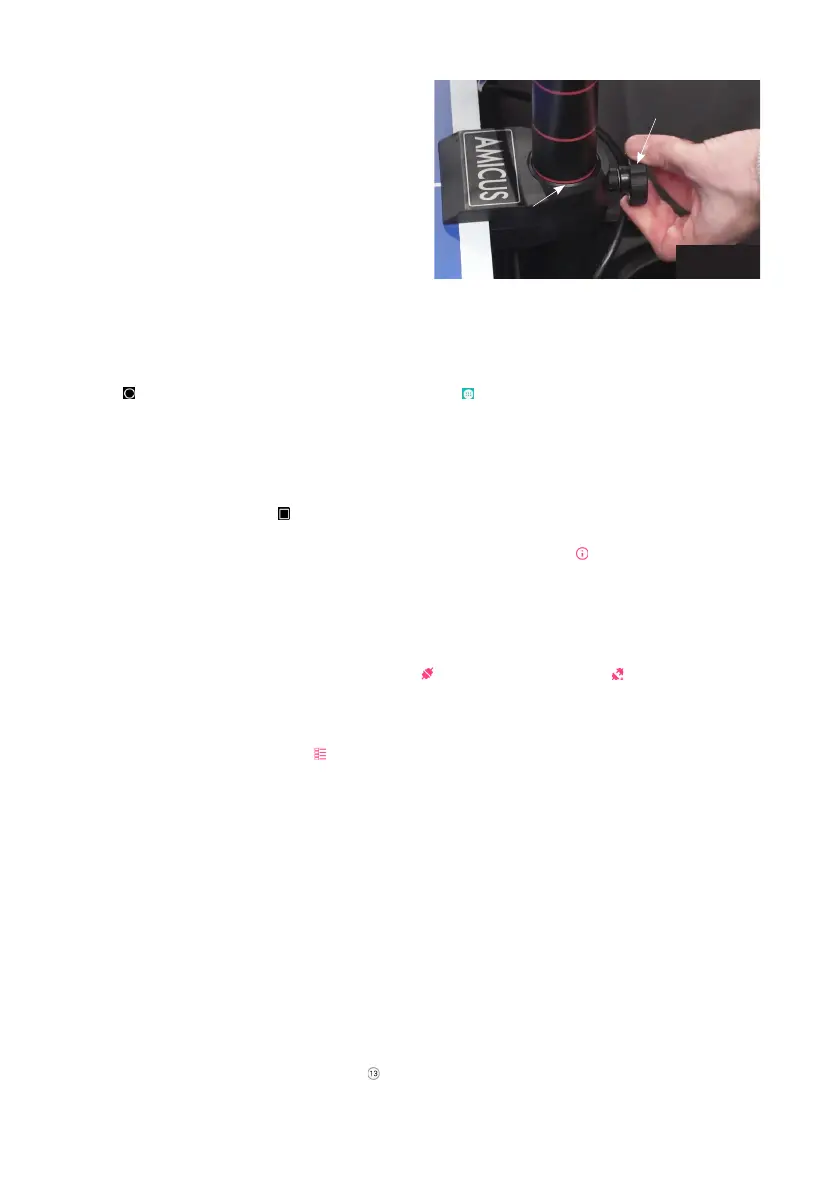
IMPORTANT: Before tightening the Black Knob,
be sure one of the painted rings is right at the top
of the lower tube (see Photo 8). Be careful not to
tighten the Black Knob too tightly — you can dent
the tube if tightened too much. Failure to adjust
correctly can result in ball jams, double throws,
missed throws, and other ball feed issues.
Setting Up Your Tablet
Before beginning play on your robot, it is best to connect your tablet to the internet and set your local
time. Hold down the Power button on the tablet until the screen turns on and then let go of the button.
Soon you should see the Amicus logo appear and then the Exercise List.
Touch at bottom to go to the Home screen. Next, touch , and then the Settings icon. The first set-
ting is Wi-Fi, press it. Then tap on your preferred Wi-Fi network. Type in your password (if required), and
tap Connect. You should see Connected in the Wi-Fi list underneath your selected network.
Go back to the Settings list by pressing ← at the top left of the screen. Select Date & Time. Then select
your time zone. Next, verify Automatic date & time is set to On (if you don’t have internet access, you
can set time manually). Touch at bottom right and then tap the Amicus window to return to that app.
Next, verify you have the latest version of the Amicus app by touching Info ( ) at bottom right. At top
of resulting screen, touch Check For Updates (requires internet access). If an update is available, a pop-
up widow appears. Tap Update. After the update is downloaded, a new popup appears. Tap Install. If no
update is available, the message, Is currently the latest version briefly displays at the bottom.
Lastly, connect your robot to your tablet using its Bluetooth connection. At the bottom of the Amicus
app, verify that the Robot icon shows a connection ( ). If it shows unconnected ( ), click on that icon,
and look for Amicus BTLE in the Connection Manager. Then touch Connect to establish a connection
between robot and tablet. If you have trouble making a connection, please verify that your robot is
powered on and that Location and Bluetooth tabs in Settings are both turned On. Then return to the
Exercise List by pressing Exercises ( ) at the bottom. To troubleshoot the connection, see page 19.
Aligning The Robot To The Centerline
After completing Setup on pages 4–64–6, place about 50 or more 40 or 40+ balls (use one or the other, but
do not mix them together) into the Ball Collection Tray. Grab your racket and prepare to return balls
from your robot. In the Exercise List, tap Default game, and then Play Exercise. Basic Balls are delivered
along the centerline. Observe where balls land in relation to the centerline. Press Stop Exercise. If balls
are not delivered on or very close to the centerline, loosen the Black Knob on the rear of the Ball Tube
(see Photo 8) and rotate the head in the direction necessary for balls to land closer to the centerline.
Repeat until all balls are landing very close to or on the centerline, and then stop ball delivery.
Ball Screen
Staying in the Default game exercise, press (see Photo 9). It turns orange and opens the Ball screen
where you can adjust the settings for that ball (see Photo 10):
Photo 8
Adjust
height so
lowest ring
is barely
showing
Black Knob


 To Next Page