22
Functions Of the Information Screen
Access the Information screen by tapping on the Info icon ( ) at
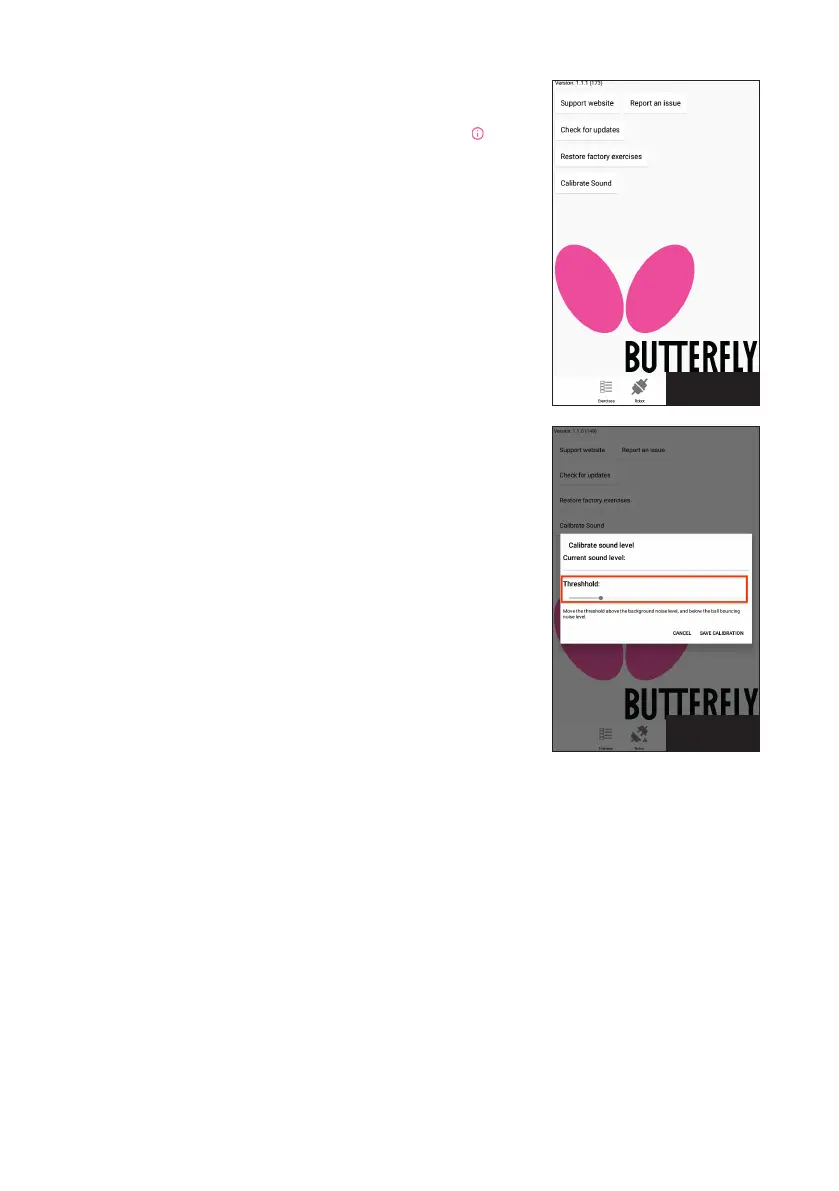
bottom. This screen (see Photo 31) has the following functions:
1. Tap the Support website button to open the Butterfly Amicus
webpage for the latest news on the Amicus line of robots.
2. If you have set up an email account, use the Report an issue
button to send an email message directly to Amicus support.
This automatically creates a new email with an error report.
Type your message above the error report, and then send.
3. The Check for updates button is used to check for and install
the latest Amicus app. Tap to see if a new version is available.
Keep your app updated to get the latest features and bug
fixes. After updating the app, also check to see if the firmware
needs to be updated on the Robot screen.
4. The Restore factory exercises button is exactly that — tap
it and all pre-programmed exercises are restored to their
original settings. Any changes to the exercises named Exer-
cise 79 to Exercise 99 will be lost. For this reason, if settings
are changed in any of those exercises, please use the Save
As command and type in a different name for each changed
exercise before you use Restore Factory Exercises.
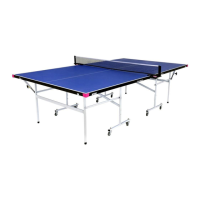
5. The Calibrate Sound button adjusts the sensitivity of the tab-
let’s microphone when using the Wait function (see page 1414).
After tapping on this button, you will see a popup window (see
Photo 32) that gives a reading of the current sound level and a
slider control for adjusting the microphone’s threshold. Adjust
this slider to above the background noise level, but below the
bouncing ball level.
4. Take Down, Storage, & Transport
Upon finishing your training session, power off your robot by unplugging from power; or alternatively,
plug your robot into a power strip and use the switch on the power strip to turn power off.
If you’re ready to remove your robot from the table temporarily, please follow these steps:
1. Unplug the Power Supply from the outlet and base. Roll up and place it temporarily on your table.
Then disconnect the Tablet Cable, roll it up, and place it on your table with your Power Supply.
2. Disconnect the rubber bands that hold up the Side Nets. Place Side Nets in the Ball Collection Tray.
3. Fold up the Net until the 2 trays are straight up (vertical). Unhook your robot from your table and set
it on your tabletop with the open side facing you.
Photo 32
Photo 31


 To Next Page