MW8 & MotionWare User Guide: Issue 1.2.1 Page 23
4 Downloading Data
4.1 MotionWatch
Download
From the MotionWatch Manager Window click on the
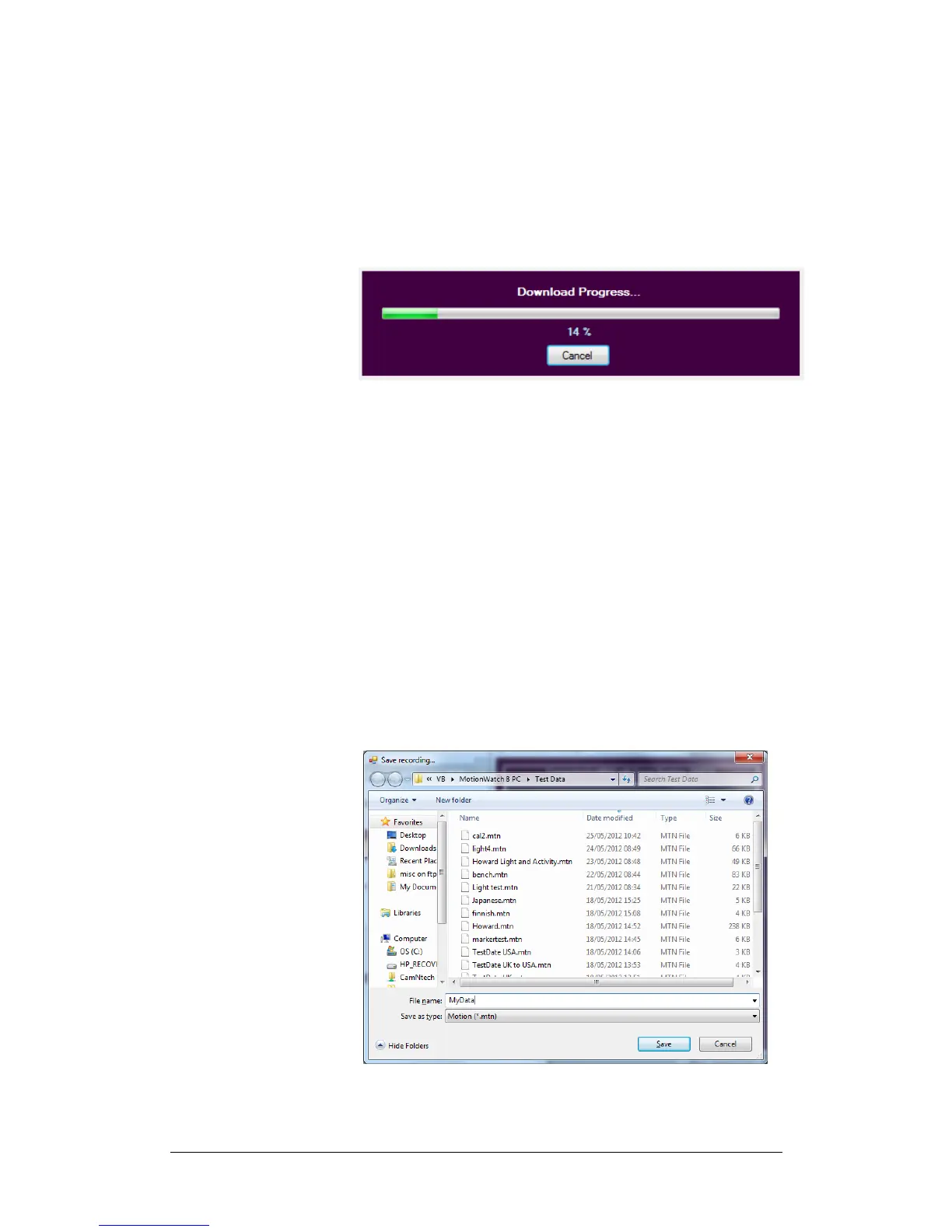
‘Read Data’ button. The download will begin and the
progress notification will be displayed…
If the data download is not required, click the cancel button
and the operation will be aborted.
When the all data has downloaded (full memory will take
less than 1 minute) the ‘Save Recording…’ dialog will open
to allow the data to be saved.
Note that the recorded data in the MotionWatch is not
erased after download; It is only erased when the watch is
set up again.
4.2 Saving
MotionWatch
Data
Upon completion of the download, the ‘Save Recording…’
dialog will open automatically to allow the data to be
saved.
This window allows the destination for the file save to be
specified. Type the name of the file as required and click


 To Next Page