MW8 & MotionWare User Guide: Issue 1.2.1 Page 25
5 Preparing to Analyse Data
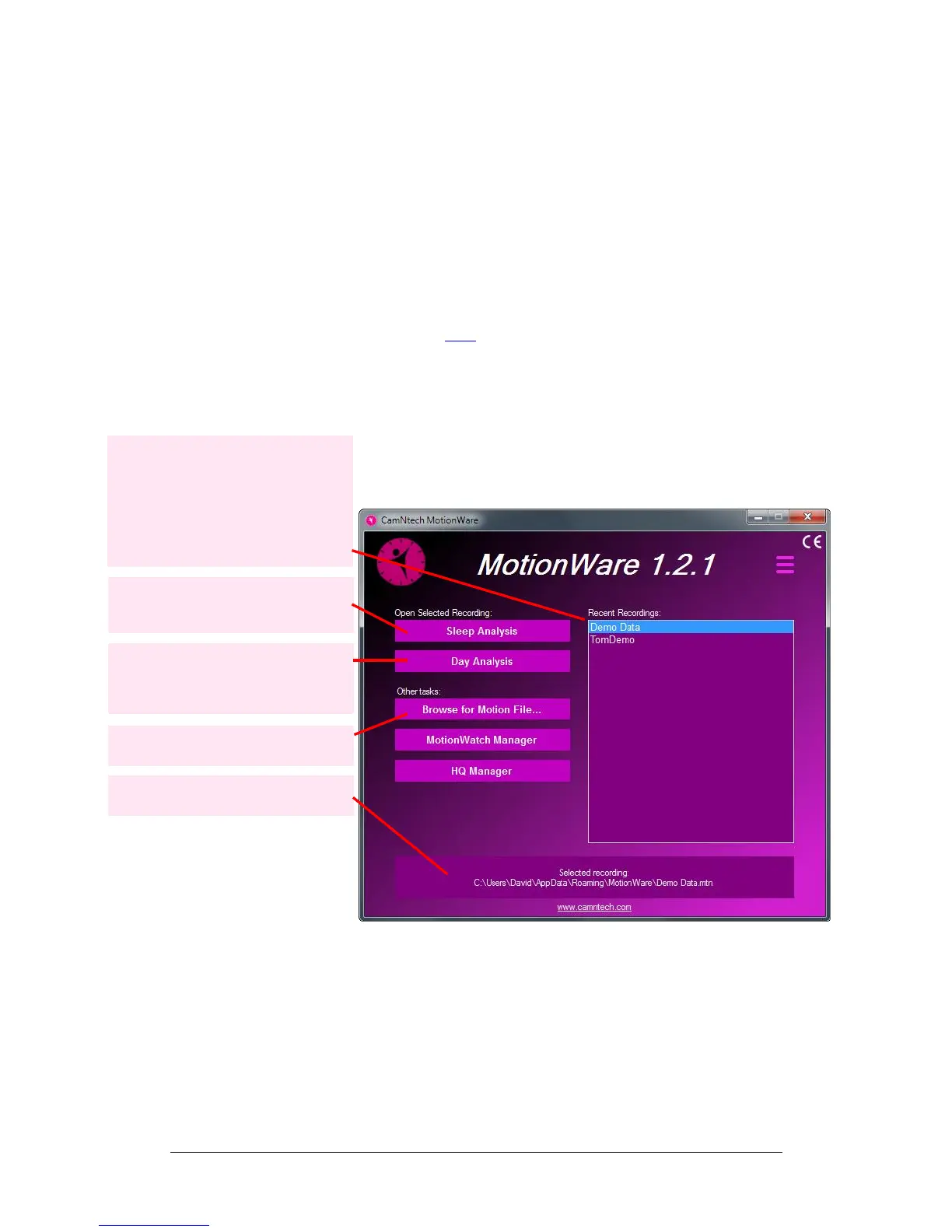
5.1 Selecting Recent
Recordings
When data is saved following download, the file
automatically appears in the ‘Recent Recordings’ list on
the front screen of the software. The recent recordings list
provides a quick access method to the most recently
opened or downloaded files.
It is possible to adjust the recording for daylight saving –
see section 5.13 below for more information.
Click once on a file in the list to select it; more details of
the file are displayed in the information pane below. The
file can be opened after selection by clicking on the ‘Open
selected recording’ button. Alternatively, double clicking on
the file will open the file directly (choose which analysis
type to open with double click in MotionWare Settings).
Right click on the file for more options.
5.2 Managing Recent
Recordings
If the recent recordings list becomes full or cluttered, it is
possible to remove entries from the list or to fully delete the
related file. To manage the recent recordings, right click on
the required file name in the list to show a pop-up menu
with the following options:
Open in Sleep Analysis
Open in Day Analysis
Recent Recordings: Click an item to
view the file details in the information
pane then open by clicking the Open
Selected Recording button.
Alternatively, double click an item to
open directly.
Where a file is a legacy file-type, this
will be shown in the list entry.


 To Next Page