MW8 & MotionWare User Guide: Issue 1.2.1 Page 35
The print preview window has a number of formatting and
zoom options. There is also a ‘Print’ button in the menu to
allow printing without the need to close the window.
Print
Having selected the required report options, click the ‘Print’
button to send the report to the printer. A standard printer
dialogue will be displayed allowing the target printer
options to be selected.
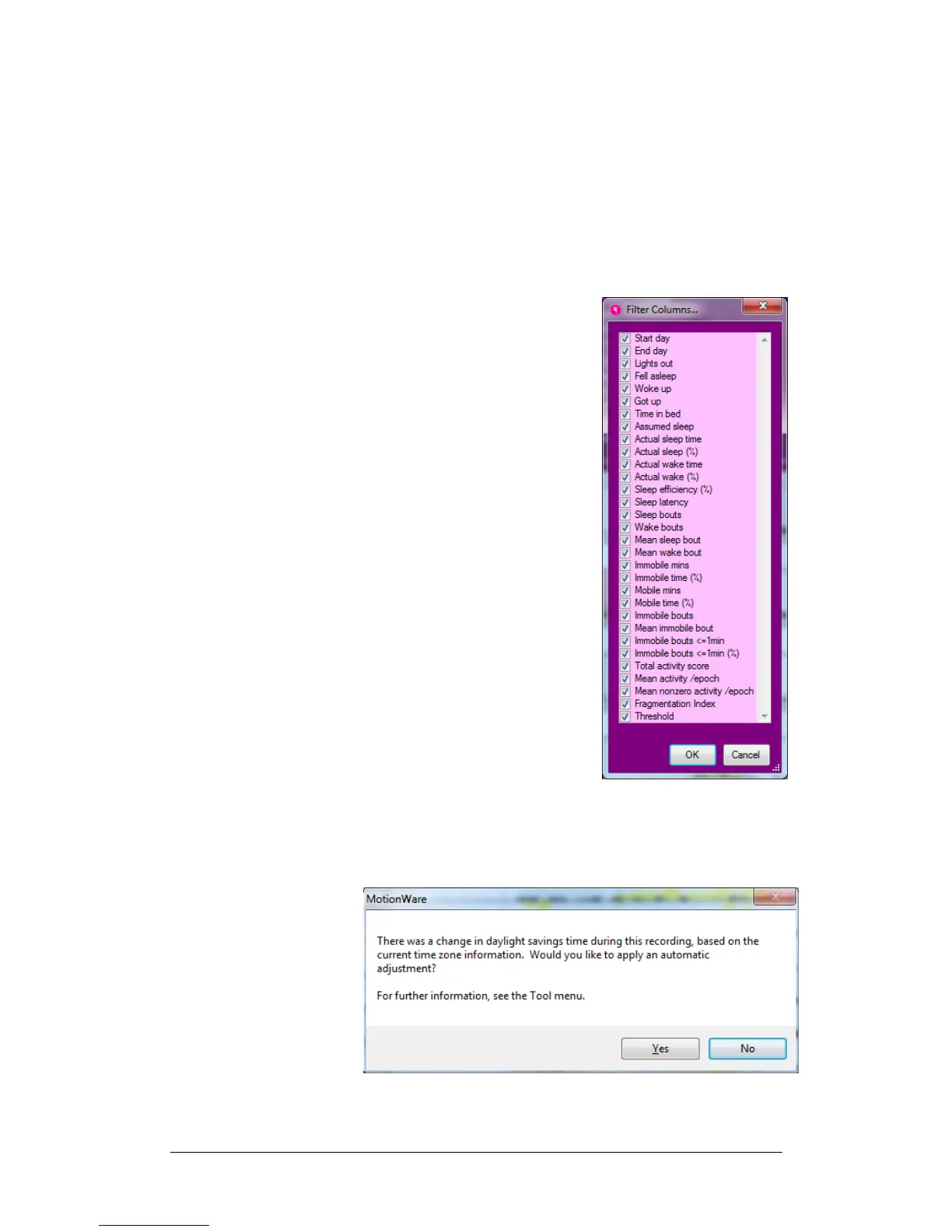
Filter Visible Columns
It is possible to further
customise the parameters that
will be included in the report.
Click on the ‘filter visible
columns’ button for either the
marker or sleep analysis data.
A window containing a checklist
of parameters will be displayed
(sleep parameters are shown in
this example). Ensure that the
required parameters are
checked for inclusion in the
report.
5.13 Daylight
Saving Adjust
If a clock change is detected (daylight saving) during a
recording, a message will be displayed upon first opening
of the recording:
Select ‘Yes’ to apply a daylight saving adjustment
to the data. This will default to the local regional


 To Next Page