8
1
2
3
4
5
Introduction
Contents at
a Glance
Basic
Operation
Advanced
Operation
Advanced
Image Editing
and Printing
Editing JPEG
Images
Index
Processing
Large Numbers
of Images
Reference
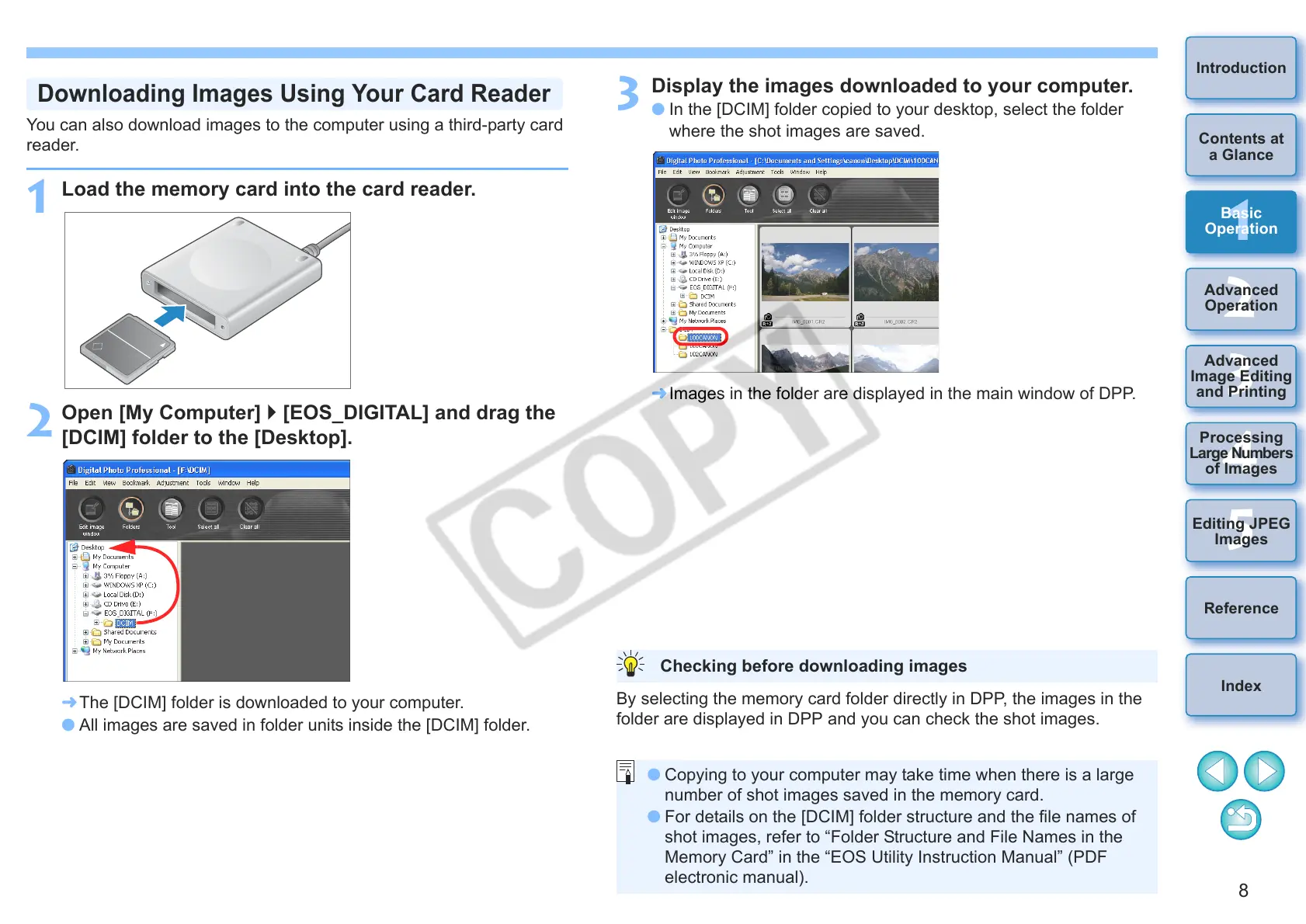
You can also download images to the computer using a third-party card
reader.
1
Load the memory card into the card reader.
2
Open [My Computer] [EOS_DIGITAL] and drag the
[DCIM] folder to the [Desktop].
¿ The [DCIM] folder is downloaded to your computer.
O All images are saved in folder units inside the [DCIM] folder.
Downloading Images Using Your Card Reader
3
Display the images downloaded to your computer.
O In the [DCIM] folder copied to your desktop, select the folder
where the shot images are saved.
¿ Images in the folder are displayed in the main window of DPP.
By selecting the memory card folder directly in DPP, the images in the
folder are displayed in DPP and you can check the shot images.
Checking before downloading images
O Copying to your computer may take time when there is a large
number of shot images saved in the memory card.
O For details on the [DCIM] folder structure and the file names of
shot images, refer to “Folder Structure and File Names in the
Memory Card” in the “EOS Utility Instruction Manual” (PDF
electronic manual).




 To Next Page