137
wPrinting
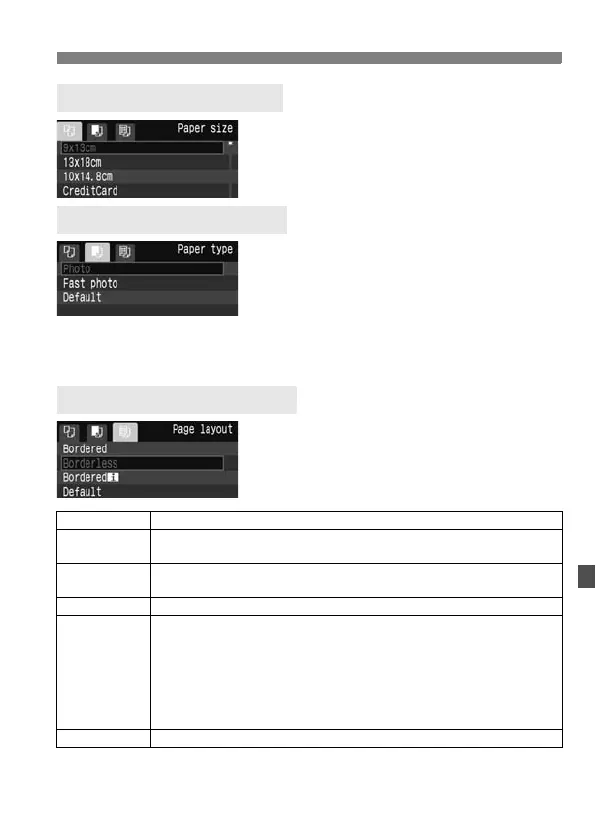
Turn the <5> dial to select the size
of the paper loaded in the printer,
then press <0>.
X The paper type screen will appear.
Turn the <5> dial to select the type
of the paper loaded in the printer,
then press <0>.
When using a Canon printer and Canon
paper, read the printer’s instruction manual to
check what paper types can be used.
X The page layout screen will appear.
Turn the <5> dial to select the page
layout, then press <0>.
X The print setting screen will reappear.
*
From the Exif data, the camera name, lens name, shooting mode, shutter speed, aperture,
exposure compensation amount, ISO speed, white balance, etc., will be imprinted.
** This depends on the <I> date/file number imprinting option set in step 5 (p.139).
QSetting the Paper Size
YSetting the Paper Type
USetting the Page Layout
Bordered The print will have a white border along the edges.
Borderless
The print will have no white borders. If your printer cannot print
borderless prints, the print will have borders.
Borderedc
The shooting information* will be imprinted on the border on
9x13cm and larger prints.
xx-up Option to print 2, 4, 8, 9, 16, or 20 images on one sheet.
20-upc
35-upp
On A4 or Letter size paper, 20 or 35 thumbnails of the images
ordered through DPOF will be printed.
• [20-upc] will have the shooting information* printed on the side
of each thumbnail and the file number and date** printed on the
bottom of each thumbnail image.
• [35-upp] will have the file number and date** printed on the
bottom of the thumbnail images.
Default With a Canon printer, the print will be borderless.


 To Next Page