68
B: Setting the White BalanceN
Custom white balance enables you to manually set the white balance
for a specific light source for better accuracy.
1
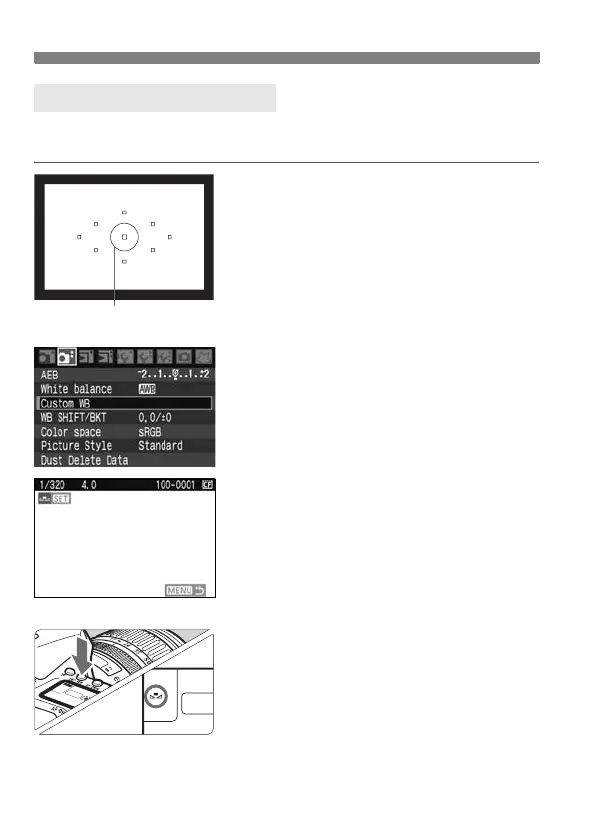
Photograph a white object.
The plain, white object should fill the
spot metering circle.
Focus manually and set the standard
exposure for the white object.
You can set any white balance.
2
Select [Custom WB].
Under the [2] tab, select [Custom
WB], then press <0>.
X The SET screen will appear.
3
Import the white balance data.
Turn the <6> or <5> dial to select
the image captured in step 1, then
press <0>.
X On the dialog screen which appears,
select [OK] and the data will be
imported.
4
Press the <n > button. (9)
After exiting the menu, press the
<n> button.
5
Select the custom white balance.
Look at the LCD panel and turn the
<5> dial to select <
O>.
O Custom White Balance
Spot metering circle


 To Next Page