56
Set the image-recording quality to suit the intended image size for
printing, etc. In the Basic Zone modes, only the following image-
recording quality settings can be set: 73, 83, 74, 84, 76,
86. They are all JPEG images. In the 1/D modes, the image
will require processing with the software provided. (p.58)
1
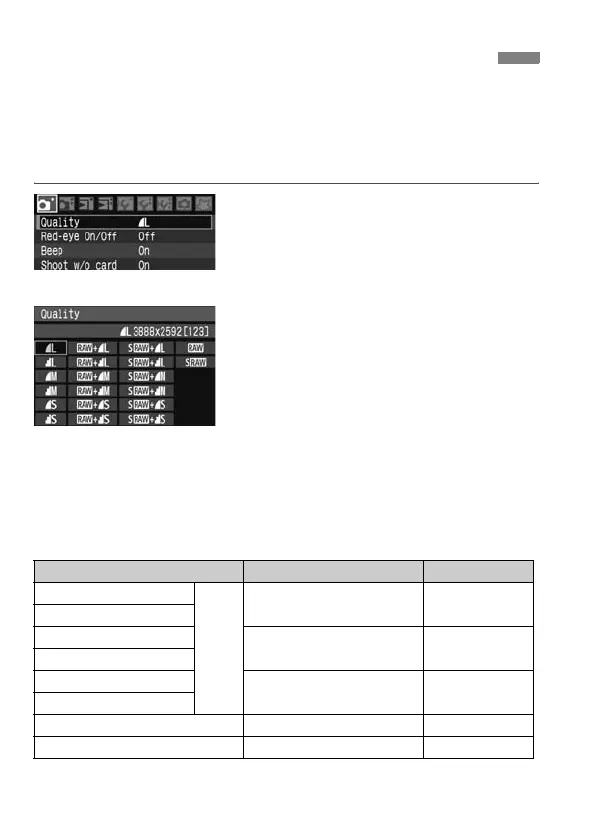
Select [Quality].
Under the [1] tab, select [Quality],
then press <0>.
X The image-recording quality screen
will appear.
2
Select the image-recording
quality.
Turn the <
5
> dial to select the image-
recording quality, then press <
0
>.
On the upper right, the **** x ****
number indicates the recorded pixel
count, and [***] is the shots remaining
(displayed up to 999).
Set the image-recording quality in
both the Basic Zone and Creative
Zone modes respectively.
With
1+73
,
D+73
, and other RAW+JPEG simultaneous recordings, both
the RAW and JPEG images will be saved in the same folder under the same file No.
3
Setting the Image-recording Quality
Guide to Image-recording Quality Settings
Quality Pixels Print Size
73 (Large/Fine)
JPEG
Approx. 10.1 megapixels A3 or larger
83 (Large/Normal)
74 (Medium/Fine)
Approx. 5.3 megapixels A4 - A5
84 (Medium/Normal)
76 (Small/Fine)
Approx. 2.5 megapixels A5 or smaller
86 (Small/Normal)
1 (RAW) Approx. 10.1 megapixels A3 or larger
D(Small RAW) Approx. 2.5 megapixels A5 or smaller


 To Next Page