96
White balance (WB) is for making the white areas look white. Normally,
the <Q> (Auto) setting will obtain the correct white balance. If natural-
looking colors cannot be obtained with <Q>, you can select the white
balance to match the light source or set it manually by shooting a white
object.
1
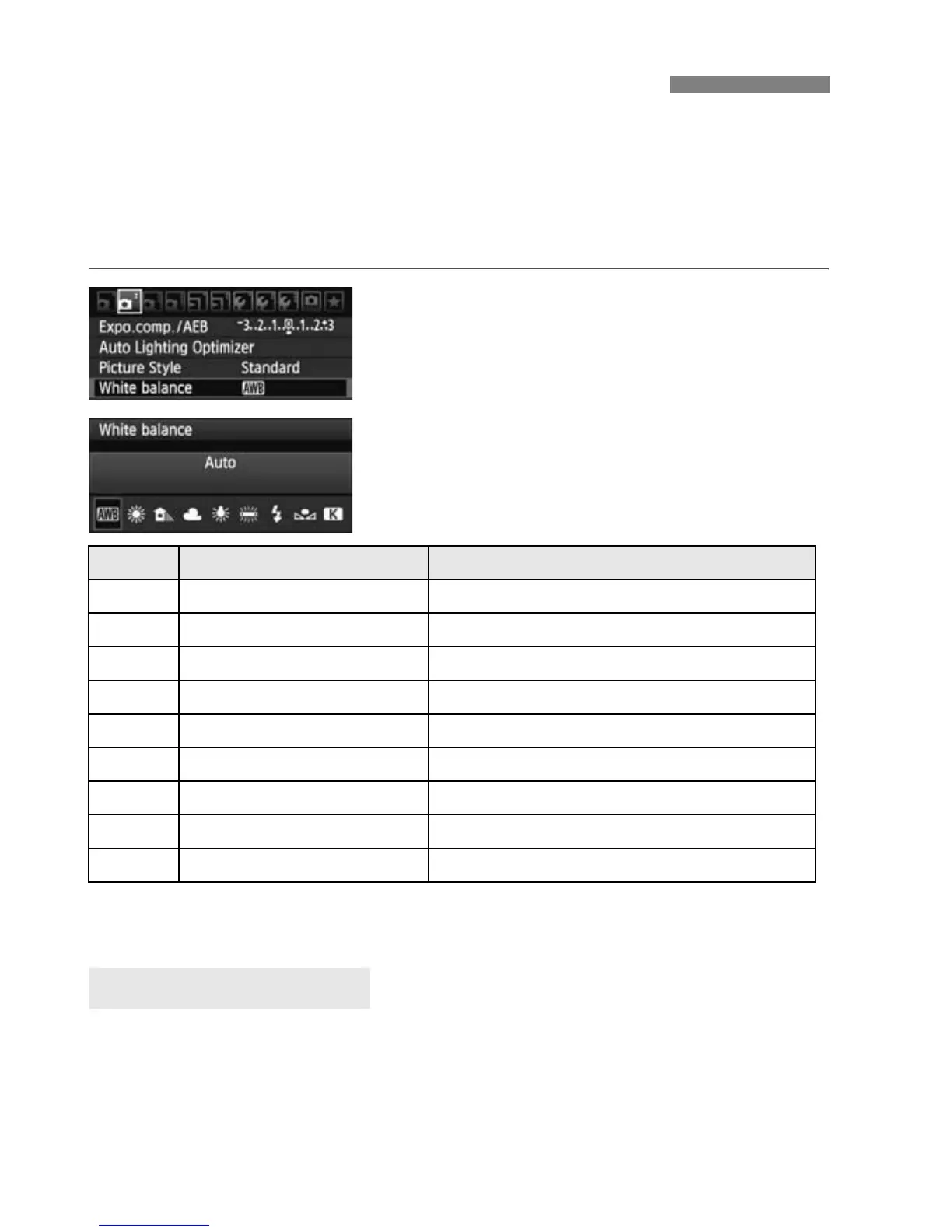
Select [White balance].
Under the [2] tab, select [White
balance], then press <0>.
2
Select the white balance.
Select the white balance, then press
<0>.
* Applicable with Speedlites having a color temperature transmission function.
Otherwise, it will be set to approx. 6000K.
To the human eye, a white object looks white regardless of the type of
lighting. With a digital camera, the color temperature is adjusted with
software to make the white areas look white. This adjustment serves as
the basis for the color correction. The result is natural-looking colors in
the pictures.
3 Setting the White BalanceN
Display Mode Color Temperature (Approx. K: Kelvin)
Q Auto 3000 - 7000
W Daylight 5200
E Shade 7000
R Cloudy, twilight, sunset 6000
Y Tungsten light 3200
U White fluorescent light 4000
I Flash use Automatically set*
O Custom (p.97) 2000 - 10000
P Color temperature (p.98) 2500 - 10000
About White Balance





 To Next Page