Before You Start the Remote UI
1-10
1
Using the Remote UI
Enabling the Remote UI
You must use the machine's control panel to enable the Remote UI.
1
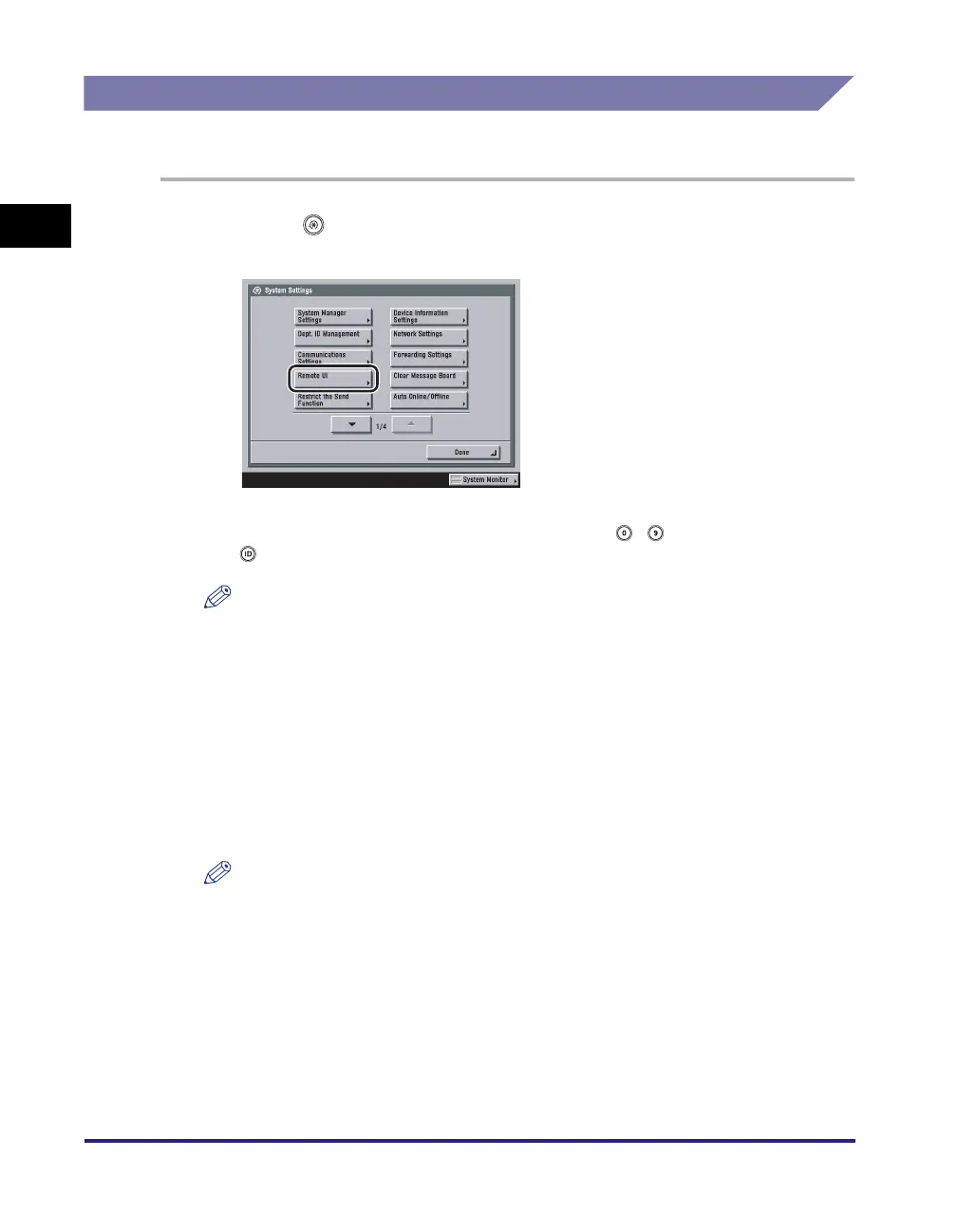
Press (Additional Functions) ➞ [System Settings] ➞
[Remote UI].
If the System Manager ID and System Password have already been set, enter the
System Manager ID and System Password using - (numeric keys) ➞ press
(Log In/Out).
NOTE
If the desired setting is not displayed, press [
▼
] or [
▲
] to scroll to the desired
setting.
2
Select [On] ➞ select whether to use SSL.
Select [Off] to disable the Remote UI.
<Use SSL>:
[On]: Allows secured transmission using SSL.
[Off]: Prohibits secured transmission using SSL.
NOTE
Any changes made to <Use SSL> are also applied to <Use SSL> in <Use HTTP>
in MEAP Settings in System Settings (from the Additional Functions screen).
3
Press [Done] repeatedly until the Basic Features screen
appears.







 To Next Page