Printing PDF, PS, or Image Files Directly (Direct Print)
2-27
2
Checking and Managing Functions
2
Specify the location of the PS file that you want to print.
You cannot specify multiple PS files at the same time.
3
Specify the Print Settings according to your preference ➞
click [Start Print].
To restore the settings to their original values, click [Reset].
To store the file in a user inbox, select [Store in User Inbox] ➞ select the inbox
you want to store the file in from the drop-down list.
To check the files that have been sent to the machine to be printed, click [to Job
List] on the message box that appears after you click [Start Print].
NOTE
•
Available print functions may vary according to the model of your machine.
•
For more information on the various functions, see the PS/PCL/UFR II Printer
Guide.
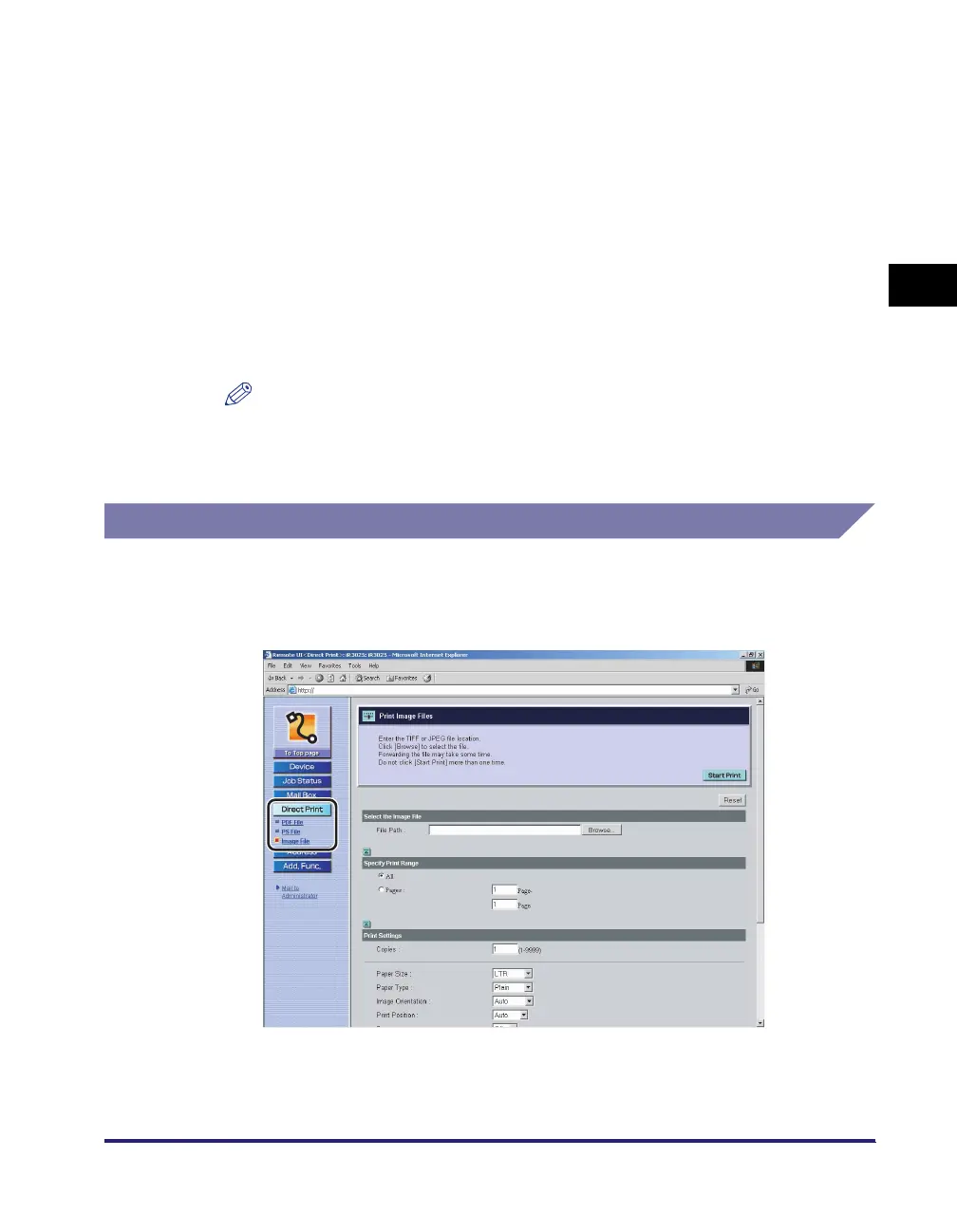
Printing Image Files Directly
1
Click [Direct Print] ➞ select [Image File] from the menu that
appears under [Direct Print].
If Department ID Management is set, a dialog box prompting you to enter the
Department ID and password appears. Enter the Department ID and password
➞ click [OK].







 To Next Page