Job Management
2-5
2
Checking and Managing Functions
Managing Print Jobs
1
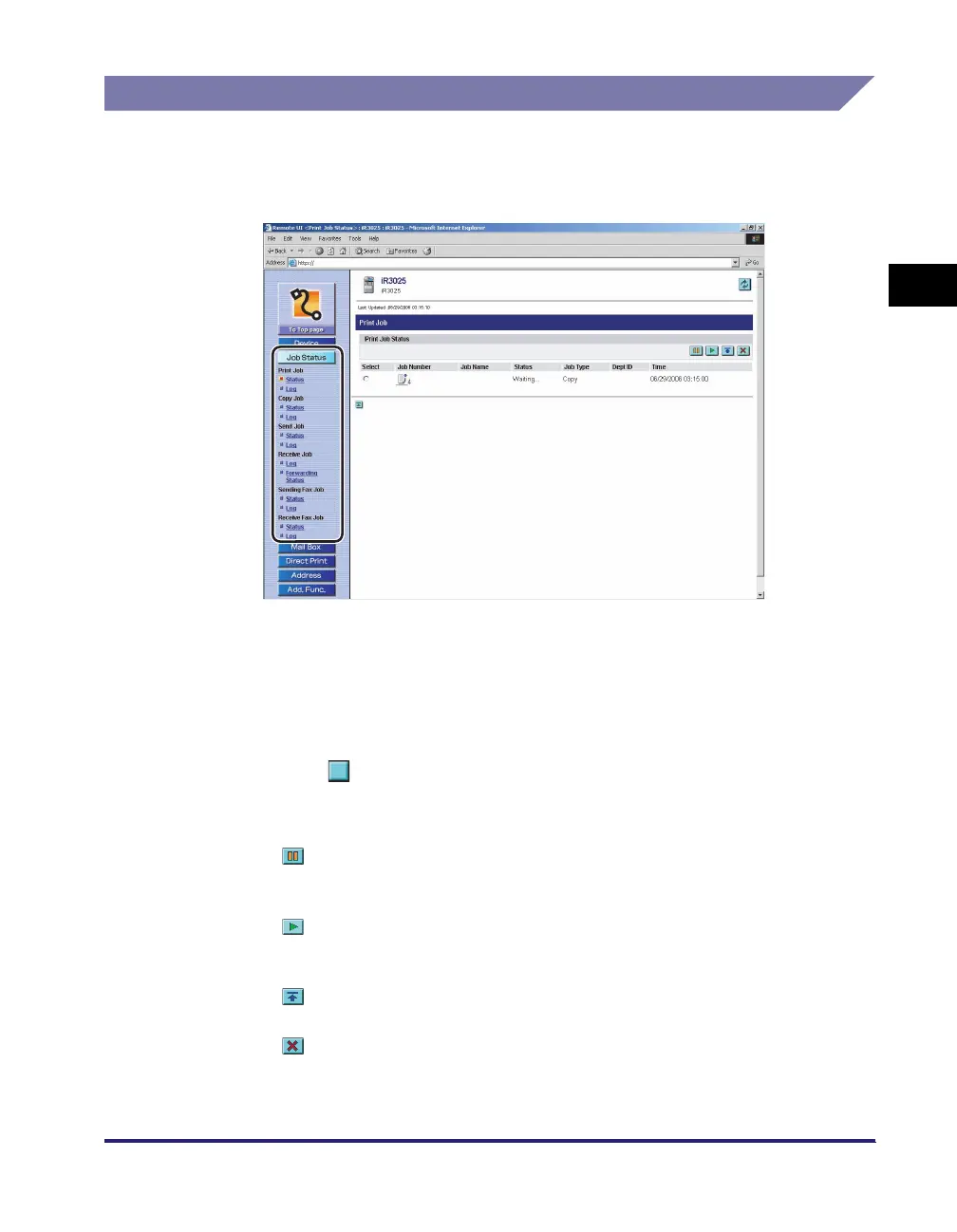
Click [Job Status] ➞ click [Status] or [Log] from the menu that
appears under [Print Job].
If Department ID Management is set, a dialog box prompting you to enter the
Department ID and password appears. Enter the Department ID and password
➞ click [OK].
● To perform operations on a job:
❑
Click [Status].
❑ Click [ ] (Select) to the left of the job that you want to perform operations on
➞ click one of the following buttons:
Details of each item are shown below.
Stops the output of print jobs that are sent from computers (printer driver).
(This button cannot be used to stop the output of other types of jobs, such
as copy jobs or print jobs of documents stored in inboxes.)
Resumes the output of print jobs that are sent from computers (printer
driver). (This button cannot be used to resume the output of other types of
jobs, such as copy jobs or print jobs of documents stored in inboxes.)
Moves the selected job up to the top of the print queue so that it is printed
immediately after the current job is complete.
Deletes the selected job (cancels processing). The job cannot be retrieved
once it is deleted.







 To Next Page