Note
•
Page Setup might not be displayed in the menu de-
pending on the OS you are using and the applica-
tion software.
In this case, select Print from the menu in the appli-
cation software, and configure the settings in the up-
per part of the printer driver screen that is displayed.
2
Select the printer in the BFormat for list.
3
In the CPaper Size list, click the size of the original. In this case, click ISO A3.
4
Click FOK to close the dialog box.
5
Choose Print in the application menu.
6
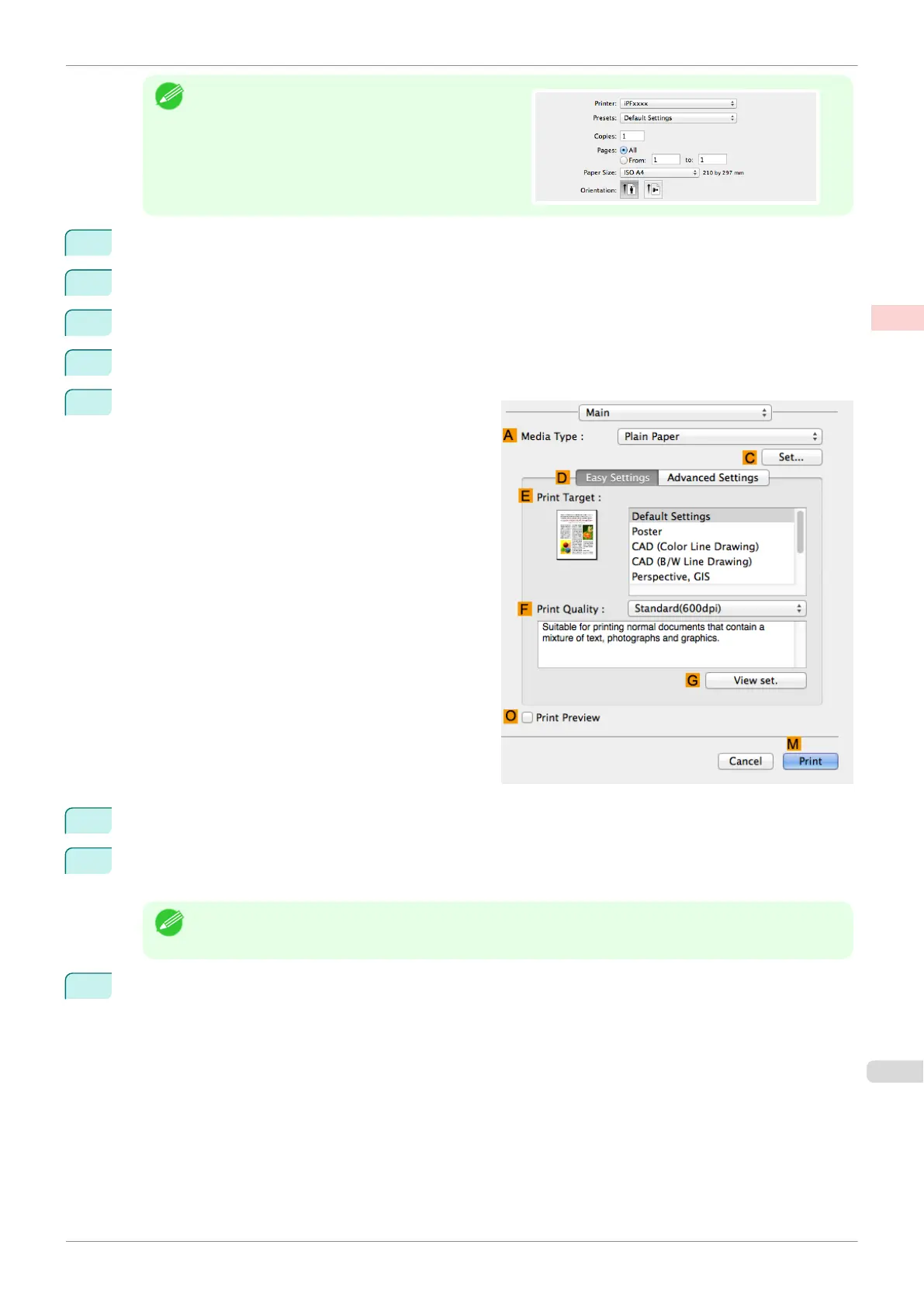
Access the Main pane.
7
In the AMedia Type list, select the type of paper that is loaded. In this case, click Plain Paper.
8
After confirming that DEasy Settings is selected, click CAD (Color Line Drawing) or CAD (Monochrome
Line Drawing ) in the EPrint Target list.
Note
•
You can check the settings values selected in the EPrint Target list by clicking GView set..
9
Make your selection in the FPrint Quality list.
iPF770
Printing Line Drawings and Text (Mac OS)
User's Guide
Enhanced Printing Options Printing CAD Drawings
41


 To Next Page
 Loading...