Department ID Management
6-23
System Manager Settings
6
3
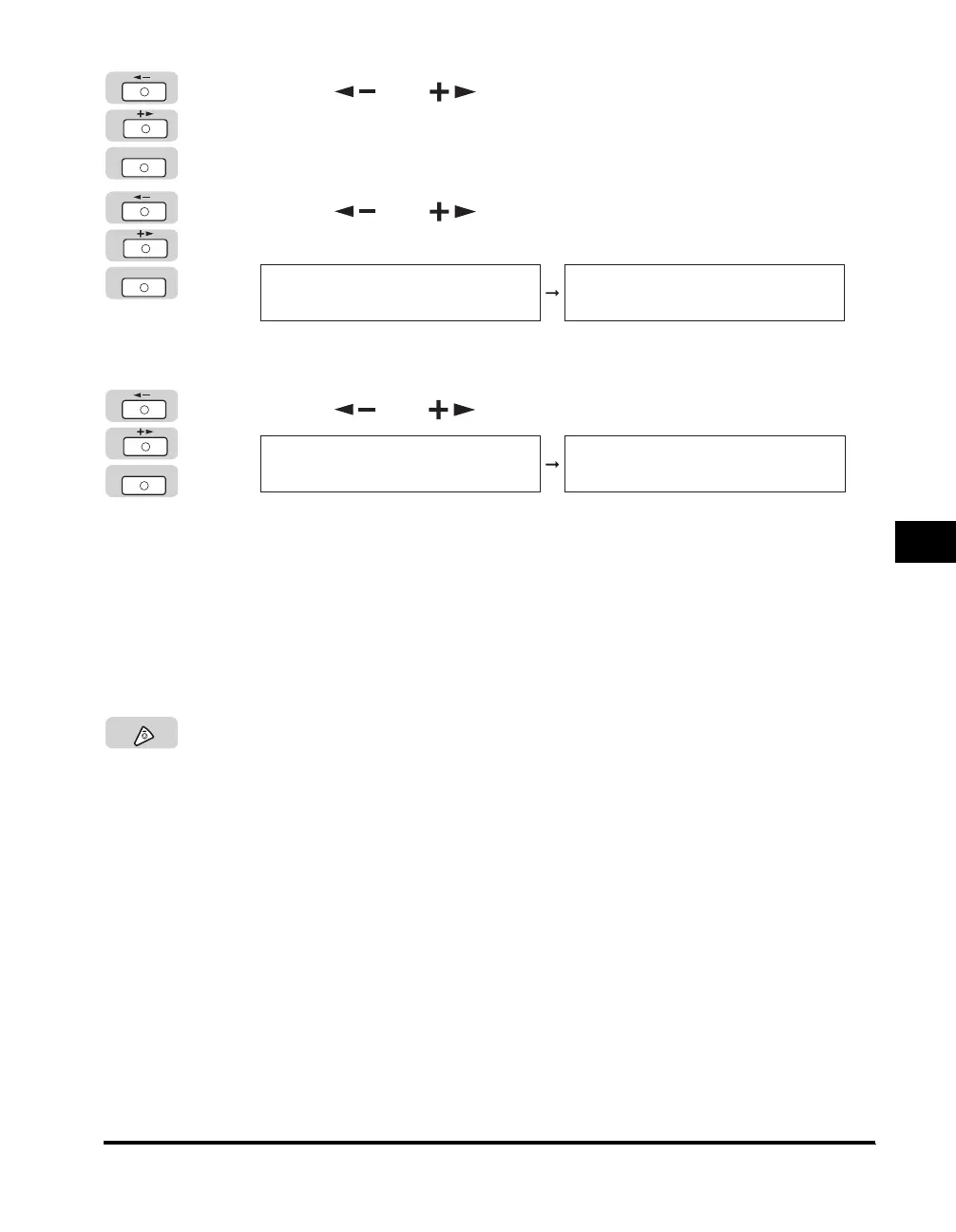
Press [ ] or [ ] to select <ON> ➞ press [OK].
If necessary, see the screen shots in step 4 of "Specifying Department ID
Management," on p. 6-8.
4
Press [ ] or [ ] until <PDL JOBS W/OUT ID> appears
➞ press [OK].
The <PDL JOBS W/OUT ID> menu appears.
5
Press [ ] or [ ] to select <ON> or <OFF> ➞ press [OK].
Details of each item are shown below.
<ON>: The machine accepts print jobs from computers that do not correspond
with a registered Department ID.
<OFF>: The machine does not accept print jobs from computers that do not
correspond with a registered Department ID, and you must enter a
Department ID and password to operate the machine.
The selected mode is set.
6
Press [Stop] to return to the Standby display.
OK
OK
MANAGE DEPT. ID
3.PDL JOBS W/OUT ID
PDL JOBS W/OUT ID
ON
OK
PDL JOBS W/OUT ID
ON
SYSTEM SETTINGS
4.MANAGE USER ID
Stop



 To Next Page