Checking the Counter
3-2
Checking and Canceling a Job
3
Checking the Counter
You can check counter totals of copy, fax, and print jobs.
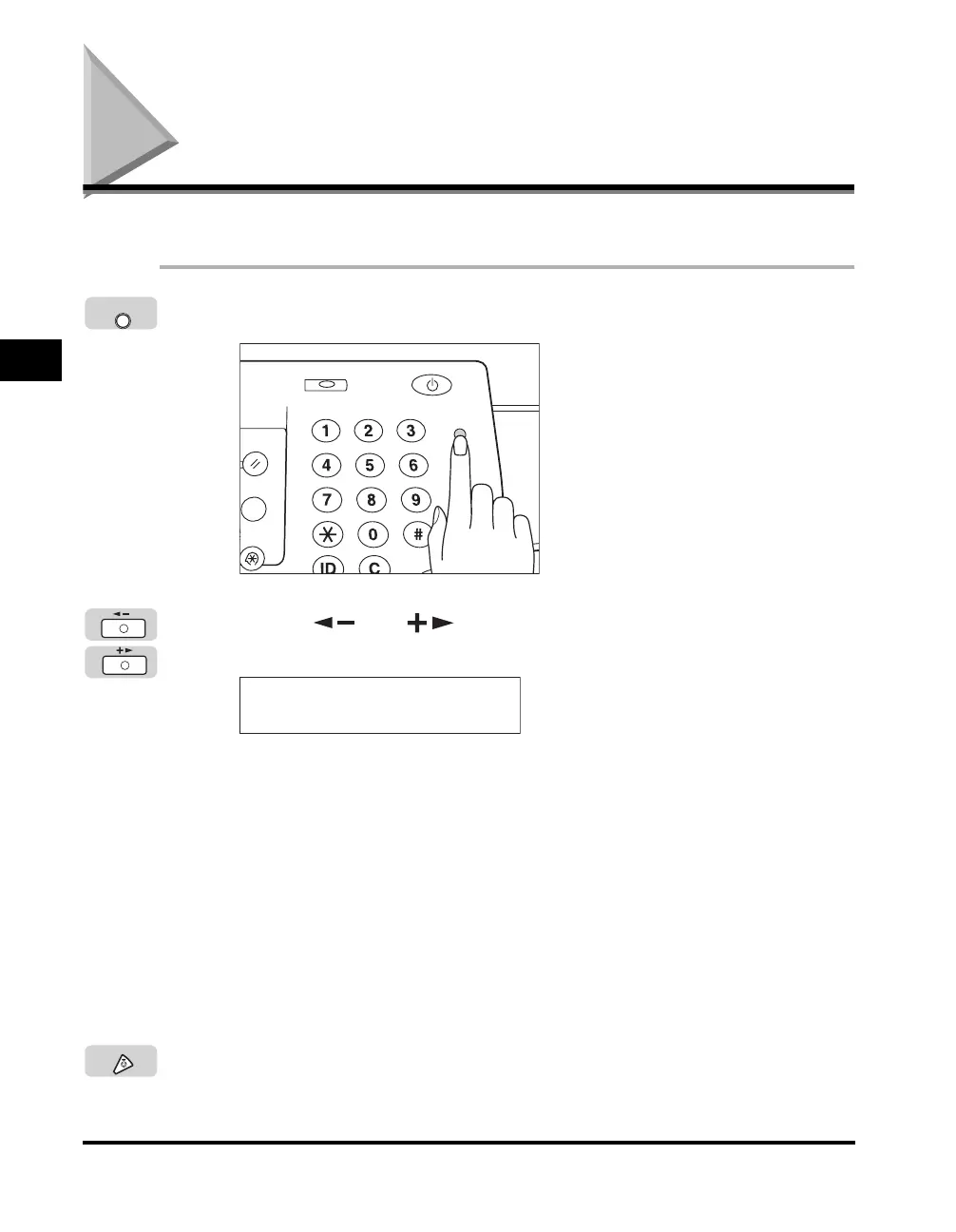
1
Press [Counter Check] on the control panel.
2
Press [ ] or [ ] to select the type of counter totals you
want to check.
The various counts are shown on the LCD display.
Screen Examples:
<101:TOTAL :1>: This displays the total number of output pages for all sizes of
copy, fax, and print jobs.
<103:TOTAL :L>: This displays the number of large size pages (11" × 17" and
free sizes) that have been used for copy, fax, and print jobs.
<201:COPY :T1>: This displays the total amount of pages that have been used
for copy jobs.
<203:COPY :L>: This displays the number of large size pages (11" × 17" and
free sizes) that have been used for copy jobs.
3
Press [Stop] to return to the Standby display.
Counter
Check
System Monitor
ON/OFF
Counter
Check
ABC DEF
GHI
JKL
MNO
PQRS
TUV
WXYZ
Tone
SYMBOLS
Log In/Out
Clear
Stop
Start
Reset
dditional
unctions
w Settings
COUNT CHECK XXX00001
101:TOTAL :1 :000062
Stop



 To Next Page