Adjusting the Machine
7-37
Routine Maintenance
7
2
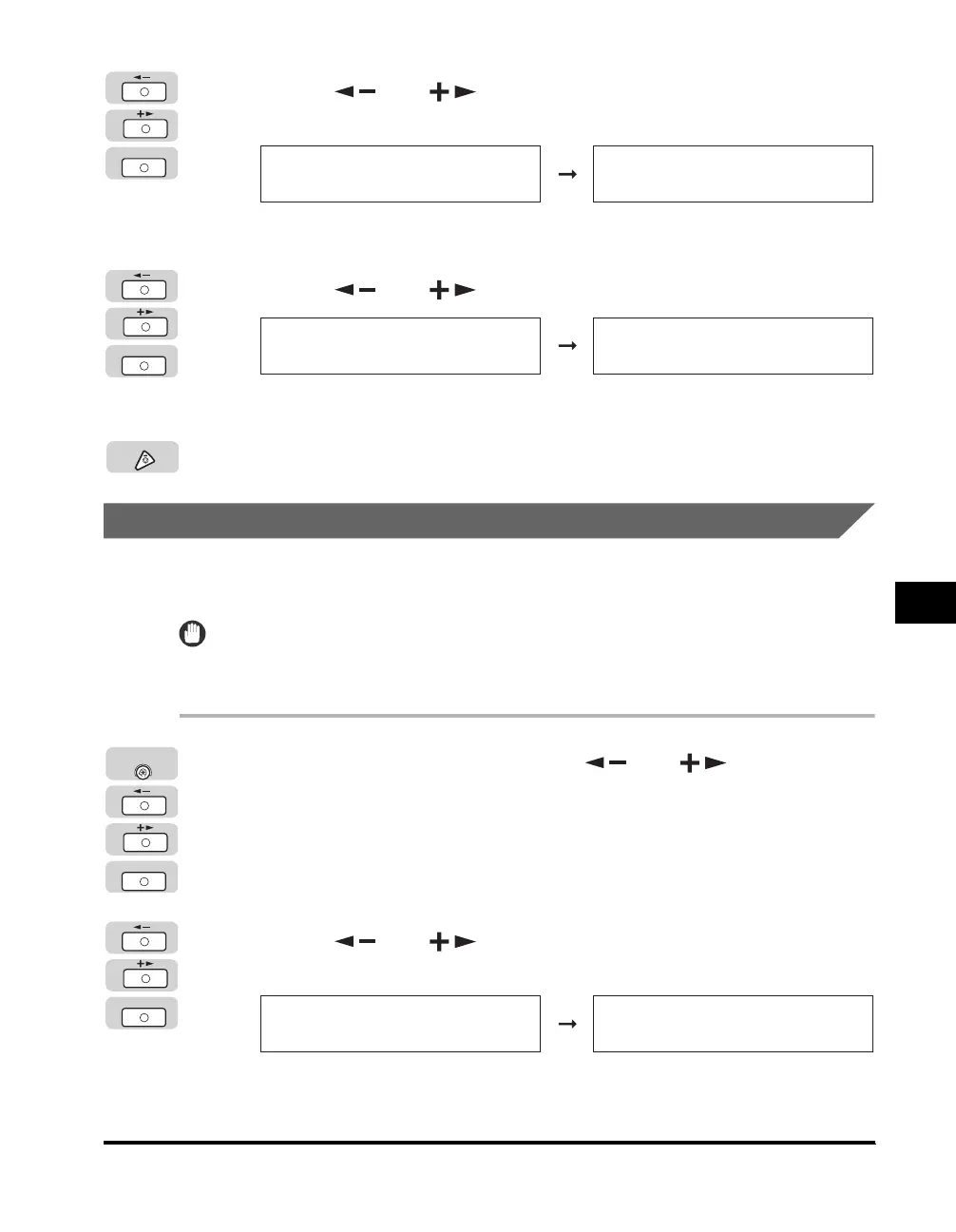
Press [ ] or [ ] until <SPECIAL MODE N> appears ➞
press [OK].
The <SPECIAL MODE N> menu appears.
3
Press [ ] or [ ] to select <ON> ➞ press [OK].
Special Mode N is activated.
4
Press [Stop] to return to the Standby display.
Prevent Paper Jams in the Two-Sided Mode
A paper jam may occur when printing the back side of paper using the two-sided
paper function. Use Special Mode O to prevent paper jams with two-sided printing.
IMPORTANT
Do not use paper that has been exposed to high temperature or humidity for an extended
period of time. Two-sided printing on such paper will frequently result in a paper jam.
1
Press [Additional Functions] ➞ [ ] or [ ] until
<ADJUST./CLEANING> appears ➞ press [OK].
If necessary, see the screen shots in steps 1 and 2 of "Print Quality and Density
Improvement," on p. 7-35.
The <ADJUST./CLEANING> menu appears.
2
Press [ ] or [ ] until <SPECIAL MODE O> appears ➞
press [OK].
The <SPECIAL MODE O> menu appears.
OK
ADJUST./CLEANING
6.SPECIAL MODE N
SPECIAL MODE N
OFF
OK
SPECIAL MODE N
ON
ADJUST./CLEANING
7.SPECIAL MODE O
Stop
OK
Additional
Functions
OK
ADJUST./CLEANING
7.SPECIAL MODE O
SPECIAL MODE O
1.DRAWER



 To Next Page