Checking Job Status
3-3
Checking and Canceling a Job
3
Checking Job Status
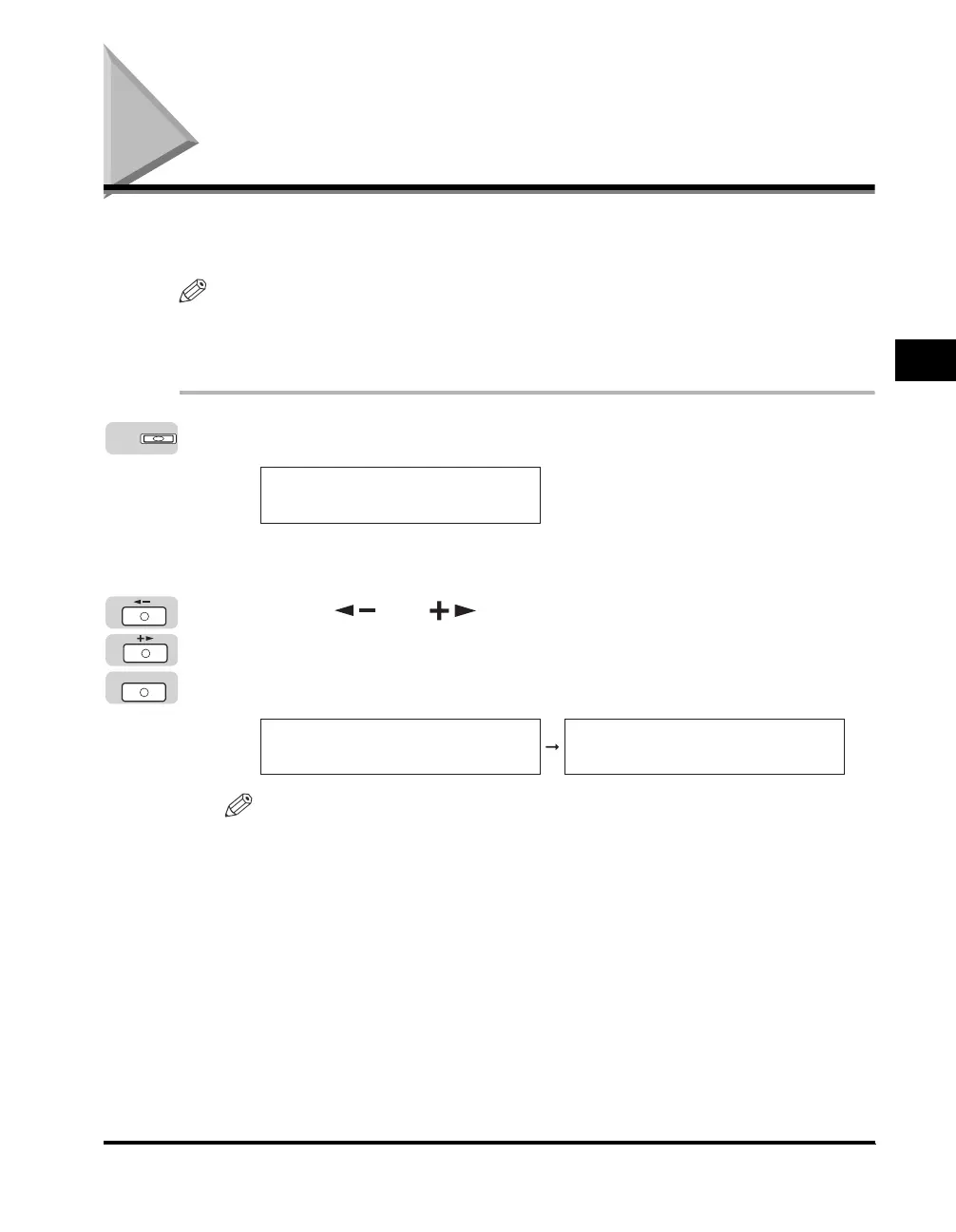
When you press the System Monitor key, the job status display appears. You can
check the status of copy, fax send/receive, print, or report jobs.
NOTE
To be able to check <TX/RX LOG> from the System Monitor screen, <CHECKING THE
LOG> from the <SYSTEM SETTINGS> menu must be set to 'ON'. For more information,
see "Checking the TX/RX Log," on p. 6-30.
1
Press [System Monitor].
The System Monitor screen appears on the LCD display.
2
Press [ ] or [ ] to select the job you want to check ➞
press [OK].
You can select <COPY STATUS>, <RX/TX STATUS>, <TX/RX LOG>, <PRINT
STATUS>, or <REPORT STATUS>.
NOTE
•
The Fax function is available only if the optional Super G3 FAX Board is installed.
•
To check the status of print jobs sent from a computer, see the PCL/UFR II
Printer
Guide
or
UFR II Printer Guide
.
System Monitor
COPY STATUS
SELECT JOB TO CANCEL
OK
COPY STATUS
SELECT JOB TO CANCEL
0100 17:00 PRINTING
1 X 1 / 34



 To Next Page