Canceling a Job
3-7
Checking and Canceling a Job
3
3
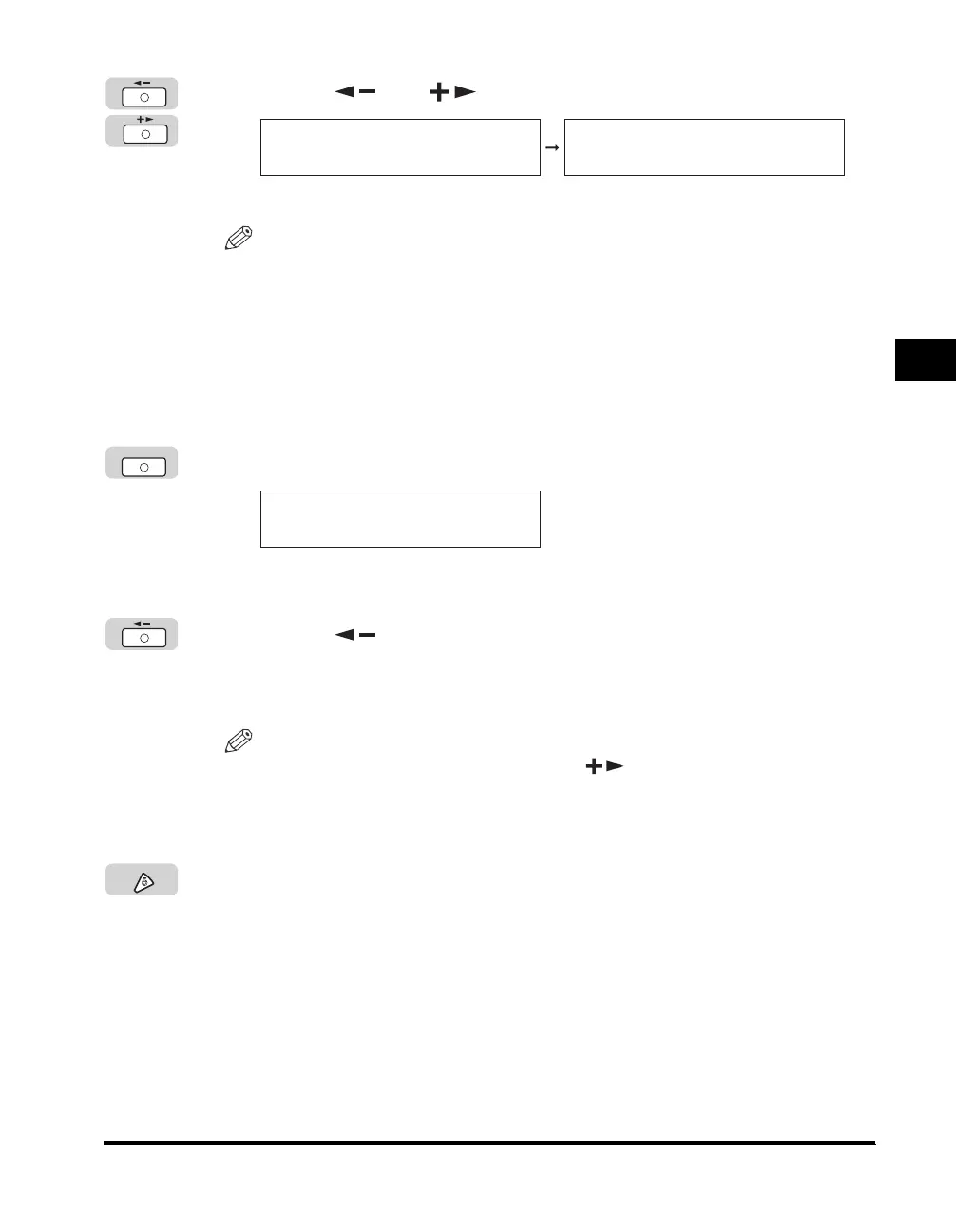
Press [ ] or [ ] to scroll through the list of jobs.
The current job is displayed first.
NOTE
•
The messages and symbols displayed on the Copy Status screens are as follows:
- <PRINTING> = Current job
- A dash (-) = Reserved jobs
•
The symbols displayed on the Report Status and Print Status screens are as
follows:
- An asterisk (
∗
) = Current job
- A dash (-) = Reserved jobs
4
Press [OK].
A confirmation message appears.
5
Press [ ] to select <YES>.
Repeat steps 3 to 5 to cancel another job.
The selected job is canceled.
NOTE
•
If you do not want to cancel the job, press [ ] to select <NO>.
•
You cannot select multiple jobs and cancel them all at once. Select and cancel one
job at a time.
6
Press [Stop] to return to the Standby display.
0001 17:00 *
USER DATA LIST
0101 15:30 -
OTHER
OK
CANCEL REPORT?
< YES NO >
Stop



 To Next Page