Note
• Large is about double the size of Medium, and Small is about half the size of Medium.
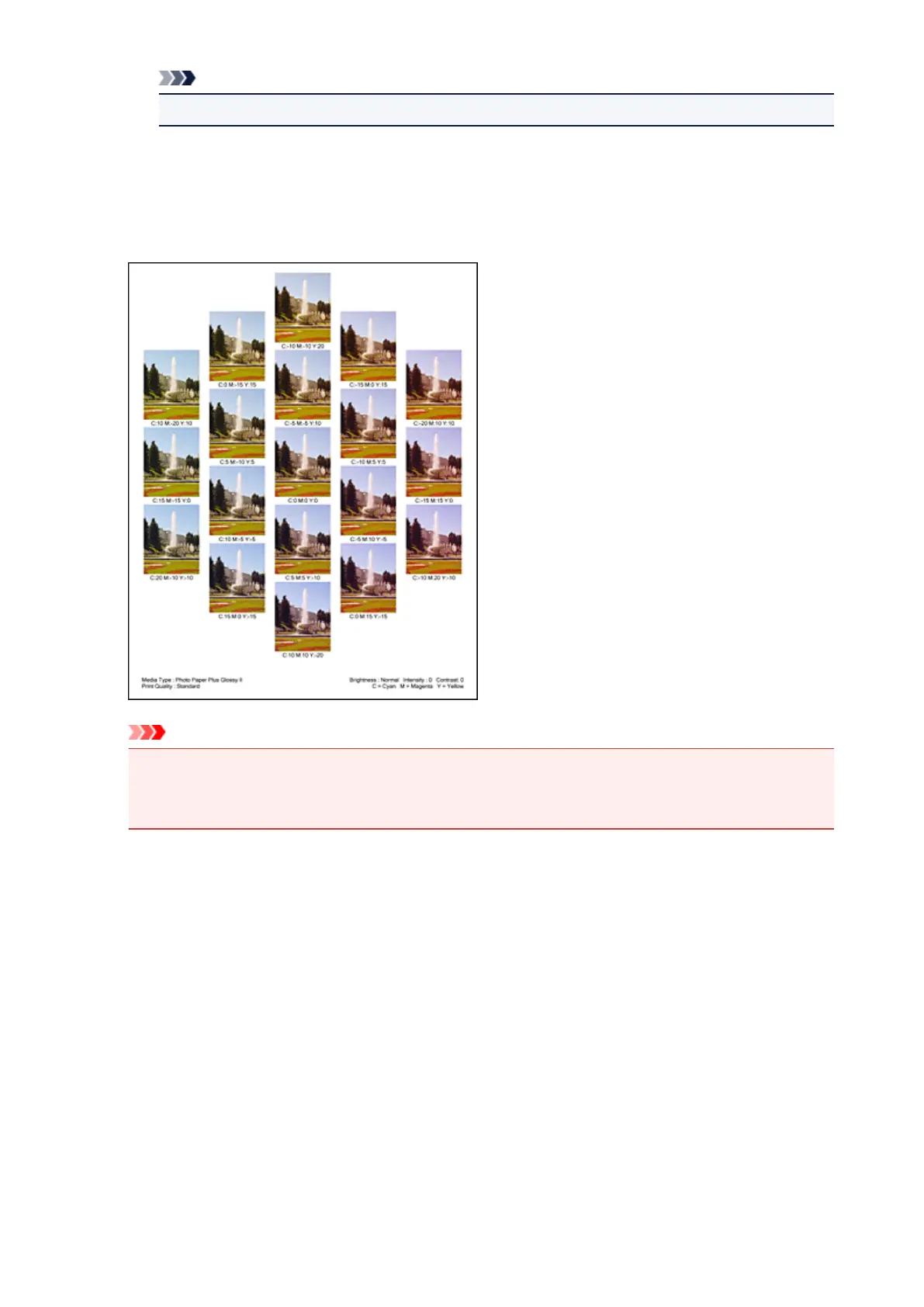
5. Checking the print results of pattern print
On the Color Adjustment tab, select OK to close the Manual Color Adjustment dialog box.
On the Main tab, select OK, and then execute printing. The machine then prints a pattern in which the
color balance that you set is the center value.
Important
• Normally, patterns are printed with the color balance settings as the center values. However,
when Black Only is selected for Ink Cartridge Settings on the Maintenance tab, the color
balance settings are not applied to pattern printing.
6.
Adjusting the color balance
Look at the print results and select the image that you like best. Then enter the color balance numbers
indicated at the bottom of that image into the Cyan, Magenta, and Yellow fields on the Color
Adjustment tab.
Clear the Print a pattern for color adjustment check box, and click OK.
322













 To Next Page