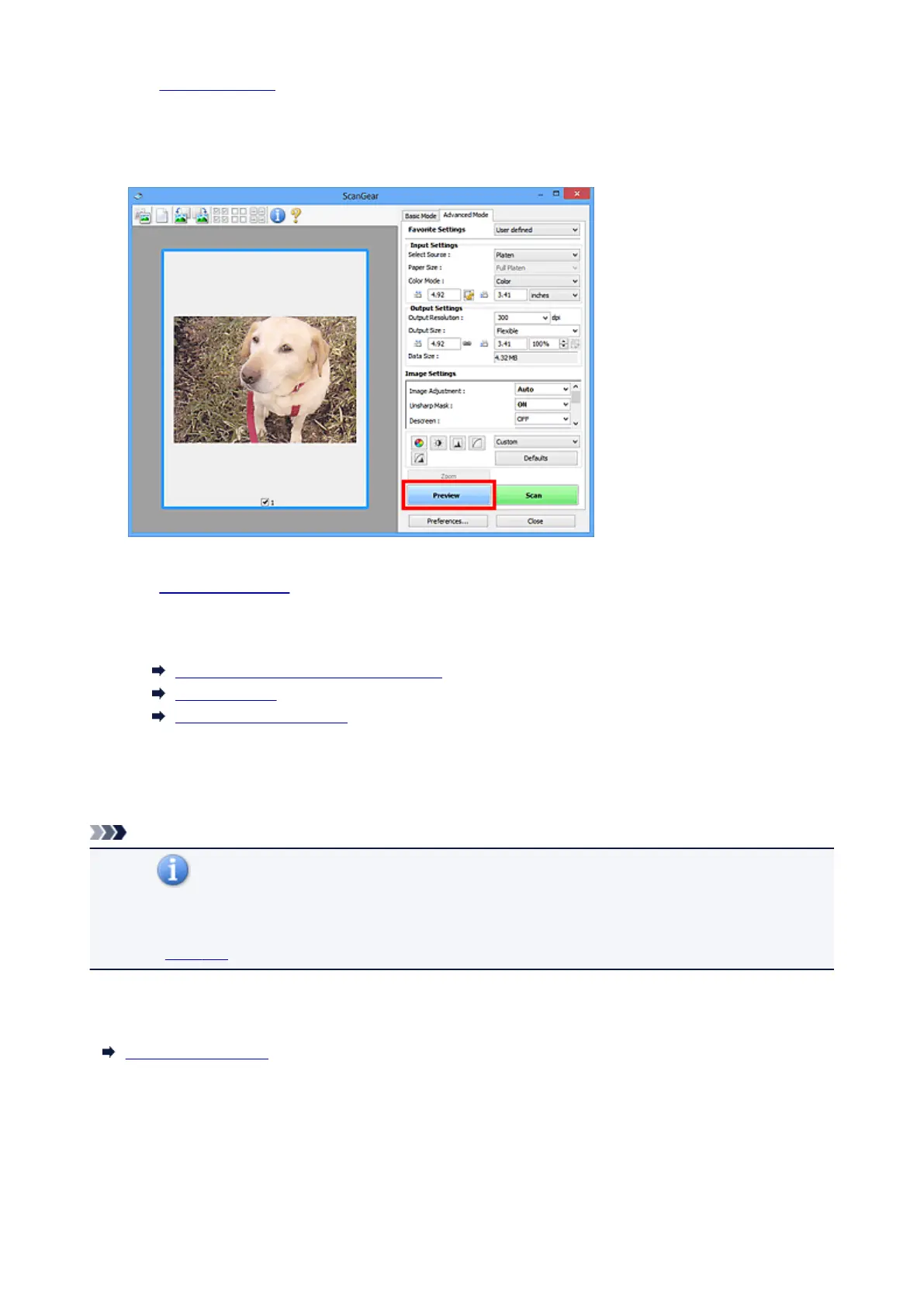
3. Set Input Settings according to the document or purpose.
4. Click Preview.
Preview images appear in the Preview area.
5.
Set Output Settings.
6.
Adjust the cropping frame (scan area), correct image, and adjust colors as required.
Adjusting Cropping Frames (ScanGear)
Image Settings
Color Adjustment Buttons
7.
Click Scan.
Scanning starts.
Note
• Click (Information) to open a dialog box in which you can check the current scan settings
(document type, etc.).
• A response of ScanGear after scanning can be specified in Status of ScanGear dialog after scanning
on the Scan tab of the Preferences dialog box.
Related Topic
Advanced Mode Tab
504













 To Next Page