• Windows 7:
1. From the Start menu, select Control Panel > Hardware and Sound > Devices and
Printers.
2.
Right-click the Canon XXX series Printer icon and select Printing Preferences, then
Canon XXX series FAX. Or right-click the Canon XXX series FAX icon and select
Printing Preferences. (Where "XXX" is the model name.)
• Windows Vista:
1.
From the Start menu, select Control Panel > Hardware and Sound > Printers.
2.
Right-click the Canon XXX series FAX icon (where "XXX" is the model name) and select
Printing Preferences....
•
Windows XP:
1.
From the Start menu, select Control Panel > Printers and Other Hardware > Printers
and Faxes.
2.
Right-click the Canon XXX series FAX icon (where "XXX" is the model name) and select
Printing Preferences....
5.
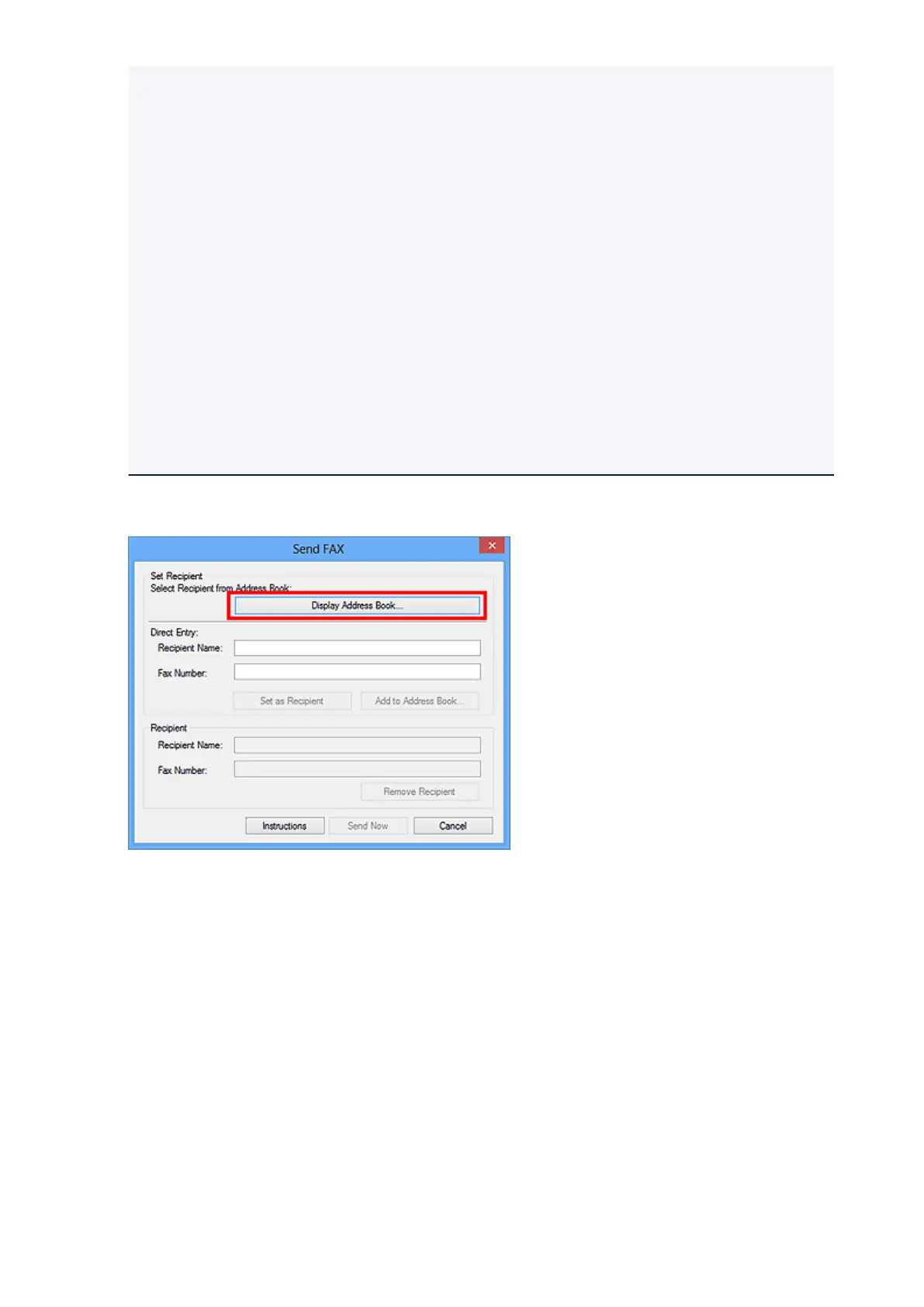
Click Display Address Book... in Set Recipient in the Send FAX dialog box.
6. Select a recipient from Recipient Name in the Select Recipient from Address Book
dialog box, then click Set as Recipient.
The selected recipient is reflected in Recipient in the Send FAX dialog box.
700













 To Next Page