3.
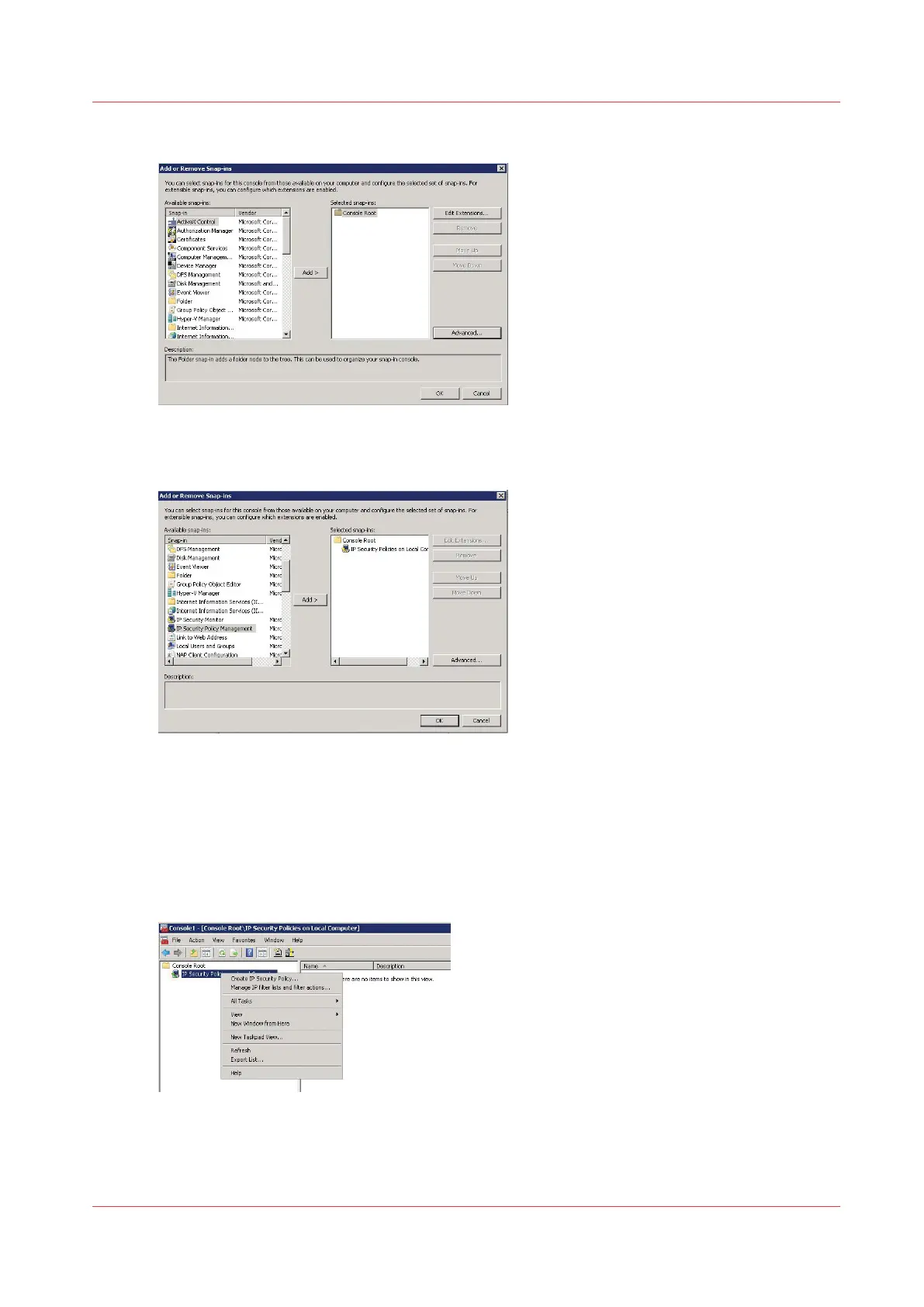
Select 'IP Security Policy Management' and click 'Add' to add it to the root console
4.
Keep 'Local computer' checked and click 'Finish'
The security snap-in is added, click 'OK'
Create the security policy
Procedure
1.
In the console, right click on 'IP Security Policies on local Computer' and select 'Create IP Security
Policy'
2.
Click 'Next' to open the wizard
Create the security policy
Chapter 2 - Security on Océ PlotWave 300/350, PlotWave 750, PlotWave 900 and ColorWave 300
45









 To Next Page