3.
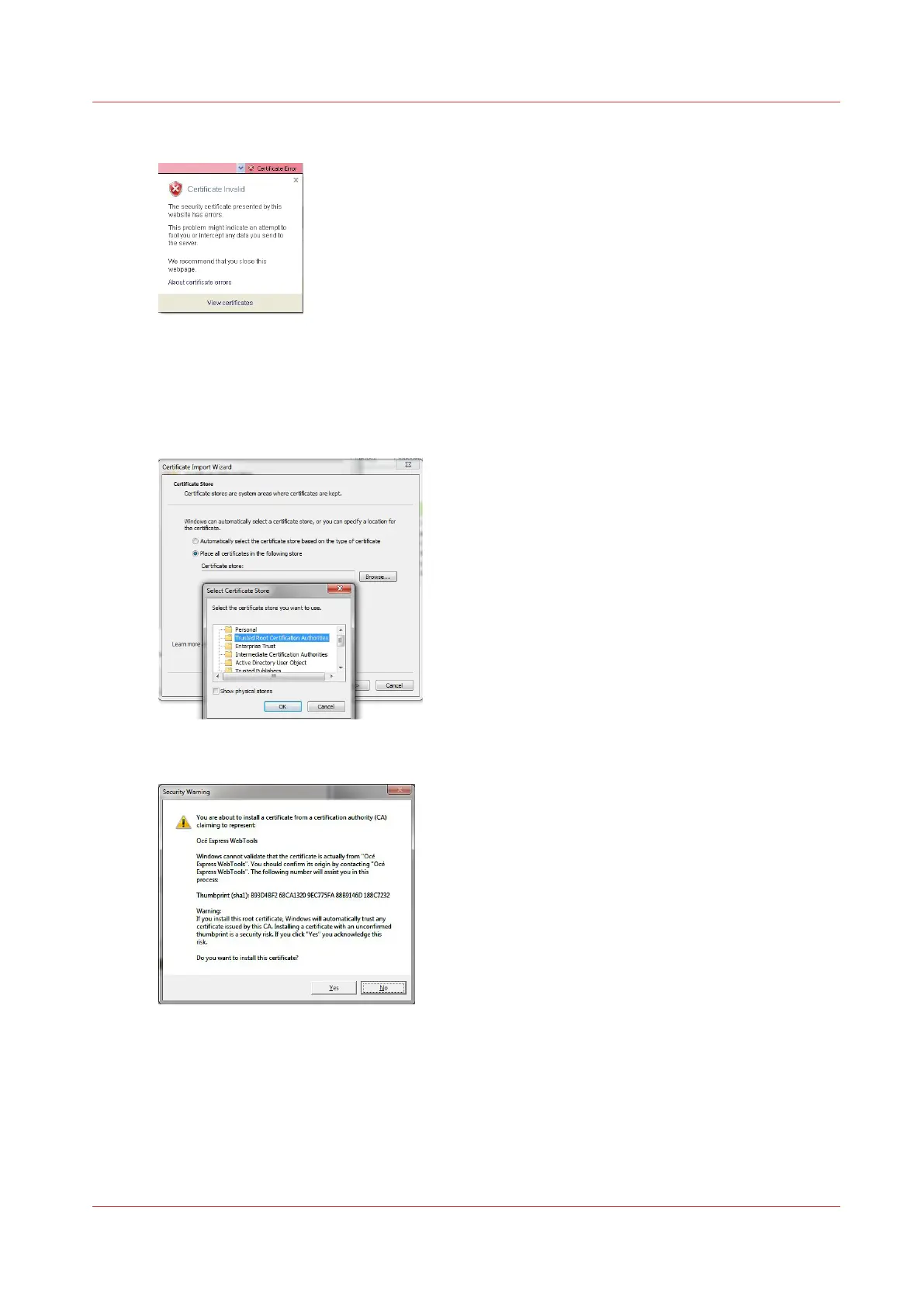
Click on 'Certificate error':
4.
Click 'View certificates'
5.
The certificate is issued to 'OcéExpress WebTools' by 'Océ Express WebTools'
6.
Click 'Install Certificate...'
7.
Follow the Wizard's instructions to import the certificate into your web browser:
1. Place the certificate in the 'Trusted Root Certification Authorities' folder
2. Accept the warning
3. Finish the installation
When the import is successful, the 'Océ Express WebTools' Certificate is recognised and its status
is OK.
Use the Océ self-signed certificate with Internet Explorer
Chapter 2 - Security on Océ PlotWave 300/350, PlotWave 750, PlotWave 900 and ColorWave 300
59









 To Next Page