Configure the browser for a self-signed certificate
The first time you use a self-signed certificate, your web browser will generate security error
messages.
In order to easily and securely use the self-signed certificate in your web browser, you must:
- View and check the self-signed certificate in your web browser
- Configure your web browser to trust the self-signed certificate
Use the Océ self-signed certificate with Internet Explorer
Procedure
1.
On a workstation, type the URL address of your printer in Internet Explorer: https://[common
Name or PrinterHostname or PrinterIPaddress]
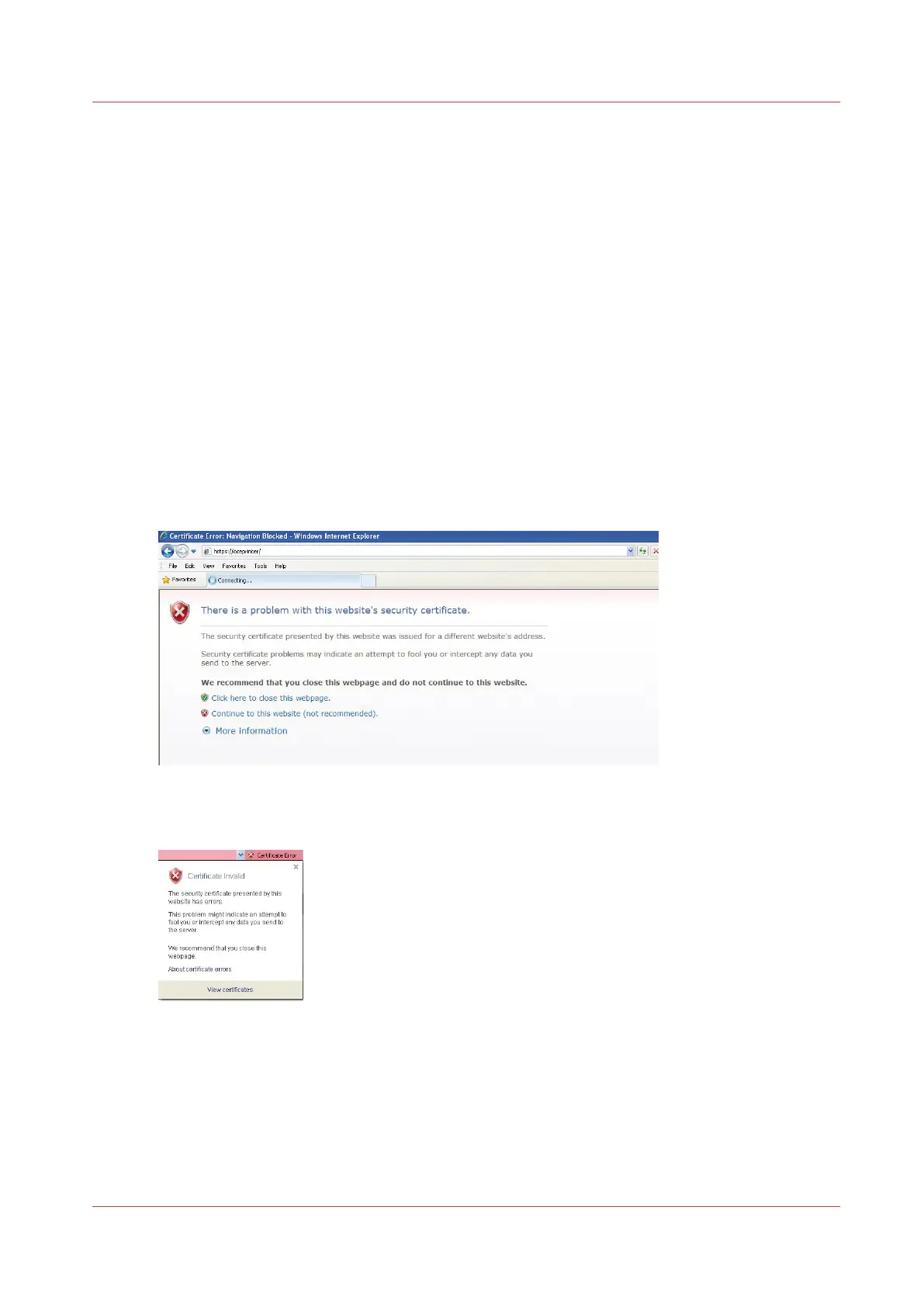
A warning window opens. It displays 2 errors:
• The certificate is not issued by a trusted certificate authority.
• The Common Name in the certificate does not match the printer hostname (or IP Address) you
typed in the address bar.
2.
In order to view and check the self-signed certificate, continue to the website
3.
Click on 'Certificate error':
4.
Click 'View certificates'
5.
The certificate is issued to 'OcéExpress WebTools' by 'Océ Express WebTools'
6.
Click 'Install Certificate...'
7.
Follow the Wizard's instructions to import the certificate into your web browser:
Use the Océ self-signed certificate with Internet Explorer
Chapter 2 - Security on Océ PlotWave 300/350, PlotWave 750, PlotWave 900 and ColorWave 300
89









 To Next Page