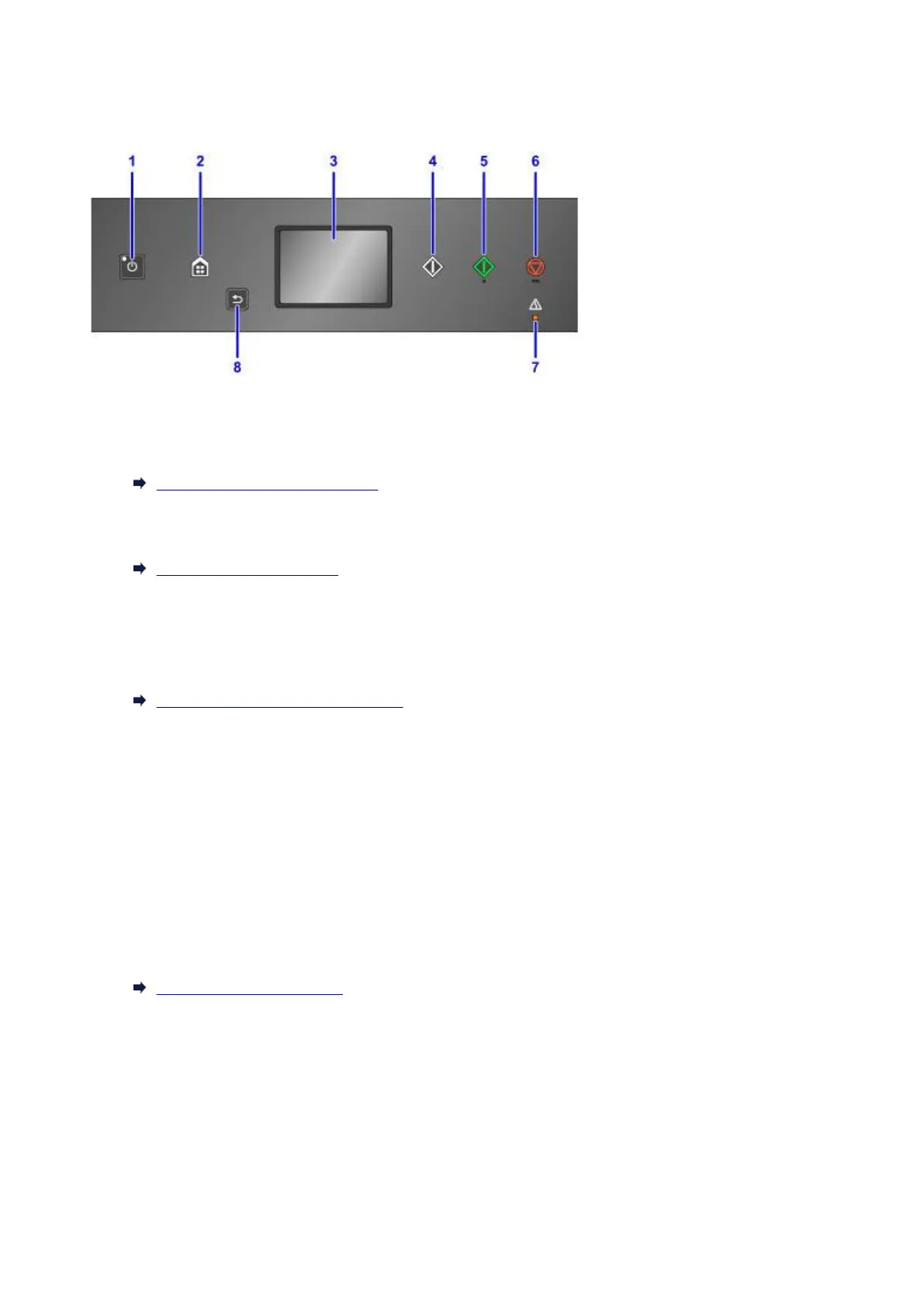
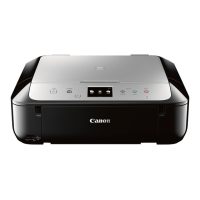
Operation Panel
* All lamps on the operation panel are shown lit in the figure below for explanatory purposes.
(1) ON button/POWER lamp
Turns the power on or off. Lights after flashing when the power is turned on. Before turning on the
power, make sure that the document cover is closed.
Turning the Machine On and Off
(2) HOME button
Used to display the HOME screen.
Using the Operation Panel
(3) touch screen
Displays messages, menu items, and the operational status. Directly touch the screen lightly with your
finger tip to select a menu item or displayed button. You can also preview photos on a memory card
before printing.
Basic Operation of the touch screen
(4) Black button
Starts black & white copying, scanning, etc.
(5) Color button
Starts color copying, scanning, etc.
(6) Stop button
(7) Alarm lamp
Lights or flashes when an error occurs.
(8) Back button
Returns the touch screen to the previous screen.
Using the Function Buttons
237







 To Next Page