Scanning Using the Control Panel (Windows XP Only)
You can scan images via the Control Panel of Windows XP using the WIA driver.
Important
• When using the scanner or printer with network connection, you cannot scan using the WIA driver.
1.
From the Start menu, select Control Panel.
2.
Click Printers and Other Hardware > Scanners and Cameras, then double-click Canon
XXX series (where "XXX" is the model name).
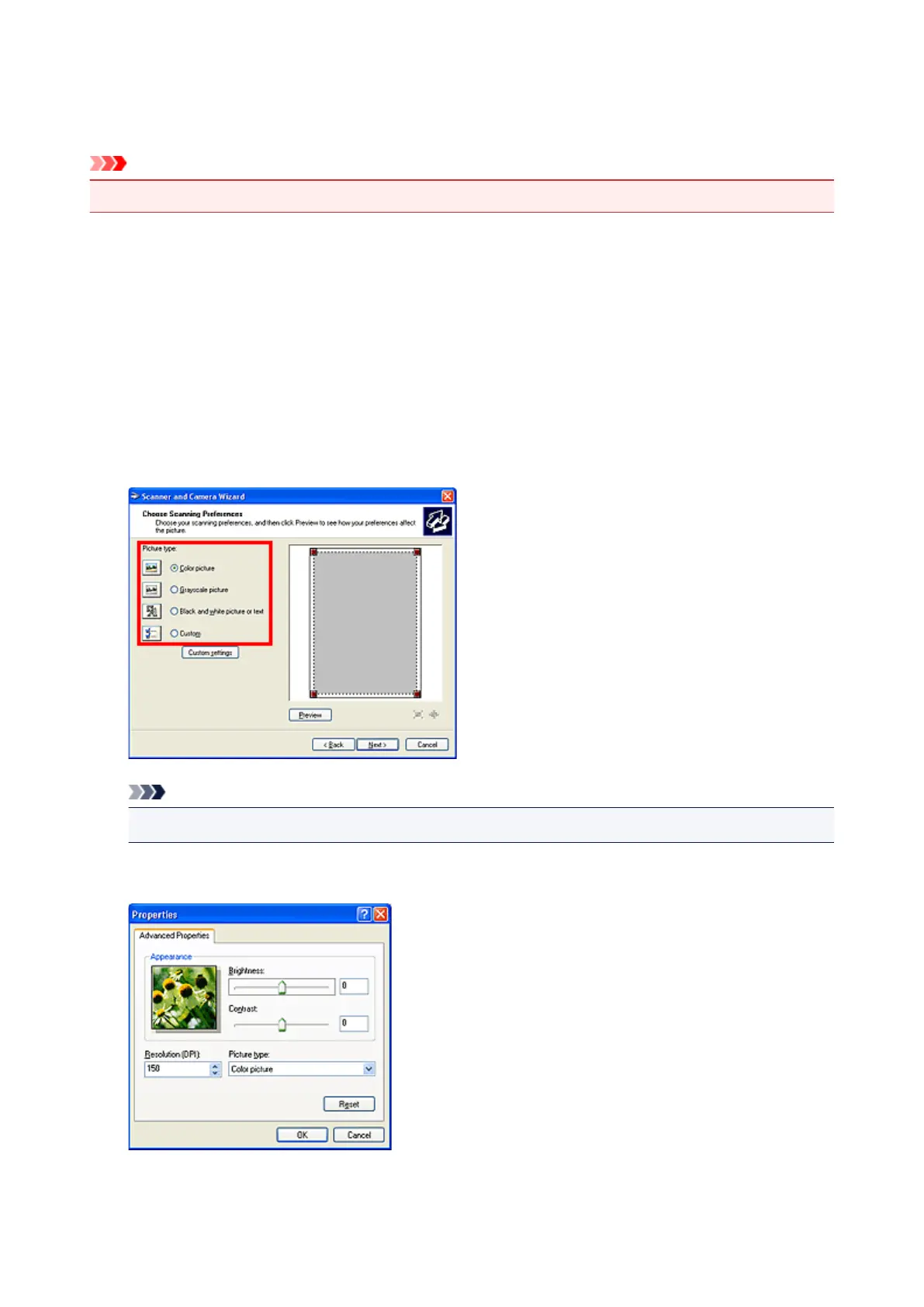
The Scanner and Camera Wizard dialog box appears.
3.
Click Next.
4.
Select Picture type according to the item to be scanned.
Note
•
To scan with the values previously set in Custom settings, select Custom.
5.
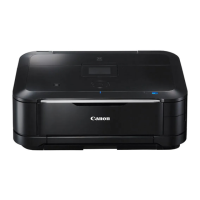
Click Custom settings to set the preferences as required.
Brightness
Move the slider to adjust the brightness. Move it to the left to darken and right to brighten the image.
You can also enter a value (-127 to 127).
793







 To Next Page