19
Preparing the Camera
3
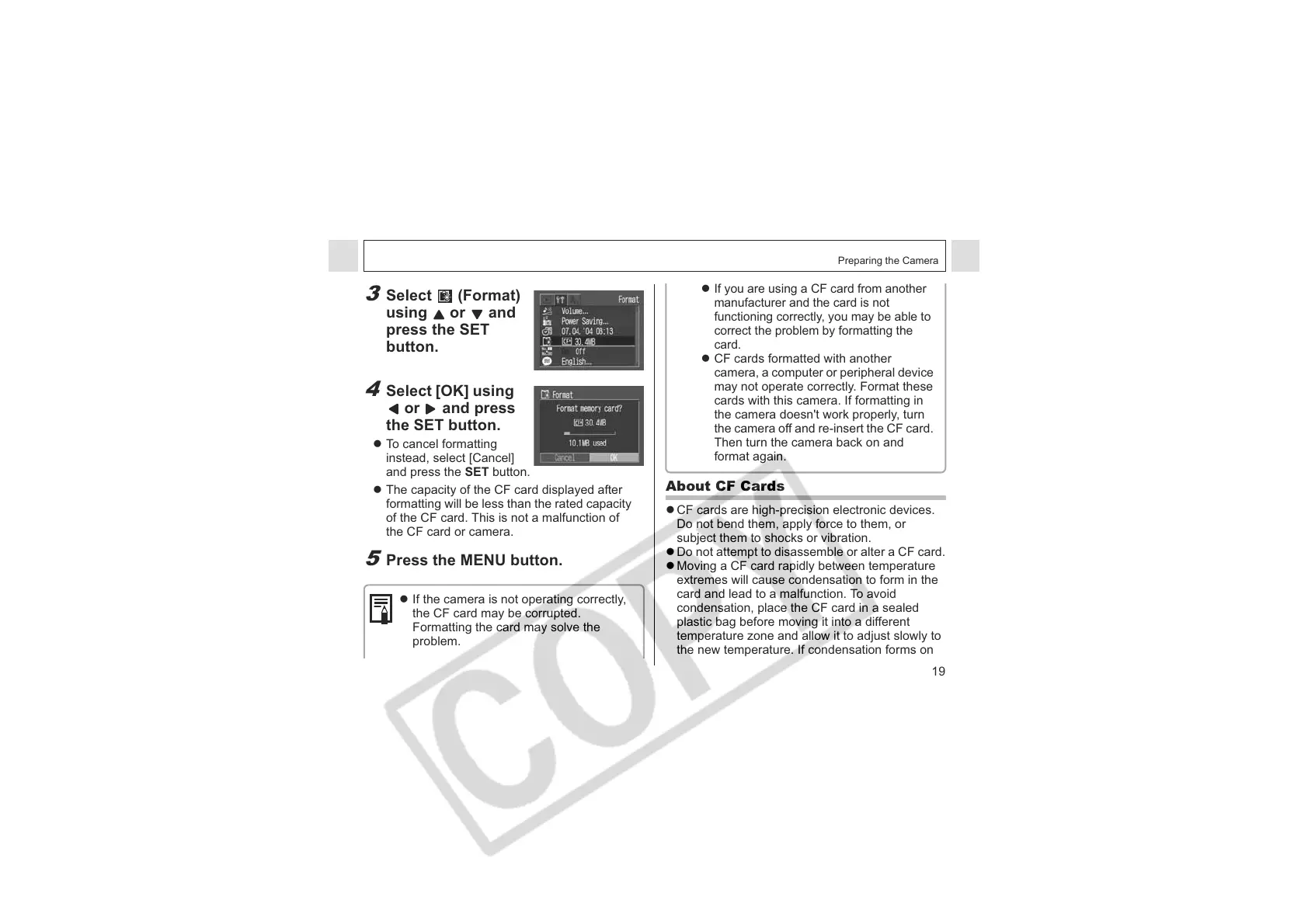
Select (Format)
using or and
press the SET
button.
4
Select [OK] using
or and press
the SET button.
z To cancel formatting
instead, select [Cancel]
and press the SET button.
z The capacity of the CF card displayed after
formatting will be less than the rated capacity
of the CF card. This is not a malfunction of
the CF card or camera.
5
Press the MENU button.
z If the camera is not operating correctly,
the CF card may be corrupted.
Formatting the card may solve the
problem.
z
If you are using a CF card from another
manufacturer and the card is not
functioning correctly, you may be able to
correct the problem by formatting the
card.
z CF cards formatted with another
camera, a computer or peripheral device
may not operate correctly. Format these
cards with this camera. If formatting in
the camera doesn't work properly, turn
the camera off and re-insert the CF card.
Then turn the camera back on and
format again.
About CF Cards
z CF cards are high-precision electronic devices.
Do not bend them, apply force to them, or
subject them to shocks or vibration.
z Do not attempt to disassemble or alter a CF card.
z Moving a CF card rapidly between temperature
extremes will cause condensation to form in the
card and lead to a malfunction. To avoid
condensation, place the CF card in a sealed
plastic bag before moving it into a different
temperature zone and allow it to adjust slowly to
the new temperature. If condensation forms on




 To Next Page