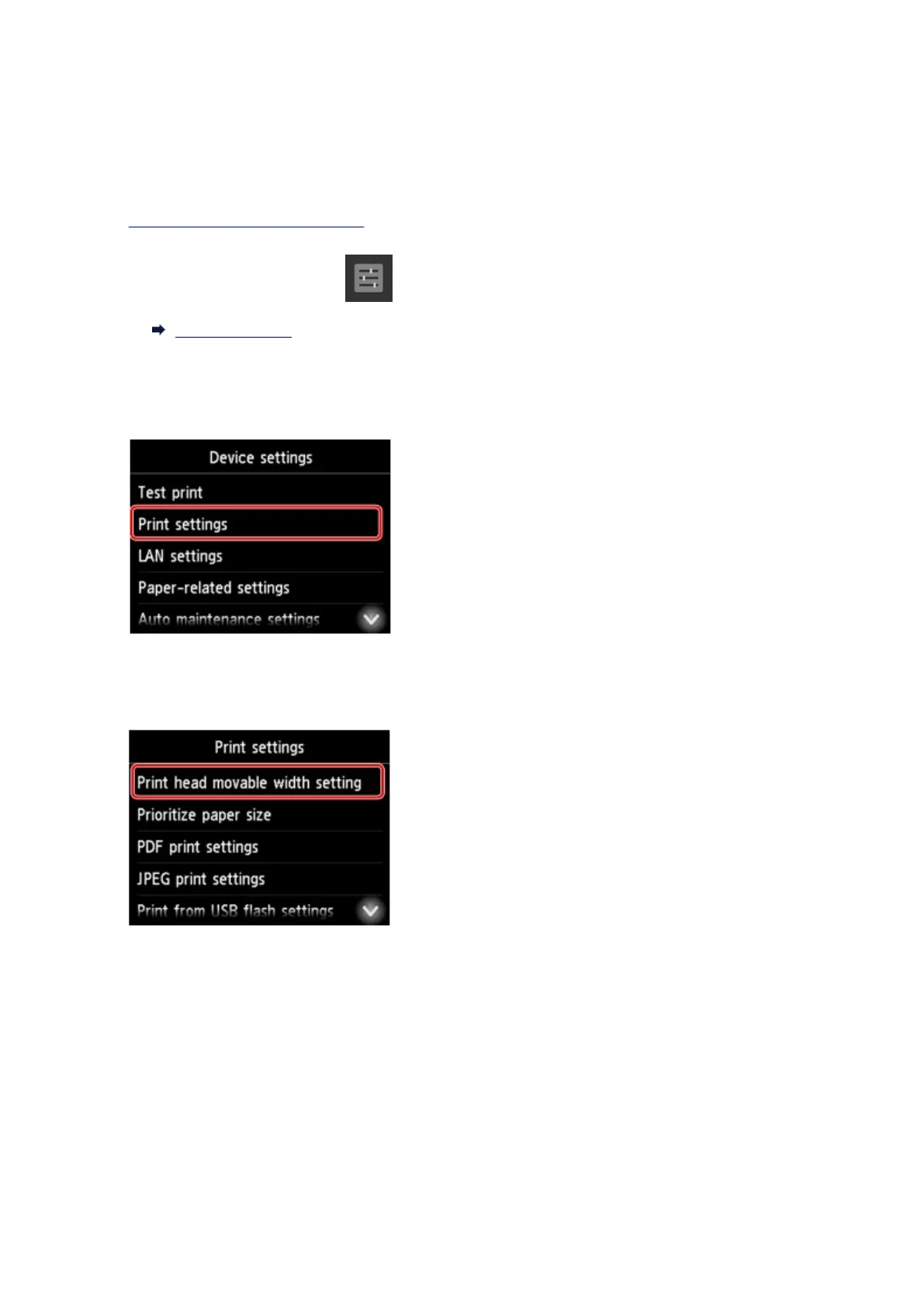
Changing Settings from Operation Panel
This section describes the procedure to change the settings in the Device settings screen, taking the steps
to specify Print head movable width setting as an example.
1. Make sure printer is turned on.
2.
Flick HOME screen and tap Device settings.
Menu Operations
The Device settings screen appears.
3.
Tap setting item to adjust.
The setting screen for the selected item appears.
4.
Tap setting item.
5. Tap setting to specify.
151






 To Next Page