3. Tap Paper settings.
4. Tap Advanced.
5. Tap Cutting mode.
6.
Tap Eject cut.
7.
Print the job.
When printing is finished, the printer will stop without cutting.
8.
While holding printed document to prevent it from dropping, tap Cut paper to cut roll
paper.
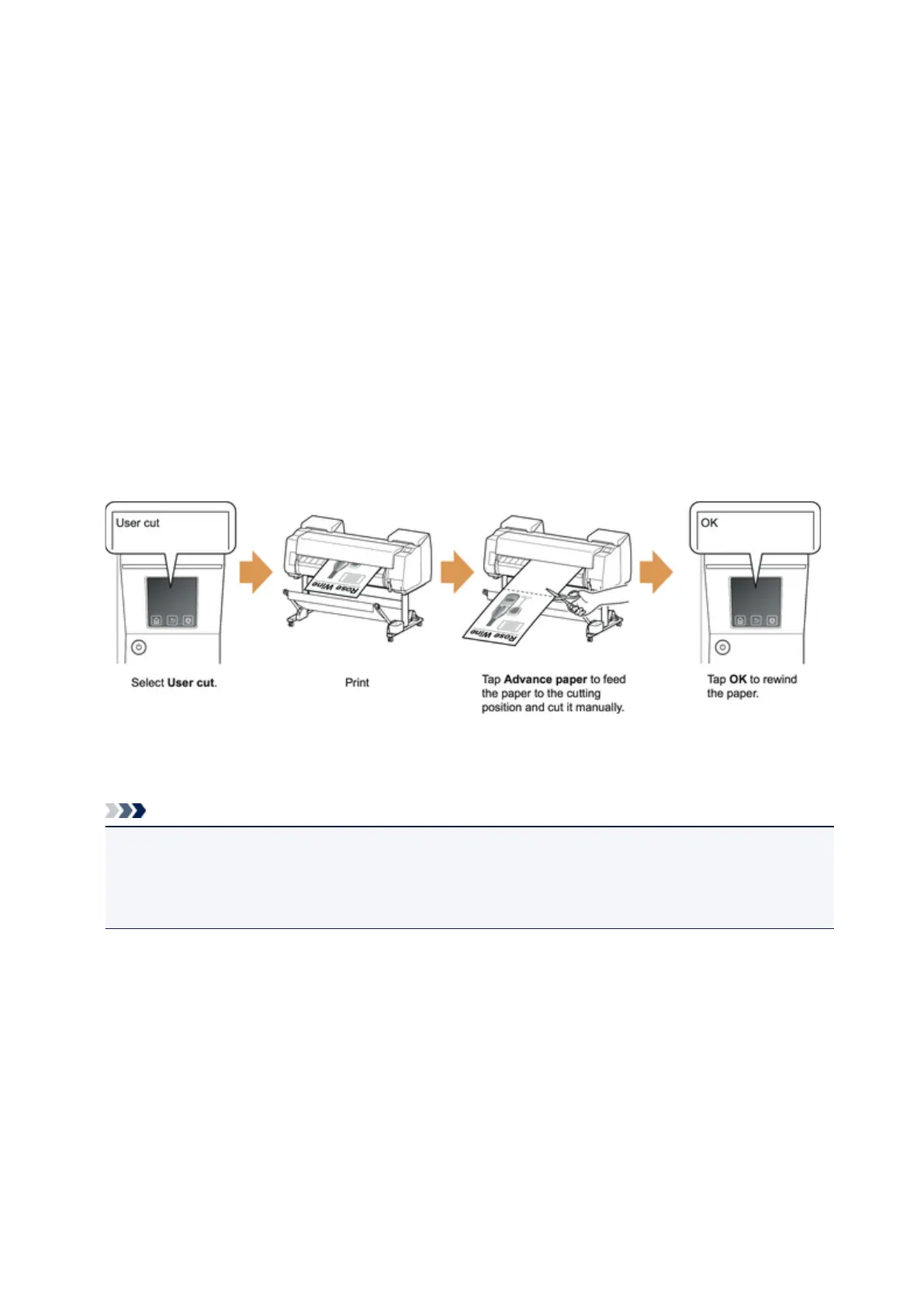
Manual (when using media that cannot be cut with the cutter blade)
Note
• Once the following step has been performed, the procedure can be started from step 8 the next time.
• Printing the second and subsequent times
• Printing after replacing with the same type of paper
1. Tap paper settings display area on Home screen of touch screen.
74






 To Next Page